Using a Let’s Encrypt Cluster Issuer for Certificate Manager

I’m a big fan of Let’s Encrypt as its a great service that provides free TLS certificates for your applications and websites. This post summarizes the steps to setup Let’s Encrypt as the cluster issuer for certificate manager.

A Cluster Issuer enables your applications to automatically request TLS certificates from Let’s Encrypt. It basically avoids having to do the following manually:

  • Typing certbot certonly --manual --cert-name something.domain.com --preferred-challenge=dns to create a manual TLS request.
  • Then going to your DNS service and creating the TXT record.
  • Then downloading the cert.pem and privkey.pem.
  • Then creating a secret to use the new certificate.

Pre-requisites

  1. A Kubernetes cluster, I’m using a TKG cluster
  2. A domain name managed by a well-known domain registrar (I’m using Cloud Flare, but Route 53 and others can also be used)

Step 1. Install Cert Manager into your Kubernetes cluster

# Install Tanzu Standard Repository
tanzu package repository add tanzu-standard --url projects.registry.vmware.com/tkg/packages/standard/repo:v2024.2.1 --namespace tkg-system

# Create namespace for cert-manager tanzu packages
k create ns my-packages

# Install cert-manager 
tanzu package install cert-manager --package cert-manager.tanzu.vmware.com --namespace my-packages --version 1.12.2+vmware.2-tkg.2

# Install cert-manager custom resource definitions
kubectl apply -f https://github.com/cert-manager/cert-manager/releases/download/v1.14.4/cert-manager.crds.yaml

Step 2. Create a Secret for Cloud Flare

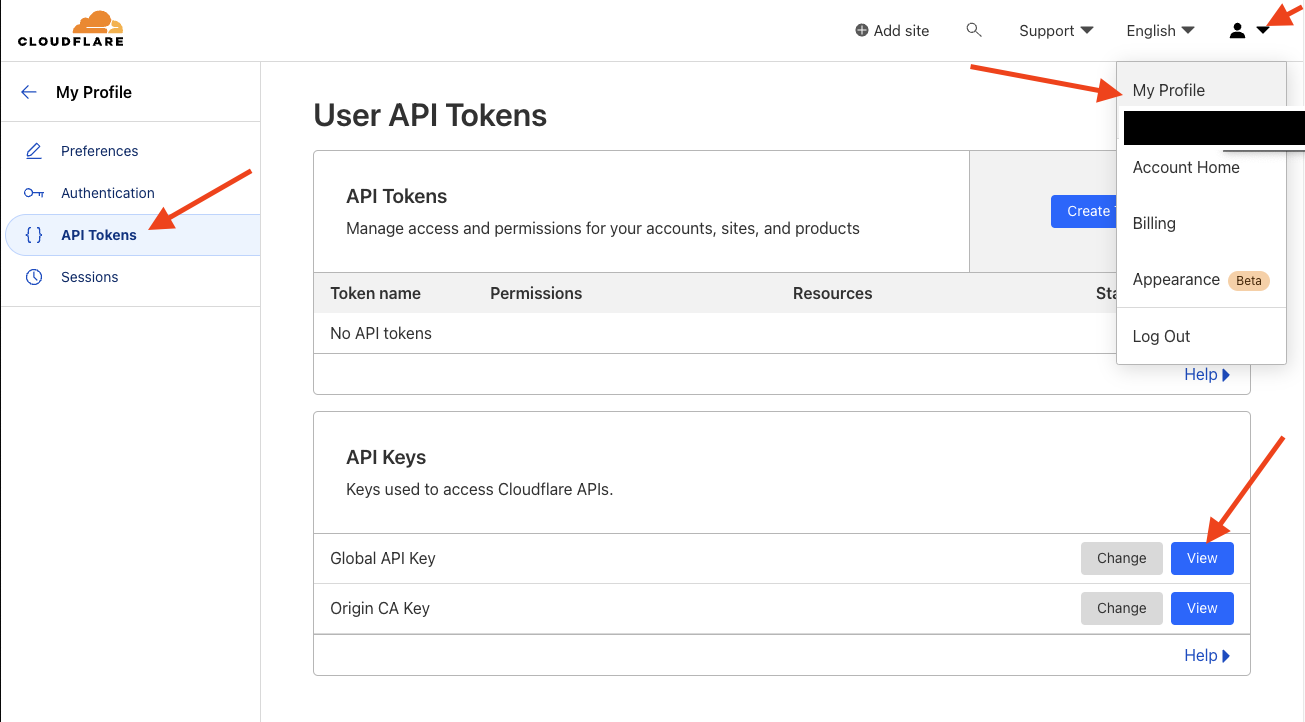
I am using Cloud Flare as my DNS provider. Cloud Flare has an API that can be used with an API Token or an API Key. I am using an API Key to allow Let’s Encrypt to verify domain ownership with Cloud Flare.

You can get your API Key by following this screenshot.

Then create the following file secret-cloudflare.yaml.

apiVersion: v1
kind: Secret
metadata:
  name: cloudflare-api-key-secret
  namespace: cert-manager
type: Opaque
stringData:
  api-key: <your-cloud-flare-api-key>
  # - or -
  # api-token: your-api-token

Step 3. Create the Let’s Encrypt Cluster Issuer

I am using Let’s Encrypt as the certificate issuer and it will check the validity of the certificate request against the domain ownership in Cloud Flare using the Secret created in Step 2.

Create another file named cluster-issuer-production.yaml.

apiVersion: cert-manager.io/v1
kind: ClusterIssuer
metadata:
  name: letsencrypt-production
spec:
  acme:
    email: <your-email-address>
    # Letsencrypt Production
    server: https://acme-v02.api.letsencrypt.org/directory
    # - or -
    # Letsencrypt Staging
    # server: https://acme-staging-v02.api.letsencrypt.org/directory
    privateKeySecretRef:
      name: example-issuer-account-key
    solvers:
    - dns01:
        cloudflare:
          email: <your-cloudflare-email-account>
          apiKeySecretRef:
            name: cloudflare-api-key-secret
            key: api-key

Step 4. Apply both files to create the Secret containing the Cloud Flare API Key and the Cluster Issuer.

kubectl apply -f secret-cloudflare.yaml

kubectl apply -f cluster-issuer-production.yaml

Your cluster is now ready for automatically issuing TLS certificates using Certificate Manager.

Example Application

The following is an example application manifest that uses the letsencrypt-production ClusterIssuer to request a TLS certificate from Let’s Encrypt named nginx.k8slabs.com.

My test domain k8slabs.com is running in Cloud Flare.

The manifest has the following sections:

  • namespace – creates the nginx namespace for all of the resources below
  • service – ClusterIP service for nginx to expose the nginx pod created by the
  • statefulset – creates the statefulset that will deploy the nginx pods
  • certificate – issued by the ClusterIssuer using Let’s Encrypt and checks validity against the DNS records in CloudFlare
  • httpproxy (ingress) – creates an ingress and uses the certificate created by the ClusterIssuer to expose the nginx application over secure TLS

Sample application nginx-statefulset-contour-tls.yaml

---
apiVersion: v1
kind: Namespace
metadata:
  name: nginx
  labels:
    name: nginx
---
apiVersion: v1
kind: Service
metadata:
  name: nginx-service
  namespace: nginx
spec:
  selector:
    app: nginx
  ports:
    - name: http
      port: 80
      targetPort: 80
      protocol: TCP
  type: ClusterIP
---
apiVersion: apps/v1
kind: StatefulSet
metadata:
  name: nginx
  namespace: nginx
spec:
  selector:
    matchLabels:
      app: nginx
  serviceName: "nginx-service"
  replicas: 1
  template:
    metadata:
      labels:
        app: nginx
    spec:
      terminationGracePeriodSeconds: 10
      containers:
      - name: nginx
        image: k8s.gcr.io/nginx-slim:0.8
        ports:
        - containerPort: 80
          name: nginx
---
apiVersion: cert-manager.io/v1
kind: Certificate
metadata:
  name: nginx
  namespace: nginx
spec:
  secretName: nginx
  issuerRef:
    name: letsencrypt-production
    kind: ClusterIssuer
  dnsNames:
    - 'nginx.k8slabs.com'
---
apiVersion: projectcontour.io/v1
kind: HTTPProxy
metadata:
  annotations:
  labels:
    app: nginx
  name: nginx-httpproxy
  namespace: nginx
spec:
  routes:
  - conditions:
    - prefix: /
    pathRewritePolicy:
      replacePrefix:
      - prefix: /
        replacement: /
    services:
    - name: nginx-service
      port: 80
  virtualhost:
    fqdn: nginx.k8slabs.com
    tls:
      secretName: nginx

Visual View

Expose Kubernetes Dashboard with Contour

Dashboard is a web-based Kubernetes user interface. You can use Dashboard to deploy containerized applications to a Kubernetes cluster, troubleshoot your containerized application, and manage the cluster resources. You can use Dashboard to get an overview of applications running on your cluster, as well as for creating or modifying individual Kubernetes resources (such as Deployments, Jobs, DaemonSets, etc). For example, you can scale a Deployment, initiate a rolling update, restart a pod or deploy new applications using a deploy wizard.

Dashboard also provides information on the state of Kubernetes resources in your cluster and on any errors that may have occurred.

In the previous posts, I’ve described how to deploy Kubernetes Dashboard with TLS certs and expose using a Load Balancer service.

This post shows you how you can expose the Dashboard using Contour with TLS certificates.

Step 1. Download the Kubernetes Dashboard manifest

https://raw.githubusercontent.com/kubernetes/dashboard/v2.7.0/aio/deploy/recommended.yaml

Step 2. Edit the file

Go to the kubernetes-dashboard Service and add in another line to make the service a ClusterIP service for Contour to use. It should look like this:

kind: Service
apiVersion: v1
metadata:
  labels:
    k8s-app: kubernetes-dashboard
  name: kubernetes-dashboard
  namespace: kubernetes-dashboard
spec:
  ports:
    - port: 443
      targetPort: 8443
  selector:
    k8s-app: kubernetes-dashboard
  type: ClusterIP

Go to the kubernetes-dashboard-certs Secret and add in your tls certificate and private key for the Dashboard in base64 format and change the type to kubernetes.io/tls. It should look something like this:

apiVersion: v1
kind: Secret
metadata:
  labels:
    k8s-app: kubernetes-dashboard
  name: kubernetes-dashboard-certs
  namespace: kubernetes-dashboard
data:
  tls.crt: LS0tLS1CRUdJTiBDRVJUSUZJQ0FURS0tLS0tCk1JSUU1VENDQTgyZ0F3SUJBZ0lT--snipped--
  tls.key: --snipped--
type: kubernetes.io/tls

Go to the kubernetes-dashboard Deployment spec.template.spec.containers.args section and add in these two lines:

            - --tls-cert-file=/tls.crt
            - --tls-key-file=/tls.key

It should end up looking something like this:

    spec:
      securityContext:
        seccompProfile:
          type: RuntimeDefault
      containers:
        - name: kubernetes-dashboard
          image: kubernetesui/dashboard:v2.7.0
          imagePullPolicy: Always
          ports:
            - containerPort: 8443
              protocol: TCP
          args:
            - --tls-cert-file=/tls.crt
            - --tls-key-file=/tls.key
            - --auto-generate-certificates
            - --namespace=kubernetes-dashboard

Step 3. Add in the Contour httpproxy

Go all the way to the bottom of the file and add in this section, of course changing it to your desired FQDN.

---

apiVersion: projectcontour.io/v1
kind: HTTPProxy
metadata:
  labels:
    k8s-app: kubernetes-dashboard
  namespace: kubernetes-dashboard
  name: kubernetes-dashboard-httpproxy
spec:
  routes:
  - conditions:
    - prefix: /
    services:
    - name: kubernetes-dashboard
      port: 443
      protocol: tls
  virtualhost:
    fqdn: kubernetes-dashboard.vmwire.com
    tls:
      secretName: kubernetes-dashboard-certs

Step 4. Add in a ServiceAccount and a ClusterRoleBinding

Go all the way to the bottom of the file and add in this section.

---
apiVersion: v1
kind: ServiceAccount
metadata:
  name: admin-user
  namespace: kubernetes-dashboard
---
apiVersion: rbac.authorization.k8s.io/v1
kind: ClusterRoleBinding
metadata:
  name: admin-user
roleRef:
  apiGroup: rbac.authorization.k8s.io
  kind: ClusterRole
  name: cluster-admin
subjects:
- kind: ServiceAccount
  name: admin-user

Step 5. Deploy the manifest

kubetcl apply -f recommended.yaml

Step 6. Obtain login token

kubectl -n kubernetes-dashboard create token admin-user

TKG 2.3 Multi AZ Day 2 Operations

In the previous post, I highlighted the key updates that the TKG 2.3 release had towards multi availability zone enabled clusters. The previous post discussed greenfield Day-0 deployments of TKG clusters using multi AZs. This post will focus more on Day-2 operations, such as how to enable AZs for already deployed clusters that were not AZ enabled. For example, you already deployed clusters with an older version of TKG that did not bring generally available support for the multi-AZ feature.

Enabling multi-AZ for clusters initially deployed without AZs

To enable multi-AZ for a cluster that was initially deployed without AZs, you can follow the procedure below. Note that this is for a workload cluster and not a management cluster. To enable this for a management cluster, just add the tkg-system namespace and change the name of the cluster to the management cluster.

We’ve made it very easy to do Day-2 operations, since the AZs are just labels, and if you’re already familiar with Kubernetes labels, its a simple operation of adding the label to the controlPlaneZoneMatchingLabels key.

Note that the labels needs to be relevant to the file vsphere-zones.yaml labels, just apply this file to the TKG management cluster. My example is below:

---
apiVersion: infrastructure.cluster.x-k8s.io/v1beta1
kind: VSphereDeploymentZone
metadata:
 name: az-1
 labels:
   region: cluster
   az: az-1
spec:
 server: vcenter.vmwire.com
 failureDomain: az-1
 placementConstraint:
   resourcePool: tkg-vsphere-workload
   folder: tkg-vsphere-workload
---
apiVersion: infrastructure.cluster.x-k8s.io/v1beta1
kind: VSphereDeploymentZone
metadata:
 name: az-2
 labels:
   region: cluster
   az: az-2
spec:
 server: vcenter.vmwire.com
 failureDomain: az-2
 placementConstraint:
   resourcePool: tkg-vsphere-workload
   folder: tkg-vsphere-workload
---
apiVersion: infrastructure.cluster.x-k8s.io/v1beta1
kind: VSphereDeploymentZone
metadata:
 name: az-3
 labels:
   region: cluster
   az: az-3
spec:
 server: vcenter.vmwire.com
 failureDomain: az-3
 placementConstraint:
   resourcePool: tkg-vsphere-workload
   folder: tkg-vsphere-workload

Control Plane nodes

When ready, run the command below against the TKG Management Cluster context to set the label for control plane nodes of the TKG cluster named tkg-cluster.
kubectl get cluster tkg-cluster -o json | jq '.spec.topology.variables |= map(if .name == "controlPlaneZoneMatchingLabels" then .value = {"region": "cluster"} else . end)'| kubectl replace -f -

You should receive the following response.

cluster.cluster.x-k8s.io/tkg-cluster replaced

You can check that the cluster status to ensure that the failure domain has been updated as expected.

kubectl get cluster tkg-cluster -o json | jq -r '.status.failureDomains | to_entries[].key'

The response would look something like

az-1
az-2
az-3

Next we patch the KubeAdmControlPlane with rolloutAfter to trigger an update of controlplane node(s).

kubectl patch kcp tkg-cluster-f2km7 --type merge -p "{\"spec\":{\"rolloutAfter\":\"$(date +'%Y-%m-%dT%TZ')\"}}"

You should see vCenter start to clone new control plane nodes, and when the nodes start, they will be placed in an AZ. You can also check with the command below.

kubectl get machines -o json | jq -r '[.items[] | {name:.metadata.name, failureDomain:.spec.failureDomain}]'

As nodes are started and join the cluster, they will get placed into the right AZ.

[
  {
    "name": "tkg-cluster-f2km7-2kwgs",
    "failureDomain": null
  },
  {
    "name": "tkg-cluster-f2km7-6pgmr",
    "failureDomain": null
  },
  {
    "name": "tkg-cluster-f2km7-cqndc",
    "failureDomain": "az-2"
  },
  {
    "name": "tkg-cluster-f2km7-pzqwx",
    "failureDomain": null
  },
  {
    "name": "tkg-cluster-md-0-j6c24-6c8c9d45f7xjdchc-97q57",
    "failureDomain": null
  },
  {
    "name": "tkg-cluster-md-1-nqvsf-55b5464bbbx4xzkd-q6jhq",
    "failureDomain": null
  },
  {
    "name": "tkg-cluster-md-2-srr2c-77cc694688xcx99w-qcmwg",
    "failureDomain": null
  }
]

And after a few minutes…

[
  {
    "name": "tkg-cluster-f2km7-2kwgs",
    "failureDomain": null
  },
  {
    "name": "tkg-cluster-f2km7-4tn6l",
    "failureDomain": "az-1"
  },
  {
    "name": "tkg-cluster-f2km7-cqndc",
    "failureDomain": "az-2"
  },
  {
    "name": "tkg-cluster-f2km7-w7vs5",
    "failureDomain": "az-3"
  },
  {
    "name": "tkg-cluster-md-0-j6c24-6c8c9d45f7xjdchc-97q57",
    "failureDomain": null
  },
  {
    "name": "tkg-cluster-md-1-nqvsf-55b5464bbbx4xzkd-q6jhq",
    "failureDomain": null
  },
  {
    "name": "tkg-cluster-md-2-srr2c-77cc694688xcx99w-qcmwg",
    "failureDomain": null
  }
]

Worker nodes

The procedure is almost the same for the worker nodes.

Let’s check the current MachineDeploy topology.

kubectl get cluster tkg-cluster -o=jsonpath='{range .spec.topology.workers.machineDeployments[*]}{"Name: "}{.name}{"\tFailure Domain: "}{.failureDomain}{"\n"}{end}'

The response should be something like this, since this cluster was initially deployed without AZs.

Name: md-0	Failure Domain:
Name: md-1	Failure Domain:
Name: md-2	Failure Domain:

Patch the cluster tkg-cluster with VSphereFailureDomain az-1, az-2 and az-3. In this example, the tkg-cluster cluster plan is prod and has three MachineDeployments. If your tkg-cluster cluster uses the dev plan, then you only need to update 1 MachineDeployment in cluster spec.toplogy.wokers.machineDeployments.

kubectl patch cluster tkg-cluster --type=json -p='[ {"op": "replace", "path": "/spec/topology/workers/machineDeployments/0/failureDomain", "value": "az-1"}, {"op": "replace", "path": "/spec/topology/workers/machineDeployments/1/failureDomain", "value": "az-2"}, {"op": "replace", "path": "/spec/topology/workers/machineDeployments/2/failureDomain", "value": "az-3"}]'

Lets check the MachineDeployment topology now that the change has been made.

kubectl get cluster tkg-cluster -o=jsonpath='{range .spec.topology.workers.machineDeployments[*]}{"Name: "}{.name}{"\tFailure Domain: "}{.failureDomain}{"\n"}{end}'

The response should be something like this, since this cluster was initially deployed without AZs.

Name: md-0	Failure Domain: az-1
Name: md-1	Failure Domain: az-2
Name: md-2	Failure Domain: az-3

vCenter should immediately start deploying new worker nodes, when they start they will be placed into the correct AZs.

You can also check with the command below.

kubectl get machines -o json | jq -r '[.items[] | {name:.metadata.name, failureDomain:.spec.failureDomain}]'

[
  {
    "name": "tkg-cluster-f2km7-4tn6l",
    "failureDomain": "az-1"
  },
  {
    "name": "tkg-cluster-f2km7-cqndc",
    "failureDomain": "az-2"
  },
  {
    "name": "tkg-cluster-f2km7-w7vs5",
    "failureDomain": "az-3"
  },
  {
    "name": "tkg-cluster-md-0-j6c24-6c8c9d45f7xjdchc-97q57",
    "failureDomain": null
  },
  {
    "name": "tkg-cluster-md-0-j6c24-8f6b4f8d5xplqlf-p8d8k",
    "failureDomain": "az-1"
  },
  {
    "name": "tkg-cluster-md-1-nqvsf-55b5464bbbx4xzkd-q6jhq",
    "failureDomain": null
  },
  {
    "name": "tkg-cluster-md-1-nqvsf-7dc48df8dcx6bs6b-kmj9r",
    "failureDomain": "az-2"
  },
  {
    "name": "tkg-cluster-md-2-srr2c-77cc694688xcx99w-qcmwg",
    "failureDomain": null
  },
  {
    "name": "tkg-cluster-md-2-srr2c-f466d4484xxc9xz-8sjfn",
    "failureDomain": "az-3"
  }
]

And after a few minutes…

kubectl get machines -o json | jq -r ‘[.items[] | {name:.metadata.name, failureDomain:.spec.failureDomain}]’

[
  {
    "name": "tkg-cluster-f2km7-4tn6l",
    "failureDomain": "az-1"
  },
  {
    "name": "tkg-cluster-f2km7-cqndc",
    "failureDomain": "az-2"
  },
  {
    "name": "tkg-cluster-f2km7-w7vs5",
    "failureDomain": "az-3"
  },
  {
    "name": "tkg-cluster-md-0-j6c24-8f6b4f8d5xplqlf-p8d8k",
    "failureDomain": "az-1"
  },
  {
    "name": "tkg-cluster-md-1-nqvsf-7dc48df8dcx6bs6b-kmj9r",
    "failureDomain": "az-2"
  },
  {
    "name": "tkg-cluster-md-2-srr2c-f466d4484xxc9xz-8sjfn",
    "failureDomain": "az-3"
  }
]

Update CPI and CSI for topology awareness

We also need to update the CPI and CSI to reflect the support for multi-AZ, note this is only required for Day-2 operations as CSI and CPI topology awareness is automatically done for greenfield clusters.

First, check to see if the machineDeployments have been updated for Failure

In TKG 2.3 with cluster class based clusters, CPI and CSI are managed by Tanzu Packages (pkgi), you can see these by running the following commands:

k get vspherecpiconfigs.cpi.tanzu.vmware.com

k get vspherecsiconfigs.csi.tanzu.vmware.com

First, we need to update the VSphereCPIConfig and add in the k8s-region and k8s-zone into the spec.

k edit vspherecpiconfigs.cpi.tanzu.vmware.com tkg-workload12-vsphere-cpi-package

Add in the region and zone into the spec.

spec:
  vsphereCPI:
    antreaNSXPodRoutingEnabled: false
    mode: vsphereCPI
    region: k8s-region
    tlsCipherSuites: TLS_ECDHE_ECDSA_WITH_AES_128_GCM_SHA256,TLS_ECDHE_RSA_WITH_AES_128_GCM_SHA256,TLS_ECDHE_ECDSA_WITH_CHACHA20_POLY1305,TLS_ECDHE_RSA_WITH_AES_256_GCM_SHA384,TLS_ECDHE_RSA_WITH_CHACHA20_POLY1305,TLS_ECDHE_ECDSA_WITH_AES_256_GCM_SHA384
    zone: k8s-zone

Change to the workload cluster context and run this command to check the reconciliation status for VSphereCPIConfig

k get pkgi -n tkg-system tkg-workload12-vsphere-cpi

If it shows anything but Reconcile succeeded, then we need to force the update with a deletion.

k delete pkgi -n tkg-system tkg-workload12-vsphere-cpi

Secondly, we need to update the VSphereCSIConfig and add in the k8s-region and k8s-zone into the spec.

Change back to the TKG Management cluster context and run the following command

k edit vspherecsiconfigs.csi.tanzu.vmware.com tkg-workload12

spec:
  vsphereCSI:
    config:
      datacenter: /home.local
      httpProxy: ""
      httpsProxy: ""
      insecureFlag: false
      noProxy: ""
      useTopologyCategories: true
      region: k8s-region
      zone: k8s-zone
    mode: vsphereCSI

Delete the csinodes and csinodetopologies to make the change.

Change to the workload cluster context and run the following commands

k delete csinode --all --context tkg-workload12-admin@tkg-workload12


k delete csinodetopologies.cns.vmware.com --all --context tkg-workload12-admin@tkg-workload12

Run the following command to check the reconciliation process

k get pkgi -n tkg-system tkg-workload12-vsphere-csi

We need to delete the CSI pkgi to force the change

k delete pkgi -n tkg-system tkg-workload12-vsphere-csi

We can check that the topology keys are now active with this command

kubectl get csinodes -o jsonpath='{range .items[*]}{.metadata.name} {.spec}{"\n"}{end}'

tkg-workload12-md-0-5j2dw-76bf777bbdx6b4ss-v7fn4 {"drivers":[{"allocatable":{"count":59},"name":"csi.vsphere.vmware.com","nodeID":"4225d4f9-ded1-611b-1fd5-7320ffffbe28","topologyKeys":["topology.csi.vmware.com/k8s-region","topology.csi.vmware.com/k8s-zone"]}]}
tkg-workload12-md-1-69s4n-85b74654fdx646xd-ctrkg {"drivers":[{"allocatable":{"count":59},"name":"csi.vsphere.vmware.com","nodeID":"4225ff47-9c82-b377-a4a2-d3ea15bce5aa","topologyKeys":["topology.csi.vmware.com/k8s-region","topology.csi.vmware.com/k8s-zone"]}]}
tkg-workload12-md-2-h2p9p-5f85887b47xwzcpq-7pgc8 {"drivers":[{"allocatable":{"count":59},"name":"csi.vsphere.vmware.com","nodeID":"4225b76d-ef40-5a7f-179a-31d804af969c","topologyKeys":["topology.csi.vmware.com/k8s-region","topology.csi.vmware.com/k8s-zone"]}]}
tkg-workload12-x2jb5-6nt2b {"drivers":[{"allocatable":{"count":59},"name":"csi.vsphere.vmware.com","nodeID":"4225ba85-53dc-56fd-3e9c-5ce609bb08d3","topologyKeys":["topology.csi.vmware.com/k8s-region","topology.csi.vmware.com/k8s-zone"]}]}
tkg-workload12-x2jb5-7sl8j {"drivers":[{"allocatable":{"count":59},"name":"csi.vsphere.vmware.com","nodeID":"42251a1c-871c-5826-5a45-a6747c181962","topologyKeys":["topology.csi.vmware.com/k8s-region","topology.csi.vmware.com/k8s-zone"]}]}
tkg-workload12-x2jb5-mmhvb {"drivers":[{"allocatable":{"count":59},"name":"csi.vsphere.vmware.com","nodeID":"42257d5a-daab-2ba6-dfb7-aa75f4063250","topologyKeys":["topology.csi.vmware.com/k8s-region","topology.csi.vmware.com/k8s-zone"]}]}

Thats it! We’ve successfully updated an already deployed cluster without AZs to now be able to use AZs for pod placement and PVC placement with topology awareness.

TKG 2.3 Multi Availability Zone Updates

TKG 2.3 has some changes to how TKG clusters with multi availability zones are deployed. This post summarises these changes.

These changes allow some cool new options such as

  • Deploy a TKG cluster into multiple AZs where, each AZ can be a vSphere cluster or a host group, where a host group can have one or more ESX hosts.
  • Deploy worker nodes across AZs, but do not deploy control plane nodes into any AZ.
  • Deploy worker nodes across AZs, and enforce control plane nodes to be in one AZ
  • Deploy TKG clusters without AZs.
  • Deploy all nodes into just one AZ, think vSAN stretched cluster use cases.
  • Enable multi-AZ for already deployed clusters that were initially deployed without AZs.
  • All of the above but with one control plane node (CLUSTER_PLAN: dev) or three control plane nodes (CLUSTER_PLAN: prod)
  • All of the above but with single node clusters too!
  • CSI topology has not changed and is supported for topology aware volume provisioning.

VSphereDeploymentZone requires labels

The VSphereDeploymentZone needs to be labeled in order for the new configuration variable VSPHERE_AZ_CONTROL_PLANE_MATCHING_LABELS to use the labels. This parameter is used to place the control plane nodes into the desired AZ.

Note that if VSPHERE-ZONE and VSPHERE_REGION is specified in the cluster configuration file then you must specify a VSPHERE_AZ_CONTROL_PLANE_MATCHING_LABELS. If you don’t you’ll get this error:

Error: workload cluster configuration validation failed: VSPHERE_AZ_CONTROL_PLANE_MATCHING_LABELS should be configured if VSPHERE_ZONE/VSPHERE_REGION are configured

You also cannot leave the variable for VSPHERE_AZ_CONTROL_PLANE_MATCHING_LABELS blank, or give a fake label e.g., VSPHERE_AZ_CONTROL_PLANE_MATCHING_LABELS: “fake=fake” as you’ll get this error:

Error: workload cluster configuration validation failed: unable find VsphereDeploymentZone by the matchlabels.

However, there are ways around this, which I’ll cover below.

Below is my manifest for the VSphereDeploymentZone, note that labels for region and az.

---
apiVersion: infrastructure.cluster.x-k8s.io/v1beta1
kind: VSphereDeploymentZone
metadata:
 name: az-1
 labels:
   region: cluster
   az: az-1
spec:
 server: vcenter.vmwire.com
 failureDomain: az-1
 placementConstraint:
   resourcePool: tkg-vsphere-workload
   folder: tkg-vsphere-workload
---
apiVersion: infrastructure.cluster.x-k8s.io/v1beta1
kind: VSphereDeploymentZone
metadata:
 name: az-2
 labels:
   region: cluster
   az: az-2
spec:
 server: vcenter.vmwire.com
 failureDomain: az-2
 placementConstraint:
   resourcePool: tkg-vsphere-workload
   folder: tkg-vsphere-workload
---
apiVersion: infrastructure.cluster.x-k8s.io/v1beta1
kind: VSphereDeploymentZone
metadata:
 name: az-3
 labels:
   region: cluster
   az: az-3
spec:
 server: vcenter.vmwire.com
 failureDomain: az-3
 placementConstraint:
   resourcePool: tkg-vsphere-workload
   folder: tkg-vsphere-workload

Deploy a TKG cluster with multi AZs

Lets say you have an environment with three AZs, and you want both the control plane nodes and the worker nodes to be distributed across the AZs.

The cluster config file would need to have the following variables.

VSPHERE_AZ_CONTROL_PLANE_MATCHING_LABELS: "region=cluster"
VSPHERE_REGION: k8s-region
VSPHERE_ZONE: k8s-zone
VSPHERE_AZ_0: az-1
VSPHERE_AZ_1: az-2
VSPHERE_AZ_2: az-3
USE_TOPOLOGY_CATEGORIES: true

tanzu cluster create tkg-workload1 -f tkg-cluster.yaml --dry-run > tkg-workload1-spec.yaml

tanzu cluster create -f tkg-workload1-spec.yaml

Deploy a TKG cluster with multi AZs but not for control plane nodes

tanzu cluster create tkg-workload2 -f tkg-cluster.yaml--dry-run > tkg-workload2-spec.yaml

Edit the file tkg-workload2-spec.yaml file and remove the following lines to not deploy the control plane nodes into an AZ

    - name: controlPlaneZoneMatchingLabels
      value:
        region: cluster

tanzu cluster create -f tkg-workload2-spec.yaml

Deploy a TKG cluster with multi AZs and force control plane nodes into one AZ

The cluster config file would need to have the following variables.

VSPHERE_AZ_CONTROL_PLANE_MATCHING_LABELS: "az=az-1"
VSPHERE_REGION: k8s-region
VSPHERE_ZONE: k8s-zone
VSPHERE_AZ_0: az-1
VSPHERE_AZ_1: az-2
VSPHERE_AZ_2: az-3
USE_TOPOLOGY_CATEGORIES: true

tanzu cluster create tkg-workload3 -f tkg-cluster.yaml--dry-run > tkg-workload3-spec.yaml

tanzu cluster create -f tkg-workload3-spec.yaml

Deploy a TKG cluster into one AZ

The cluster config file would need to have the following variables.

VSPHERE_AZ_CONTROL_PLANE_MATCHING_LABELS: "az=az-1"
VSPHERE_REGION: k8s-region
VSPHERE_ZONE: k8s-zone
VSPHERE_AZ_0: az-1
USE_TOPOLOGY_CATEGORIES: true

tanzu cluster create tkg-workload4 -f tkg-cluster.yaml --dry-run > tkg-workload4-spec.yaml

tanzu cluster create -f tkg-workload4-spec.yaml

Deploy TKG cluster with only one control plane node

You can also deploy all of the options above, but with just one control plane node. This minimises resources if you’re resource constrained.

To do this your cluster config file would have the following variables.

CLUSTER_PLAN: dev
VSPHERE_AZ_CONTROL_PLANE_MATCHING_LABELS: "region=cluster"
VSPHERE_REGION: k8s-region
VSPHERE_ZONE: k8s-zone
VSPHERE_AZ_0: az-1
VSPHERE_AZ_1: az-2
VSPHERE_AZ_2: az-3
USE_TOPOLOGY_CATEGORIES: true

tanzu cluster create tkg-workload5 -f tkg-cluster.yaml--dry-run > tkg-workload5-spec.yaml

Edit the file tkg-workload5-spec.yaml file and remove the following lines to not deploy the control plane nodes into an AZ

    - name: controlPlaneZoneMatchingLabels
      value:
        region: cluster

Also, since the CLUSTER_PLAN is set to dev, you’ll see that the machineDeployments will show az-1 having three replicas. To change the machineDeployments to deploy one replica in each AZ, change the file to the following:

    workers:
      machineDeployments:
      - class: tkg-worker
        failureDomain: az-1
        metadata:
          annotations:
            run.tanzu.vmware.com/resolve-os-image: image-type=ova,os-name=photon
        name: md-0
        replicas: 1
        strategy:
          type: RollingUpdate
      - class: tkg-worker
        failureDomain: az-2
        metadata:
          annotations:
            run.tanzu.vmware.com/resolve-os-image: image-type=ova,os-name=photon
        name: md-1
        replicas: 1
        strategy:
          type: RollingUpdate
      - class: tkg-worker
        failureDomain: az-3
        metadata:
          annotations:
            run.tanzu.vmware.com/resolve-os-image: image-type=ova,os-name=photon
        name: md-2
        replicas: 1
        strategy:
          type: RollingUpdate

tanzu cluster create -f tkg-workload5-spec.yaml

How to find which AZs the nodes are deployed into

kubectl get machines -o json | jq -r '[.items[] | {name:.metadata.name, failureDomain:.spec.failureDomain}]'

[
  {
    "name": "tkg-workload2-md-0-xkdm2-6f58d5f5bbxpkfcz-ffvmn",
    "failureDomain": "az-1"
  },
  {
    "name": "tkg-workload2-md-1-w9dk7-cf5c7cbd7xs9gwz-2mjj4",
    "failureDomain": "az-2"
  },
  {
    "name": "tkg-workload2-md-2-w9dk7-cf5c7cbd7xs9gwz-4j9ds",
    "failureDomain": "az-3"
  },
  {
    "name": "tkg-workload2-vnpbp-5rt4b",
    "failureDomain": null
  },
  {
    "name": "tkg-workload2-vnpbp-8rtqd",
    "failureDomain": null
  },
  {
    "name": "tkg-workload2-vnpbp-dq68j",
    "failureDomain": null
  }
]

Avi DNS Provider for Kubernetes

Avi DNS can host the names and IP addresses of the virtual services configured in Avi Vantage. Avi Vantage serves as DNS provider for the hosted virtual services.

Avi DNS runs a virtual service with System-DNS application profile type and a network profile using per-packet load balancing.

An Avi Ingress service is created in Kubernetes, Avi will automatically create the DNS record for the ingress service.

For example, creating an ingress for nginx.tkg-workload1.vmwire.com will automatically be routed to the nginx pod by the Avi DNS Provider.

---
apiVersion: networking.k8s.io/v1
kind: Ingress
metadata:
  name: nginx-ingress
  annotations:
    ako.vmware.com/enable-tls: "true"
  labels:
    app: nginx
spec:
  ingressClassName: aviingressclass-tkg-workload-vip
  rules:
    - host: "nginx.tkg-workload1.vmwire.com"
      http:
        paths:
          - pathType: Prefix
            path: /
            backend:
              service:
                name: nginx-service
                port:
                  number: 80
---
apiVersion: v1
kind: Service
metadata:
  name: nginx-service
  namespace: default
  labels:
spec:
  selector:
    app: nginx
  ports:
    - port: 80
      targetPort: 80
      protocol: TCP
  type: ClusterIP

Step 1 – Create a virtual service for DNS

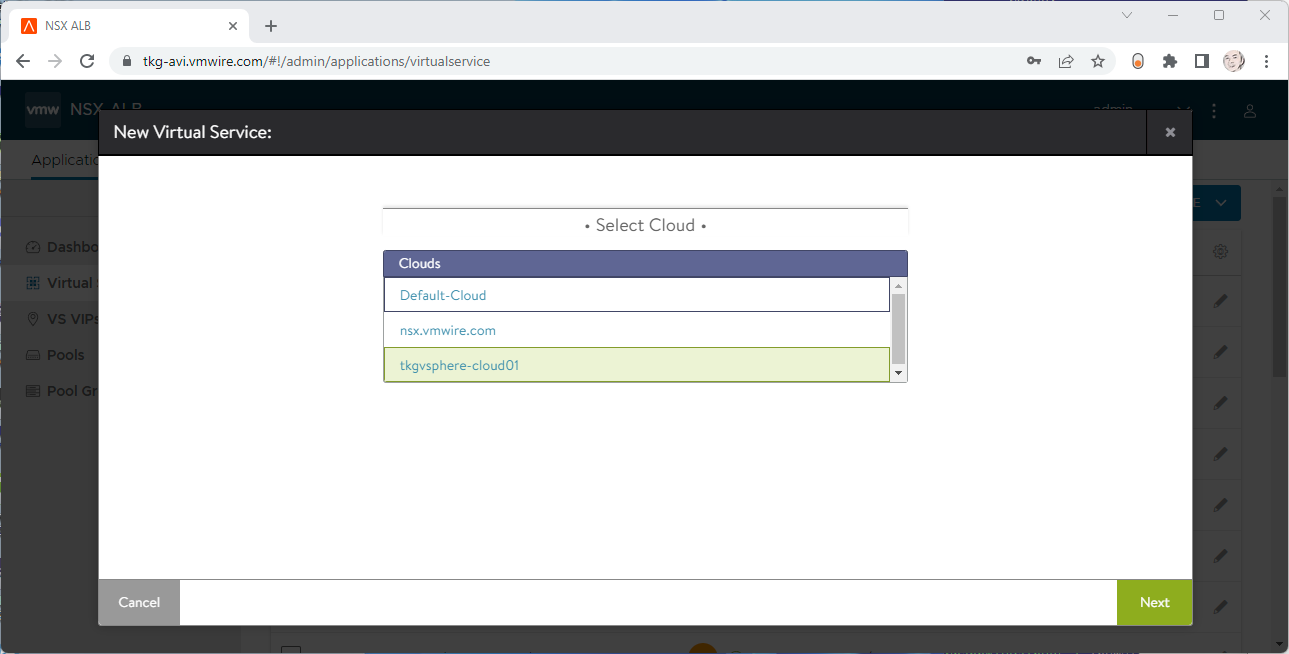
Click on Applications | Virtual Services | Create Virtual Service | Advanced Setup

Select the Cloud to create the DNS virtual service in.

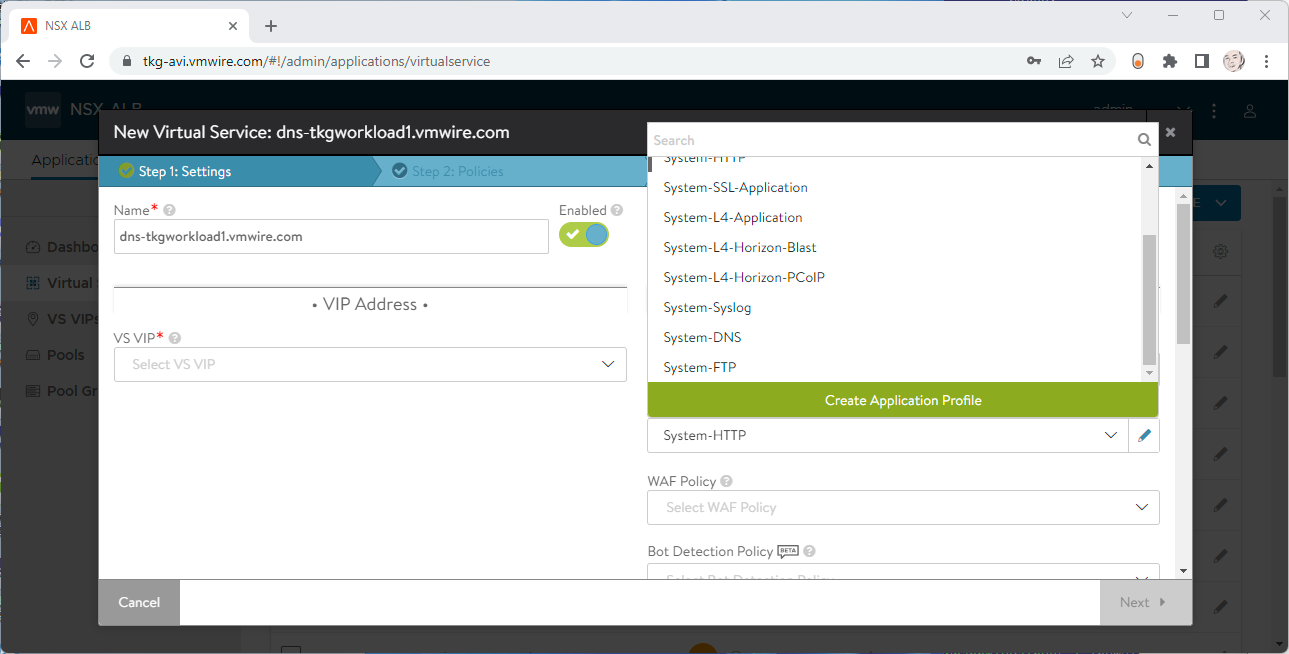
Under Application Profile, select System DNS.

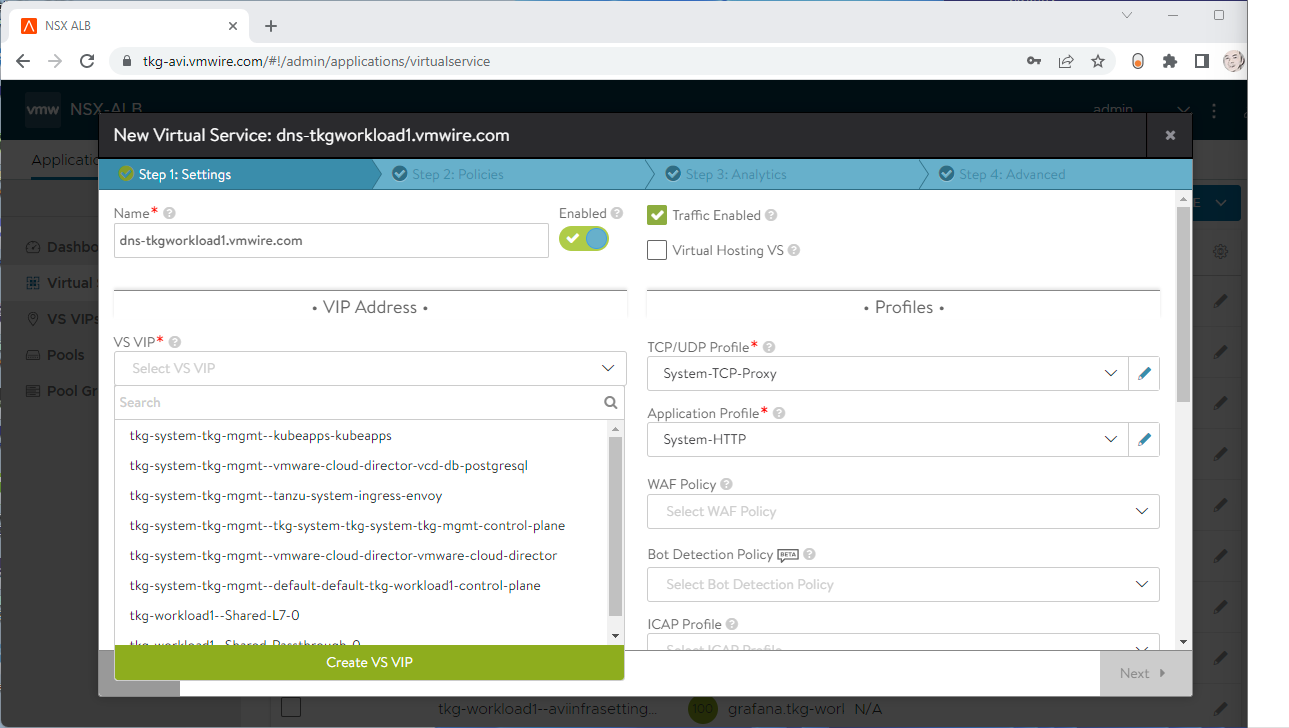
Under VS VIP, click on Create VS VIP.

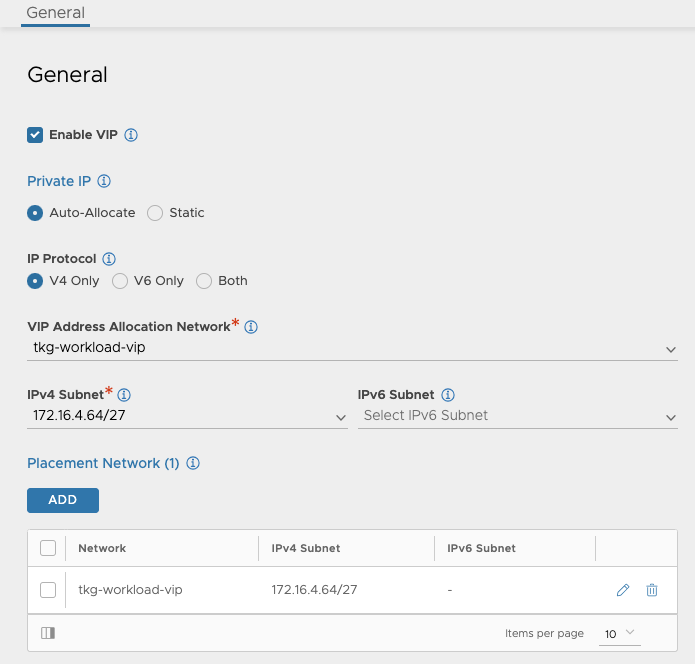
Press the ADD button under VIPs.

Give the service a name, select a VIP Address Allocation Network, IPv4 Subnet and Placement Network. Don’t set anything for DNS or RBAC.

Then press Save a few times to complete the wizard.

Goto the Advanced tab and choose a Service Engine Group for the DNS service to use.

Press Save to complete the virtual service setup.

Step 2- Enable DNS Service for Avi

Navigate to the Administration tab and select the DNS Virtual Service in the drop-down menu.

Step 3- Edit the default DNS Profile

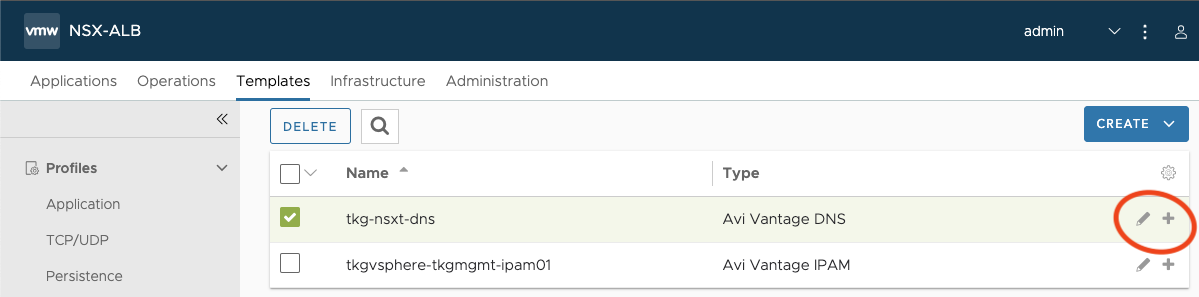
Navigate to the Templates tab and edit the default DNS profile, the type is Avi Vantage DNS.

Under DNS Service Domains, add in the domain that you will be delegated by the Avi DNS Service. Then press Save.

Step 4- Edit the default DNS Profile

Navigate to the Infrastructure tab and edit the cloud that you want to enable for Avi DNS.

Click on the IPAM/DNS button at the top and it should take you to that section.

Make sure that the DNS profile is selected under DNS Profile.

Step 5- Add the Avi DNS Service as a delegated domain in DNS

Find out the IP address of the Avi DNS virtual service, mine is 172.16.4.67.

You can identify it by going to Applications | Virtual Services.

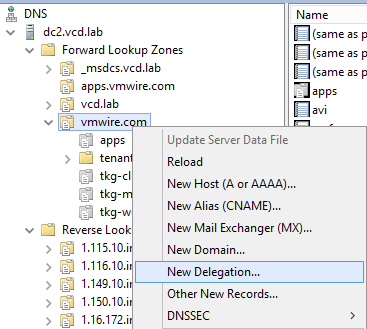
I use Microsoft DNS Services, so using DNS Manager for the DNS Delegation. I want to use *.tkg-workload1.vmwire.com with Avi Ingress, so to delegate the tkg-workload1 domain with Microsoft DNS Services we create a new Delegation.

Enter the IP address for the FQDN.

Thats it!

You’re now ready for Avi to manage DNS records for the sub domain delegation.

Using Contour to expose Grafana and Prometheus with TLS

The Tanzu Packages in Tanzu Kubernetes Grid (TKG) include Contour, Grafana and Prometheus. Tanzu Packages automatically install and create TLS if ingress is enabled. This post, shows how to update the prometheus-data-values.yaml and grafana-data-values.yaml files to use TLS certificates with ingress using Contour.

This post can be used for TKG on vSphere and CSE with VCD. The examples below use TKG with CSE 4.0.3.

Install Contour

List available contour packages

tanzu package available list contour.tanzu.vmware.com -A

We shall install the latest version available for TKG 1.6.1 used by CSE 4.0.3, 1.20.2+vmware.2-tkg.1. First we need a contour-data-values.yaml file to use to install contour.

If you want to use a static IP address for the envoy load balancer service, for example to re-use the external public IP address currently used by the Kube API you can add a line under line 12:

LoadBalancerIP: <external-ip>

---
infrastructure_provider: vsphere
namespace: tanzu-system-ingress
contour:
 configFileContents: {}
 useProxyProtocol: false
 replicas: 2
 pspNames: "vmware-system-restricted"
 logLevel: info
envoy:
 service:
   type: LoadBalancer
   annotations: {}
   labels: {}
   nodePorts:
     http: null
     https: null
   externalTrafficPolicy: Cluster
   disableWait: false
 hostPorts:
   enable: true
   http: 80
   https: 443
 hostNetwork: false
 terminationGracePeriodSeconds: 300
 logLevel: info
 pspNames: null
certificates:
 duration: 8760h
 renewBefore: 360h

Then install with this command

kubectl create ns my-packages
tanzu package install contour \
--package contour.tanzu.vmware.com \
--version 1.20.2+vmware.2-tkg.1 \
--values-file /home/contour/contour-data-values.yaml \
--namespace my-packages

Install Prometheus

tanzu package available list prometheus.tanzu.vmware.com -A

The latest available version for TKG 1.6.1 used by CSE 4.0.3 is 2.36.2+vmware.1-tkg.1.

Update your prometheus-data-values.yaml file with the TLS certificate, private key, enable ingress and update the virtual_host_fqdn. Use pipe “|” to include all lines of your certificate.

ingress:
  annotations:
    service.beta.kubernetes.io/vcloud-avi-ssl-no-termination: "true"
  alertmanager_prefix: /alertmanager/
  alertmanagerServicePort: 80
  enabled: true
  prometheus_prefix: /
  prometheusServicePort: 80
  tlsCertificate:
    tls.crt: |
      -----BEGIN CERTIFICATE-----
      MIIEZDCCA0ygAwIBAgISA1UHbwcEhpImsiCGFwSMTVQsMA0GCSqGSIb3DQEBCwUA
      MDIxCzAJBgNVBAYTAlVTMRYwFAYDVQQKEw1MZXQncyBFbmNyeXB0MQswCQYDVQQD
      -- snipped --
      -----END CERTIFICATE-----
    tls.key: |

    ca.crt:
  virtual_host_fqdn: prometheus.tenant1.vmwire.com

Install Prometheus with this command

tanzu package install prometheus \
--package prometheus.tanzu.vmware.com \
--version 2.36.2+vmware.1-tkg.1 \
--values-file prometheus-data-values.yaml \
--namespace my-packages

Install Grafana

List available Grafana packages

tanzu package available list grafana.tanzu.vmware.com -A

The latest available version for TKG 1.6.1 used by CSE 4.0.3 is 7.5.7+vmware.2-tkg.1.

Update your grafana-data-values.yaml file with the TLS certificate, private key, enable ingress and update the virtual_host_fqdn. Use pipe “|” to include all lines of your certificate.

ingress:
  annotations:
    service.beta.kubernetes.io/vcloud-avi-ssl-no-termination: "true"
  enabled: true
  prefix: /
  servicePort: 80
  virtual_host_fqdn: grafana.tenant1.vmwire.com
  tlsCertificate:
    tls.crt: |
      -----BEGIN CERTIFICATE-----
      MIIEZDCCA0ygAwIBAgISA1UHbwcEhpImsiCGFwSMTVQsMA0GCSqGSIb3DQEBCwUA
      MDIxCzAJBgNVBAYTAlVTMRYwFAYDVQQKEw1MZXQncyBFbmNyeXB0MQswCQYDVQQD
      --snipped--
      -----END CERTIFICATE-----
    tls.key: |
      -----BEGIN PRIVATE KEY-----
      
      -----END PRIVATE KEY-----

Install Grafana with this command

tanzu package install grafana \
--package grafana.tanzu.vmware.com \
--version 7.5.7+vmware.2-tkg.1 \
--values-file grafana-data-values.yaml \
--namespace my-packages

Update DNS records

Update DNS records for the FQDNs to point to the IP address of the envoy service. You can find the External IP address used by Envoy by typing

k get svc -n tanzu-system-ingress envoy.

Single node clusters with TKG

Single-node clusters are a Tech Preview for TKG since 2.1 on vSphere. Its not actually a single-node cluster per-se but a collapsed Kubernetes node with both the control plane and the worker node on one virtual machine that can be deployed in a cluster with more than one node or just as a single-node.

Use cases include edge deployments or hardware constrained environments.

You can deploy a single node or three nodes that has both the control plane and the worker node roles. In fact, to Kubernetes, the node is recognised as a control plane node, but pods are allowed to be scheduled on the nodes since we change the spec.topology.variables.controlPlaneTaint=false in the cluster config specification.

A few things to know about single node clusters

  • Supported on TKG 2.1 and newer with the standalone management cluster only, not supported with vSphere with Tanzu (TKG with Supervisor).
  • Single node clusters are supported with Cluster Class based clusters only. Legacy clusters are not supported.
  • Single node clusters behave just like any other TKG clusters so it will support everything you are used to.
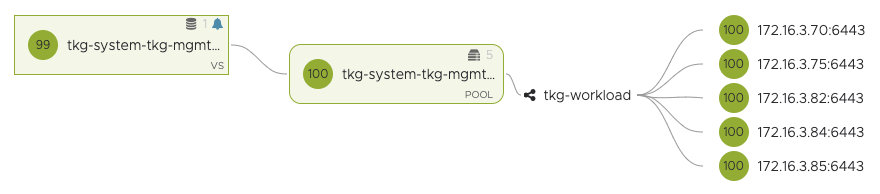
  • You can deploy nodes that are both control plane and workers in only odd numbers, this is because Kubernetes still treats these nodes as control plane nodes, but allow any pod to be scheduled on them. So scaling the cluster up from one node to 3, 5, 7 etc is possible with a simple one line command of tanzu cluster scale <cluster-name> -c #. Here is a cluster with five nodes. As you can see Kubernetes assigns the control-plane role to the nodes. However, deploying a single-node cluster removes the Taints from the node. On any other cluster type you’ll see this taint Taints: node-role.kubernetes.io/control-plane:NoSchedule. This is removed for single-node clusters.
k get no -o wide
NAME                     STATUS   ROLES           AGE     VERSION            INTERNAL-IP   EXTERNAL-IP   OS-IMAGE             KERNEL-VERSION      CONTAINER-RUNTIME
tkg-single-ngbmw-dcljq   Ready    control-plane   17m     v1.25.7+vmware.2   172.16.3.84   172.16.3.84   Ubuntu 20.04.6 LTS   5.4.0-144-generic   containerd://1.6.18-1-gdbc99e5b1
tkg-single-ngbmw-mm6tp   Ready    control-plane   9m51s   v1.25.7+vmware.2   172.16.3.85   172.16.3.85   Ubuntu 20.04.6 LTS   5.4.0-144-generic   containerd://1.6.18-1-gdbc99e5b1
tkg-single-ngbmw-mvdv2   Ready    control-plane   14m     v1.25.7+vmware.2   172.16.3.70   172.16.3.70   Ubuntu 20.04.6 LTS   5.4.0-144-generic   containerd://1.6.18-1-gdbc99e5b1
tkg-single-ngbmw-ngqxd   Ready    control-plane   12m     v1.25.7+vmware.2   172.16.3.75   172.16.3.75   Ubuntu 20.04.6 LTS   5.4.0-144-generic   containerd://1.6.18-1-gdbc99e5b1
tkg-single-ngbmw-tqq79   Ready    control-plane   3h1m    v1.25.7+vmware.2   172.16.3.82   172.16.3.82   Ubuntu 20.04.6 LTS   5.4.0-144-generic   containerd://1.6.18-1-gdbc99e5b1
  • You can also scale down
k get no
NAME                     STATUS   ROLES           AGE   VERSION
tkg-single-ngbmw-mm6tp   Ready    control-plane   18m   v1.25.7+vmware.2
  • You can register single node clusters to TMC. This is possible as TKG changes the metadata for single node clusters as a workload cluster type. You can find this by looking at the config map for the tkg-metadata k get cm -n tkg-system-public tkg-metadata -o yaml. Line 6 below.
apiVersion: v1
data:
  metadata.yaml: |
    cluster:
        name: tkg-single
        type: workload
        plan: dev
        kubernetesProvider: VMware Tanzu Kubernetes Grid
        tkgVersion: v2.2.0
        edition: tkg
        infrastructure:
            provider: vsphere
        isClusterClassBased: true
    bom:
        configmapRef:
            name: tkg-bom
kind: ConfigMap
metadata:
  creationTimestamp: "2023-05-29T14:47:14Z"
  name: tkg-metadata
  namespace: tkg-system-public
  resourceVersion: "250"
  uid: 944a120b-595c-4367-a570-db295af54d11

To deploy a single-node cluster, you can refer to the documentation here.

  • In summary, switch to the TKG management cluster context and type this command to enable single-node clusters tanzu config set features.cluster.single-node-clusters true
  • create a cluster config file as normal, and save the file as a yaml, for example tkg-single.yaml.
#! ---------------------------------------------------------------------
#! Basic cluster creation configuration
#! ---------------------------------------------------------------------

# CLUSTER_NAME:
ALLOW_LEGACY_CLUSTER: false
INFRASTRUCTURE_PROVIDER: vsphere
CLUSTER_PLAN: dev
NAMESPACE: default
# CLUSTER_API_SERVER_PORT: # For deployments without NSX Advanced Load Balancer
CNI: antrea
ENABLE_DEFAULT_STORAGE_CLASS: false

#! ---------------------------------------------------------------------
#! Node configuration
#! ---------------------------------------------------------------------

# SIZE:
#CONTROLPLANE_SIZE: small
#WORKER_SIZE: small

# VSPHERE_NUM_CPUS: 2
# VSPHERE_DISK_GIB: 40
# VSPHERE_MEM_MIB: 4096

VSPHERE_CONTROL_PLANE_NUM_CPUS: 4
VSPHERE_CONTROL_PLANE_DISK_GIB: 40
VSPHERE_CONTROL_PLANE_MEM_MIB: 8192
# VSPHERE_WORKER_NUM_CPUS: 2
# VSPHERE_WORKER_DISK_GIB: 40
# VSPHERE_WORKER_MEM_MIB: 4096

# CONTROL_PLANE_MACHINE_COUNT:
# WORKER_MACHINE_COUNT:
# WORKER_MACHINE_COUNT_0:
# WORKER_MACHINE_COUNT_1:
# WORKER_MACHINE_COUNT_2:

#! ---------------------------------------------------------------------
#! vSphere configuration
#! ---------------------------------------------------------------------

#VSPHERE_CLONE_MODE: "fullClone"
VSPHERE_NETWORK: tkg-workload
# VSPHERE_TEMPLATE:
# VSPHERE_TEMPLATE_MOID:
# IS_WINDOWS_WORKLOAD_CLUSTER: false
# VIP_NETWORK_INTERFACE: "eth0"
VSPHERE_SSH_AUTHORIZED_KEY: <-- snipped -->
VSPHERE_USERNAME: administrator@vsphere.local
VSPHERE_PASSWORD: 
# VSPHERE_REGION:
# VSPHERE_ZONE:
# VSPHERE_AZ_0:
# VSPHERE_AZ_1:
# VSPHERE_AZ_2:
# USE_TOPOLOGY_CATEGORIES: false
VSPHERE_SERVER: vcenter.vmwire.com
VSPHERE_DATACENTER: home.local
VSPHERE_RESOURCE_POOL: tkg-vsphere-workload
VSPHERE_DATASTORE: lun01
VSPHERE_FOLDER: tkg-vsphere-workload
# VSPHERE_STORAGE_POLICY_ID
# VSPHERE_WORKER_PCI_DEVICES:
# VSPHERE_CONTROL_PLANE_PCI_DEVICES:
# VSPHERE_IGNORE_PCI_DEVICES_ALLOW_LIST:
VSPHERE_CONTROL_PLANE_CUSTOM_VMX_KEYS: 'ethernet0.ctxPerDev=3,ethernet0.pnicFeatures=4,sched.cpu.shares=high'
# VSPHERE_WORKER_CUSTOM_VMX_KEYS: 'ethernet0.ctxPerDev=3,ethernet0.pnicFeatures=4,sched.cpu.shares=high'
# WORKER_ROLLOUT_STRATEGY: "RollingUpdate"
# VSPHERE_CONTROL_PLANE_HARDWARE_VERSION:
# VSPHERE_WORKER_HARDWARE_VERSION:
VSPHERE_TLS_THUMBPRINT: <-- snipped -->
VSPHERE_INSECURE: false
# VSPHERE_CONTROL_PLANE_ENDPOINT: # Required for Kube-Vip
# VSPHERE_CONTROL_PLANE_ENDPOINT_PORT: 6443
# VSPHERE_ADDITIONAL_FQDN:
AVI_CONTROL_PLANE_HA_PROVIDER: true


#! ---------------------------------------------------------------------
#! Common configuration
#! ---------------------------------------------------------------------

ADDITIONAL_IMAGE_REGISTRY_1: "harbor.vmwire.com"
ADDITIONAL_IMAGE_REGISTRY_1_SKIP_TLS_VERIFY: false
ADDITIONAL_IMAGE_REGISTRY_1_CA_CERTIFICATE: <-- snipped -->


# TKG_CUSTOM_IMAGE_REPOSITORY: ""
# TKG_CUSTOM_IMAGE_REPOSITORY_SKIP_TLS_VERIFY: false
# TKG_CUSTOM_IMAGE_REPOSITORY_CA_CERTIFICATE: ""

# TKG_HTTP_PROXY: ""
# TKG_HTTPS_PROXY: ""
# TKG_NO_PROXY: ""
# TKG_PROXY_CA_CERT: ""

ENABLE_AUDIT_LOGGING: false

CLUSTER_CIDR: 100.96.0.0/11
SERVICE_CIDR: 100.64.0.0/13

# OS_NAME: ""
# OS_VERSION: ""
# OS_ARCH: ""

#! ---------------------------------------------------------------------
#! Autoscaler configuration
#! ---------------------------------------------------------------------

ENABLE_AUTOSCALER: false

Then use the –dry-run option and save the cluster object spec file with tanzu cluster create <name-of-new-cluster> -f tkg-single.yaml > tkg-single-spec.yaml --dry-run, this creates a new file called tkg-single-spec.yaml that you need to edit before creating the single node cluster.

Edit the tkg-single-spec.yaml file and change the following sections.

under spec.topology.variables, add the following:

- name: controlPlaneTaint
  value: false

under spec.topology.workers, delete the entire block including the workers section heading.

Your changed file should look like the example below.

apiVersion: csi.tanzu.vmware.com/v1alpha1
kind: VSphereCSIConfig
metadata:
  name: tkg-single
  namespace: default
spec:
  vsphereCSI:
    config:
      datacenter: /home.local
      httpProxy: ""
      httpsProxy: ""
      noProxy: ""
      region: null
      tlsThumbprint: <-- snipped -->
      useTopologyCategories: false
      zone: null
    mode: vsphereCSI
---
apiVersion: run.tanzu.vmware.com/v1alpha3
kind: ClusterBootstrap
metadata:
  annotations:
    tkg.tanzu.vmware.com/add-missing-fields-from-tkr: v1.25.7---vmware.2-tkg.1
  name: tkg-single
  namespace: default
spec:
  additionalPackages:
  - refName: metrics-server*
  - refName: secretgen-controller*
  - refName: pinniped*
  - refName: tkg-storageclass*
    valuesFrom:
      inline:
        infraProvider: ""
  csi:
    refName: vsphere-csi*
    valuesFrom:
      providerRef:
        apiGroup: csi.tanzu.vmware.com
        kind: VSphereCSIConfig
        name: tkg-single
  kapp:
    refName: kapp-controller*
---
apiVersion: v1
kind: Secret
metadata:
  name: tkg-single
  namespace: default
stringData:
  password: 
  username: administrator@vsphere.local
---
apiVersion: cluster.x-k8s.io/v1beta1
kind: Cluster
metadata:
  annotations:
    osInfo: ubuntu,20.04,amd64
    tkg/plan: dev
  labels:
    tkg.tanzu.vmware.com/cluster-name: tkg-single
  name: tkg-single
  namespace: default
spec:
  clusterNetwork:
    pods:
      cidrBlocks:
      - 100.96.0.0/11
    services:
      cidrBlocks:
      - 100.64.0.0/13
  topology:
    class: tkg-vsphere-default-v1.0.0
    controlPlane:
      metadata:
        annotations:
          run.tanzu.vmware.com/resolve-os-image: image-type=ova,os-name=ubuntu
      replicas: 1
    variables:
    - name: controlPlaneTaint
      value: false
    - name: cni
      value: antrea
    - name: controlPlaneCertificateRotation
      value:
        activate: true
        daysBefore: 90
    - name: additionalImageRegistries
      value:
      - caCert: <-- snipped -->
        host: harbor.vmwire.com
        skipTlsVerify: false
    - name: auditLogging
      value:
        enabled: false
    - name: podSecurityStandard
      value:
        audit: baseline
        deactivated: false
        warn: baseline
    - name: aviAPIServerHAProvider
      value: true
    - name: vcenter
      value:
        cloneMode: fullClone
        datacenter: /home.local
        datastore: /home.local/datastore/lun01
        folder: /home.local/vm/tkg-vsphere-workload
        network: /home.local/network/tkg-workload
        resourcePool: /home.local/host/cluster/Resources/tkg-vsphere-workload
        server: vcenter.vmwire.com
        storagePolicyID: ""
        template: /home.local/vm/Templates/ubuntu-2004-efi-kube-v1.25.7+vmware.2
        tlsThumbprint: <-- snipped -->
    - name: user
      value:
        sshAuthorizedKeys:
        - <-- snipped -->
    - name: controlPlane
      value:
        machine:
          customVMXKeys:
            ethernet0.ctxPerDev: "3"
            ethernet0.pnicFeatures: "4"
            sched.cpu.shares: high
          diskGiB: 40
          memoryMiB: 8192
          numCPUs: 4
    - name: worker
      value:
        count: 1
        machine:
          diskGiB: 40
          memoryMiB: 4096
          numCPUs: 2
    version: v1.25.7+vmware.2-tkg.1

AviInfraSetting with IngressClass

Avi Infra Setting provides a way to segregate Layer-4/Layer-7 virtual services to have properties based on different underlying infrastructure components, like Service Engine Group, intended VIP Network etc.

Here I have a different network that I want a new Ingress to use, in this case the tkg-wkld-trf-vip network, 172.16.4.97/27, lets assume its used for 5G traffic connectivity and the NSX-T T1 is connected to a different T0 VRF. This isolates the traffic between VRFs, so that we can expose certain applications on different VRFs.

In this example, I’ll change Grafana from using the default VIP network to the tkg-wkld-trf-vip network instead. You can read up on how this was originally done using the default VIP network in the previous post.

aviinfrasetting-tkg-wkld-trf-vip.yaml

---
apiVersion: ako.vmware.com/v1alpha1
kind: AviInfraSetting
metadata:
  name: aviinfrasetting-tkg-wkld-trf-vip
spec:
  seGroup:
    name: tkg-workload1
  network:
    vipNetworks:
      - networkName: tkg-wkld-trf-vip
        cidr: 172.16.4.96/27
    enableRhi: false

Attaching Avi Infra Setting to Ingress

Avi Infra Settings can be applied to Ingress resources, using the IngressClass construct. IngressClass provides a way to configure Controller-specific load balancing parameters and applies these configurations to a set of Ingress objects. AKO supports listening to IngressClass resources in Kubernetes version 1.19+. The Avi Infra Setting reference can be provided in the Ingress Class as shown below:

aviingressclass-tkg-wkld-trf-vip.yaml

---
apiVersion: networking.k8s.io/v1
kind: IngressClass
metadata:
  name: aviingressclass-tkg-wkld-trf-vip
spec:
  controller: ako.vmware.com/avi-lb
  parameters:
    apiGroup: ako.vmware.com
    kind: AviInfraSetting
    name: aviinfrasetting-tkg-wkld-trf-vip

dashboard-ingress.yaml

---
apiVersion: networking.k8s.io/v1
kind: Ingress
metadata:
  name: dashboard-ingress
  namespace: tanzu-system-dashboards
  annotations:
    ako.vmware.com/enable-tls: "true"
  labels:
    app: dashboard-ingress
spec:
  ingressClassName: aviingressclass-tkg-wkld-trf-vip
  rules:
    - host: "grafana.tkg-workload1.vmwire.com"
      http:
        paths:
          - pathType: Prefix
            path: /
            backend:
              service:
                name: grafana
                port:
                  number: 80

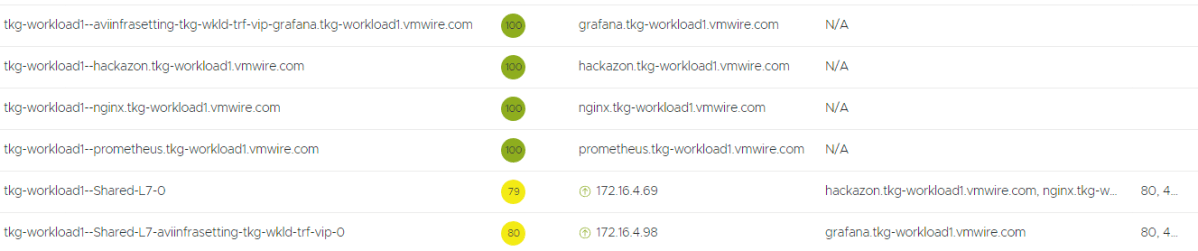
Below you can see that Grafana is now using the new AviInfraSetting and has been assigned an IP address of 172.16.4.98.

Scaling TKG Management Cluster Nodes Vertically

In a previous post I wrote about how to scale workload cluster control plane and worker nodes vertically. This post explains how to do the same for the TKG Management Cluster nodes.

Scaling vertically is increasing or decreasing the CPU, Memory, Disk or changing other things such as the network for the nodes. Using the Cluster API it is possible to make these changes on the fly, Kubernetes will use rolling updates to make the necessary changes.

First change to the TKG Management Cluster context to make the changes.

Scaling Worker Nodes

Run the following to list all the vSphereMachineTemplates.

k get vspheremachinetemplates.infrastructure.cluster.x-k8s.io -A
NAMESPACE    NAME                         AGE
tkg-system   tkg-mgmt-control-plane       20h
tkg-system   tkg-mgmt-worker              20h

These custom resource definitions are immutable so we will need to make a copy of the yaml file and edit it to add a new vSphereMachineTemplate.

k get vspheremachinetemplates.infrastructure.cluster.x-k8s.io -n tkg-system   tkg-mgmt-worker -o yaml > tkg-mgmt-worker-new.yaml

Now edit the new file named tkg-mgmt-worker-new.yaml

apiVersion: infrastructure.cluster.x-k8s.io/v1beta1
kind: VSphereMachineTemplate
metadata:
  annotations:
    kubectl.kubernetes.io/last-applied-configuration: |
      {"apiVersion":"infrastructure.cluster.x-k8s.io/v1beta1","kind":"VSphereMachineTemplate","metadata":{"annotations":{"vmTemplateMoid":"vm-9726"},"name":"tkg-mgmt-worker","namespace":"tkg-system"},"spec":{"template":{"spec":{"cloneMode":"fullClone","datacenter":"/home.local","datastore":"/home.local/datastore/lun01","diskGiB":40,"folder":"/home.local/vm/tkg-vsphere-tkg-mgmt","memoryMiB":8192,"network":{"devices":[{"dhcp4":true,"networkName":"/home.local/network/tkg-mgmt"}]},"numCPUs":2,"resourcePool":"/home.local/host/Management/Resources/tkg-vsphere-tkg-Mgmt","server":"vcenter.vmwire.com","storagePolicyName":"","template":"/home.local/vm/Templates/photon-3-kube-v1.22.9+vmware.1"}}}}
    vmTemplateMoid: vm-9726
  creationTimestamp: "2022-12-23T15:23:56Z"
  generation: 1
  name: tkg-mgmt-worker
  namespace: tkg-system
  ownerReferences:
  - apiVersion: cluster.x-k8s.io/v1beta1
    kind: Cluster
    name: tkg-mgmt
    uid: 9acf6370-64be-40ce-9076-050ab8c6f41f
  resourceVersion: "3069"
  uid: 4a8f305f-0b61-4d33-ba02-7fb3fcc8ba22
spec:
  template:
    spec:
      cloneMode: fullClone
      datacenter: /home.local
      datastore: /home.local/datastore/lun01
      diskGiB: 40
      folder: /home.local/vm/tkg-vsphere-tkg-mgmt
      memoryMiB: 8192
      network:
        devices:
        - dhcp4: true
          networkName: /home.local/network/tkg-mgmt
      numCPUs: 2
      resourcePool: /home.local/host/Management/Resources/tkg-vsphere-tkg-Mgmt
      server: vcenter.vmwire.com
      storagePolicyName: ""
      template: /home.local/vm/Templates/photon-3-kube-v1.22.9+vmware.1

Change the name of the CRD on line 10. Make any other changes you need, such as CPU on line 32 or RAM on line 27. Save the file.

Now you’ll need to create the new vSphereMachineTemplate.

k apply -f tkg-mgmt-worker-new.yaml

Now we’re ready to make the change.

Lets first take a look at the MachineDeployments.

k get machinedeployments.cluster.x-k8s.io -A

NAMESPACE    NAME            CLUSTER    REPLICAS   READY   UPDATED   UNAVAILABLE   PHASE     AGE   VERSION
tkg-system   tkg-mgmt-md-0   tkg-mgmt   2          2       2         0             Running   20h   v1.22.9+vmware.1

Now edit this MachineDeployment.

k edit machinedeployments.cluster.x-k8s.io -n tkg-system   tkg-mgmt-md-0

You need to make the change to the section spec.template.spec.infrastructureRef under line 56.

 53       infrastructureRef:
 54         apiVersion: infrastructure.cluster.x-k8s.io/v1beta1
 55         kind: VSphereMachineTemplate
 56         name: tkg-mgmt-worker

Change line 56 to the new VsphereMachineTemplate CRD we created earlier.

 53       infrastructureRef:
 54         apiVersion: infrastructure.cluster.x-k8s.io/v1beta1
 55         kind: VSphereMachineTemplate
 56         name: tkg-mgmt-worker-new

Save and quit. You’ll notice that a new VM will immediately start being cloned in vCenter. Wait for it to complete, this new VM is the new worker with the updated CPU and memory sizing and it will replace the current worker node. Eventually, after a few minutes, the old worker node will be deleted and you will be left with a new worker node with the updated CPU and RAM specified in the new VSphereMachineTemplate.

Scaling Control Plane Nodes

Scaling the control plane nodes is similar.

k get vspheremachinetemplates.infrastructure.cluster.x-k8s.io -n tkg-system tkg-mgmt-control-plane -o yaml > tkg-mgmt-control-plane-new.yaml

Edit the file and perform the same steps as the worker nodes.

You’ll notice that there is no MachineDeployment for the control plane node for a TKG Management Cluster. Instead we have to edit the CRD named KubeAdmControlPlane.

Run this command

k get kubeadmcontrolplane -A

NAMESPACE    NAME                     CLUSTER    INITIALIZED   API SERVER AVAILABLE   REPLICAS   READY   UPDATED   UNAVAILABLE   AGE   VERSION
tkg-system   tkg-mgmt-control-plane   tkg-mgmt   true          true                   1          1       1         0             21h   v1.22.9+vmware.1

Now we can edit it

k edit kubeadmcontrolplane -n tkg-system   tkg-mgmt-control-plane

Change the section under spec.machineTemplate.infrastructureRef, around line 106.

102   machineTemplate:
103     infrastructureRef:
104       apiVersion: infrastructure.cluster.x-k8s.io/v1beta1
105       kind: VSphereMachineTemplate
106       name: tkg-mgmt-control-plane
107       namespace: tkg-system

Change line 106 to

102   machineTemplate:
103     infrastructureRef:
104       apiVersion: infrastructure.cluster.x-k8s.io/v1beta1
105       kind: VSphereMachineTemplate
106       name: tkg-mgmt-control-plane-new
107       namespace: tkg-system

Save the file. You’ll notice that another VM will start cloning and eventually you’ll have a new control plane node up and running. This new control plane node will replace the older one. It will take longer than the worker node so be patient.

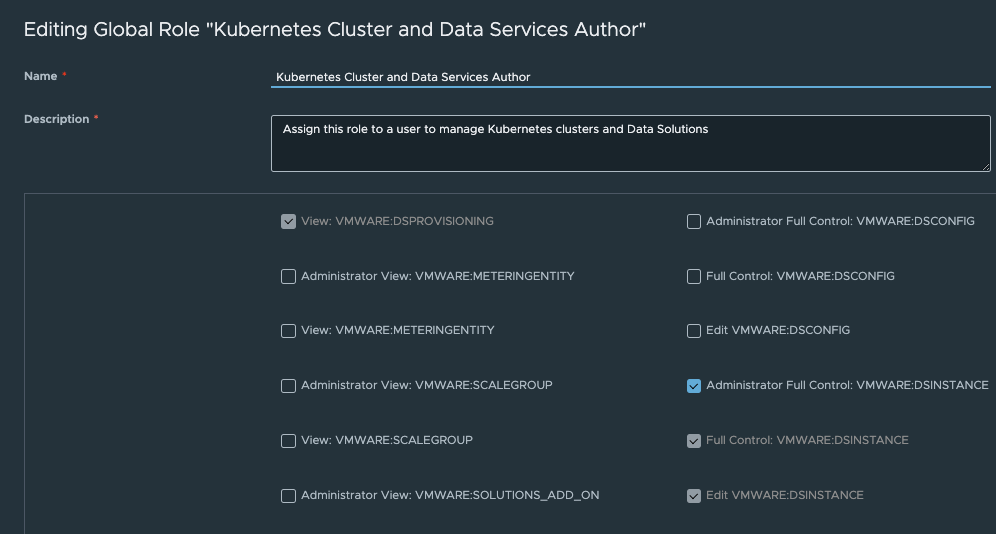
Rights for VMware Data Solutions

Creating a new Global Role

You’ll need to create a new global role with the correct rights to be able to deploy data solutions into a TKG cluster.

The easiest way to do this is to clone the role named Kubernetes Cluster Author created by CSE 4.0 and add additional rights for Data Solutions.

Administrator View: VMWARE:CAPVCDCLUSTER
Administrator View: VMWARE:DSCONFIG
Administrator View: VMWARE:DSINSTANCETEMPLATE
Administrator View: VMWARE:DSINSTANCE
Administrator View: VMWARE:DSPROVISIONING
Administrator View: VMWARE:DSCLUSTER

Administrator Full Control: VMWARE:DSINSTANCE

View: VMWARE:DSCONFIG
View: VMWARE:DSPROVISIONING
View: VMWARE:DSINSTANCE
View: VMWARE:DSINSTANCETEMPLATE
View: VMWARE:DSCLUSTER

Full Control: VMWARE:DSPROVISIONING
Full Control: VMWARE:DSCLUSTER
Full Control: VMWARE:DSINSTANCE

Edit VMWARE:DSINSTANCE
Edit VMWARE:DSCLUSTER
Edit VMWARE:DSPROVISIONING

Now publish this new Global Role to a tenant and assign a tenant user this new role and you can then deploy Data Solutions into a TKG cluster.

Container Service Extension with an one-arm load balancer

The default setting for load balancer service requests for application services defaults to using the two-arm load balancer with NSX Advanced Load Balancer (Avi) in Container Service Extension (CSE) provisioned Tanzu Kubernetes Grid (TKG) cluster deployed in VMware Cloud Director (VCD).

VCD tells NSX-T to create a DNAT towards an internal only IP range of 192.168.8.x. This may be undesirable for some customers and it is now possible to remove the need for this and just use a one-arm load balancer instead.

The default setting for load balancer service requests for application services defaults to using the two-arm load balancer with NSX Advanced Load Balancer (Avi) in Container Service Extension (CSE) provisioned Tanzu Kubernetes Grid (TKG) cluster deployed in VMware Cloud Director (VCD).

VCD tells NSX-T to create a DNAT towards an internal only IP range of 192.168.8.x. This may be undesirable for some customers and it is now possible to remove the need for this and just use a one-arm load balancer instead.

This capability has been enabled only for VCD 10.4.x, in prior versions of VCD this support was not available.

The requirements are:

  • CSE 4.0
  • VCD 10.4
  • Avi configured for VCD
  • A TKG cluster provisioned by CSE UI.

If you’re still running VCD 10.3.x then this blog article is irrelevant.

The vcloud-ccm-configmap config map stores the vcloud-ccm-config.yaml, that is used by the vmware-cloud-director-ccm deployment.

Step 1 – make a copy of the vcloud-ccm-configmap

k get cm -n kube-system vcloud-ccm-configmap -o yaml

apiVersion: v1
data:
vcloud-ccm-config.yaml: "vcd:\n host: https://vcd.vmwire.com\n org: tenant1\n
\ vdc: tenant1-vdc\nloadbalancer:\n oneArm:\n startIP: \"192.168.8.2\"\n endIP:
\"192.168.8.100\"\n ports:\n http: 80\n https: 443\n network: default-organization-network\n
\ vipSubnet: \n enableVirtualServiceSharedIP: false # supported for VCD >= 10.4\nvAppName:
tkg-1\n"
immutable: true
kind: ConfigMap
metadata:
annotations:
kubectl.kubernetes.io/last-applied-configuration: |
{"apiVersion":"v1","data":{"vcloud-ccm-config.yaml":"vcd:\n host: https://vcd.vmwire.com\n org: tenant1\n vdc: tenant1-vdc\nloadbalancer:\n oneArm:\n startIP: \"192.168.8.2\"\n endIP: \"192.168.8.100\"\n ports:\n http: 80\n https: 443\n network: default-organization-network\n vipSubnet: \n enableVirtualServiceSharedIP: false # supported for VCD \u003e= 10.4\nvAppName: tkg-1\n"},"immutable":true,"kind":"ConfigMap","metadata":{"annotations":{},"name":"vcloud-ccm-configmap","namespace":"kube-system"}}
creationTimestamp: "2022-11-19T15:08:27Z"
name: vcloud-ccm-configmap
namespace: kube-system
resourceVersion: "1014"
uid: 5e8f2136-124f-4fc0-b4e6-49741ee5545b

Make a copy of the config map to edit it and then apply, since the current config map is immutable.

k get cm -n kube-system vcloud-ccm-configmap -o yaml > vcloud-ccm-configmap.yaml

Step 2 – Edit the vcloud-ccm-configmap

Edit the file, delete the entries under data: oneArm:\n , delete the startIP and endIP lines and change the value to true for the key enableVirtualServiceSharedIP. Ignore the rest of the file.

apiVersion: v1
data:
vcloud-ccm-config.yaml: "vcd:\n host: https://vcd.vmwire.com\n org: tenant1\n
\ vdc: tenant1-vdc\nloadbalancer:\n
\ ports:\n http: 80\n https: 443\n network: default-organization-network\n
\ vipSubnet: \n enableVirtualServiceSharedIP: true # supported for VCD >= 10.4\nvAppName:
tkg-1\n"
immutable: true
kind: ConfigMap
metadata:
annotations:
kubectl.kubernetes.io/last-applied-configuration: |
{"apiVersion":"v1","data":{"vcloud-ccm-config.yaml":"vcd:\n host: https://vcd.vmwire.com\n org: tenant1\n vdc: tenant1-vdc\nloadbalancer:\n oneArm:\n startIP: \"192.168.8.2\"\n endIP: \"192.168.8.100\"\n ports:\n http: 80\n https: 443\n network: default-organization-network\n vipSubnet: \n enableVirtualServiceSharedIP: false # supported for VCD \u003e= 10.4\nvAppName: tkg-1\n"},"immutable":true,"kind":"ConfigMap","metadata":{"annotations":{},"name":"vcloud-ccm-configmap","namespace":"kube-system"}}
creationTimestamp: "2022-11-19T15:08:27Z"
name: vcloud-ccm-configmap
namespace: kube-system
resourceVersion: "1014"
uid: 5e8f2136-124f-4fc0-b4e6-49741ee5545b

Step 3 – Apply the new config map

To apply the new config map, you need to delete the old configmap first.

k delete cm -n kube-system vcloud-ccm-configmap
configmap "vcloud-ccm-configmap" deleted

Apply the new config map with the yaml file that you just edited.

k apply -f vcloud-ccm-configmap.yaml

configmap/vcloud-ccm-configmap created

To finalize the change, you have to take a backup of the vmware-cloud-director-ccm deployment and then delete it so that it can use the new config-map.

You can check the config map that this deployment uses by typing:

k get deploy -n kube-system vmware-cloud-director-ccm -o yaml

Step 4 – Redeploy the vmware-cloud-director-ccm deloyment

Take a backup of the vmware-cloud-director-ccm deployment by typing:

k get deploy -n kube-system vmware-cloud-director-ccm -o yaml > vmware-cloud-director-ccm.yaml

No need to edit this time. Now delete the deployment:

k delete deploy -n kube-system vmware-cloud-director-ccm

deployment.apps "vmware-cloud-director-ccm" deleted

You can now recreate the deployment from the yaml file:

k apply -f vmware-cloud-director-ccm.yaml

deployment.apps/vmware-cloud-director-ccm created

Now when you deploy and application and request a load balancer service, NSX ALB (Avi) will route the external VIP IP towards the k8s workers nodes, instead of to the NSX-T DNAT segment on 192.168.2.x first.

Step 5 – Deploy a load balancer service

k apply -f https://raw.githubusercontent.com/hugopow/tkg-dev/main/web-statefulset.yaml

You’ll notice a few things happening with this example. A new statefulset with one replica is scheduled with an nginx pod. The statefulset also requests a 1 GiB PVC to store the website. A load balancer service is also requested.

Note that there is no DNAT setup on this tenant’s NAT services, this is because after the config map change, the vmware-cloud-director cloud controller manager is not using a two-arm load balancer architecture anymore, therefore no need to do anything with NSX-T NAT rules.

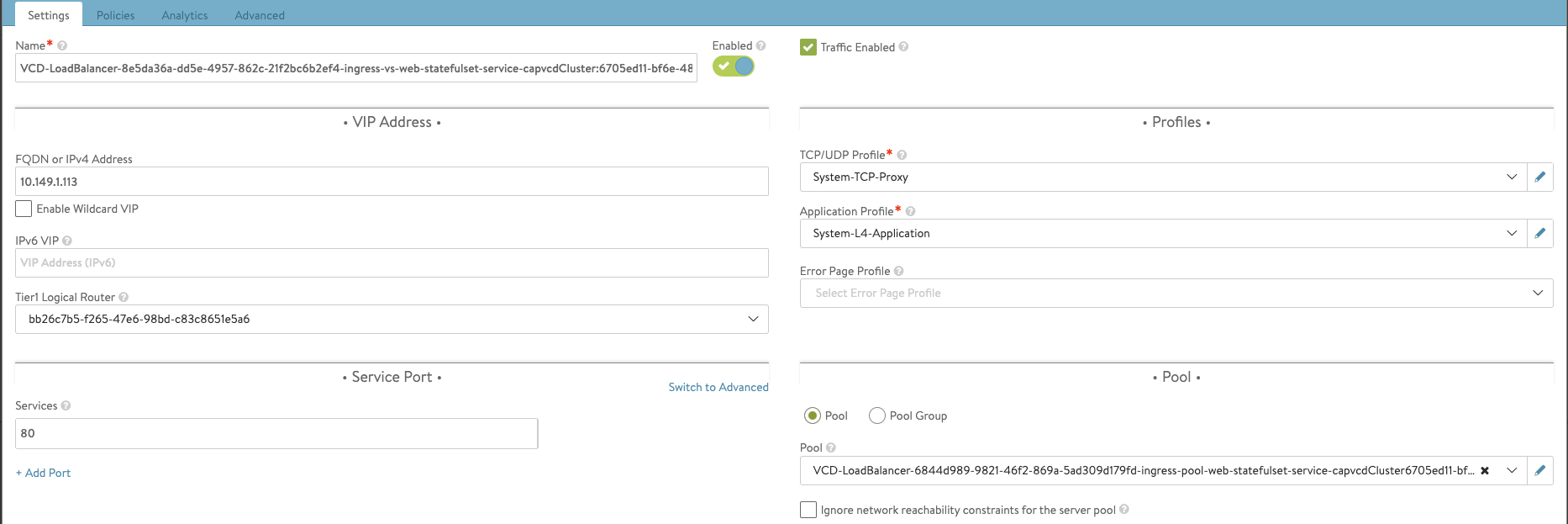
If you check your NSX ALB settings you’ll notice that it is indeed now using a one-arm configuration. Where the external VIP IP address is 10.149.1.113 and port is TCP 80. NSX ALB is routing that to the two worker nodes with IP addresses of 192.168.0.100 and 192.168.0.102 towards port TCP 30020.

k get svc -n web-statefulset

NAME TYPE CLUSTER-IP EXTERNAL-IP PORT(S) AGE
web-statefulset-service LoadBalancer 100.66.198.78 10.149.1.113 80:30020/TCP 13m

k get no -o wide


NAME STATUS ROLES AGE VERSION INTERNAL-IP EXTERNAL-IP OS-IMAGE KERNEL-VERSION CONTAINER-RUNTIME

tkg-1-worker-node-pool-1-68c67d5fd6-c79kr Ready 5h v1.22.9+vmware.1 192.168.0.102 192.168.0.102 Ubuntu 20.04.4 LTS 5.4.0-109-generic containerd://1.5.11
tkg-1-worker-node-pool-2-799d6bccf5-8vj7l Ready 4h46m v1.22.9+vmware.1 192.168.0.100 192.168.0.100 Ubuntu 20.04.4 LTS 5.4.0-109-generic containerd://1.5.11

Cleaning up CSE 4.0 beta

For those partners that have been testing the beta, you’ll need to remove all traces of it before you can install the GA version. VMware does not support upgrading or migrating from beta builds to GA builds.

This is a post to help you clean up your VMware Cloud Director environment in preparation for the GA build of CSE 4.0.

For those partners that have been testing the beta, you’ll need to remove all traces of it before you can install the GA version. VMware does not support upgrading or migrating from beta builds to GA builds.

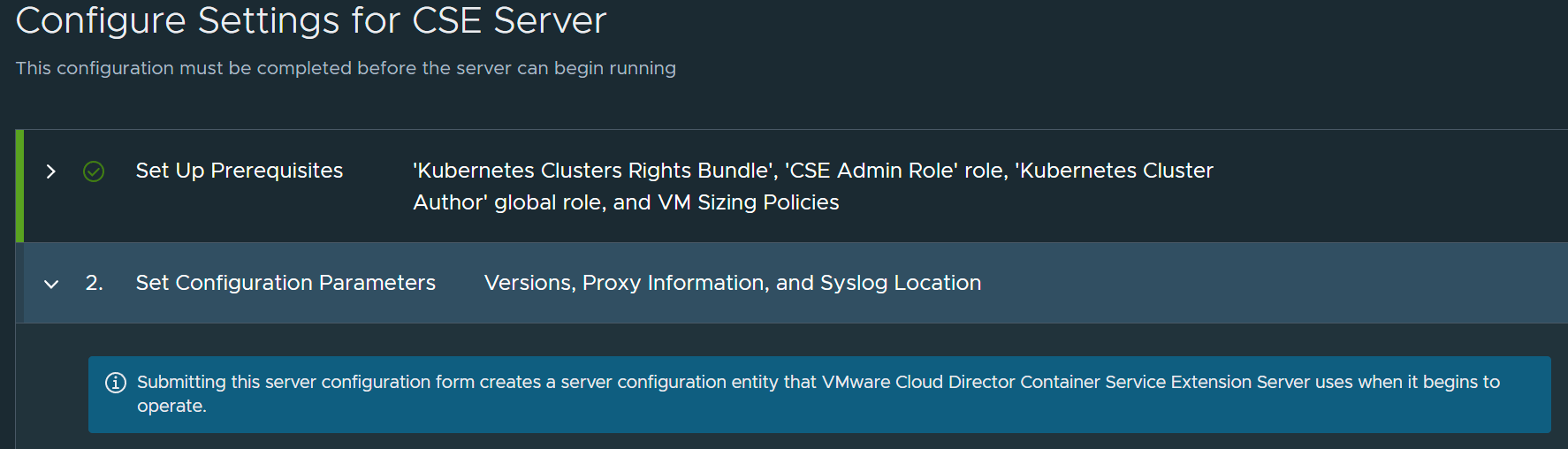
If you don’t clean up, when you try to configure CSE again with the CSE Management wizard, you’ll see the message below:

“Server configuration entity already exists.”

Delete CSE Roles

First delete all the CSE Roles that the beta has setup, the GA version of CSE will recreate these for you when you use the CSE management wizard. Don’t forget to assign the new role to your CSE service account when you deploy the CSE GA OVA.

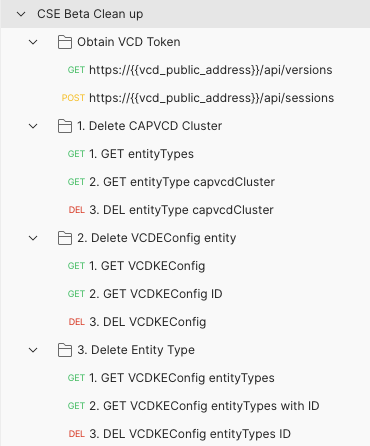
Use the Postman Collection to clean up

I’ve included a Postman collection on my Github account, available here.

Hopefully, it is self-explanatory. Authenticate against the VCD API, then run each API request in order, make sure you obtain the entity and entityType IDs before you delete.

If you’re unable to delete the entity or entityTypes, you may need to delete all of the CSE clusters before, that means cleaning up all PVCs, PVs, deployments and then the clusters themselves.

Deploy CSE GA Normally

You’ll now be able to use the Configure Management wizard and deploy CSE 4.0 GA as normal.

Known Issues

If you’re unable to delete any of these entities then run a POST using /resolve.

For example, https://vcd.vmwire.com/api-explorer/provider#/definedEntity/resolveDefinedEntity

Once, it is resolved, you can go ahead and delete the entity.

Migrating VMware Cloud Director to Kubernetes

This post summarizes how you can migrate the VMware Cloud Director database from PostgreSQL running in the VCD appliance into a PostgreSQL pod running in Kuberenetes and then creating new VCD cells running as pods in Kubernetes to run VCD services. In summary, modernizing VCD as a modern application.

This post summarizes how you can migrate the VMware Cloud Director database from PostgreSQL running in the VCD appliance into a PostgreSQL pod running in Kuberenetes and then creating new VCD cells running as pods in Kubernetes to run VCD services. In summary, modernizing VCD into a modern application.

I wanted to experiment with VMware Cloud Director to see if it would run in Kubernetes. One of the reasons for this is to reduce resource consumption in my home lab. The VCD appliance can be quite a high resource consuming VM needing a minimum of 2 vCPUs and 6GB of RAM. Running VCD in Kubernetes would definitely reduce this down and free up much needed RAM for other applications. Other benefits by running this workload in Kubernetes would benefit from faster deployment, higher availability, easier lifecycle management and operations and additional benefits from the ecosystem such as observability tools.

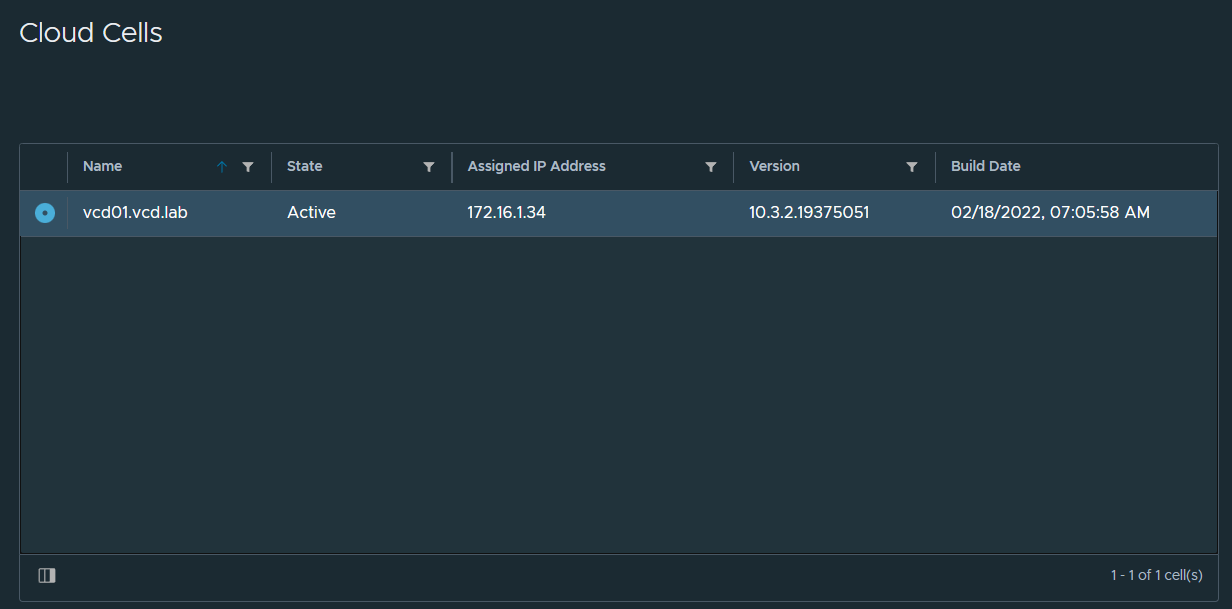
Here’s a view of the current VCD appliance in the portal. 172.16.1.34 is the IP of the appliance, 172.16.1.0/27 is the network for the NSX-T segment that I’ve created for the VCD DMZ network. At the end of this post, you’ll see VCD running in Kubernetes pods with IP addresses assigned by the CNI instead.

Tanzu Kubernetes Grid Shared Services Cluster

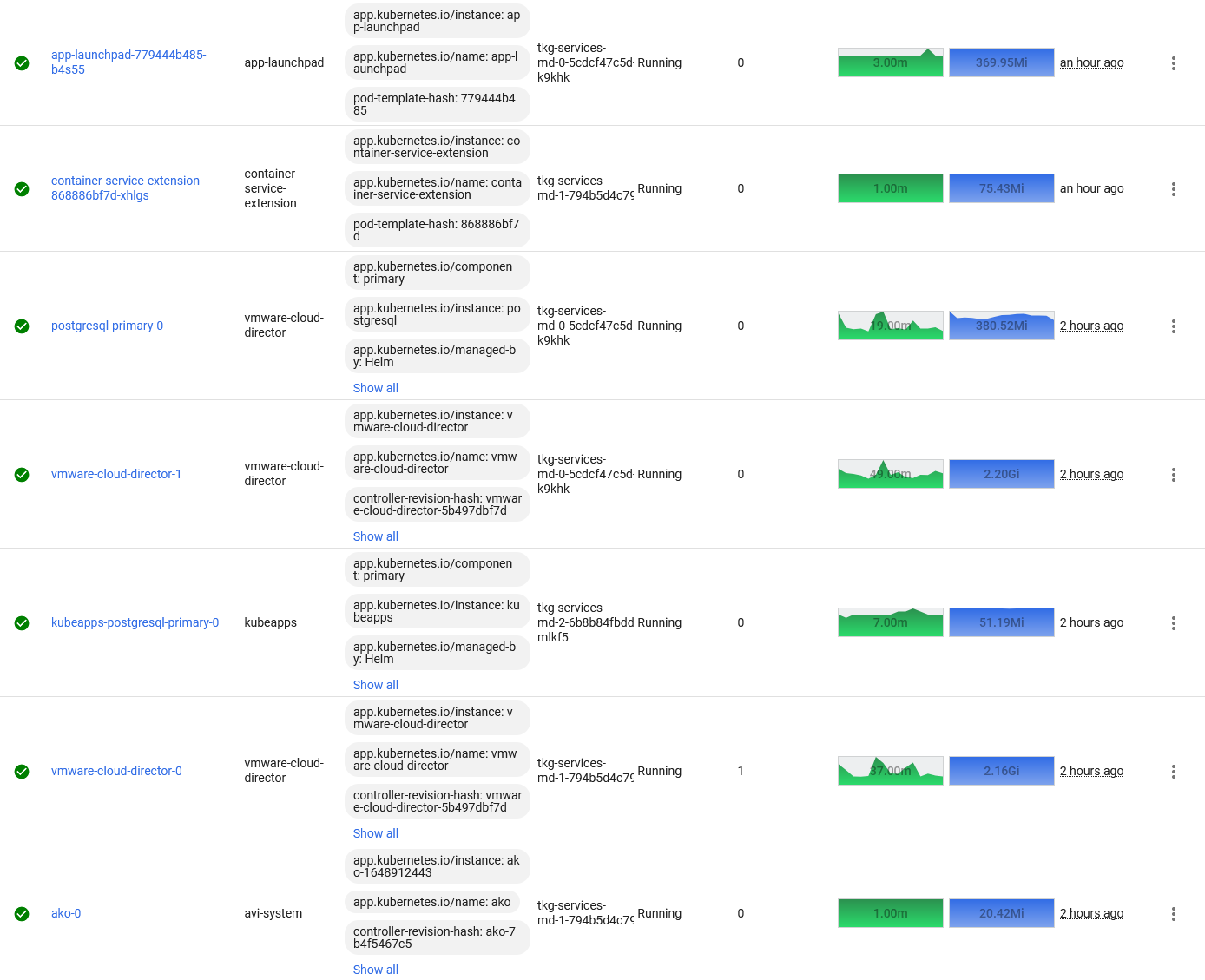
I am using a Tanzu Kubernetes Grid cluster set up for shared services. Its the ideal place to run applications that in the virtual machine world would have been running in a traditional vSphere Management Cluster. I also run Container Service Extension and App Launchpad Kubernetes pods in this cluster too.

Step 1. Deploy PostgreSQL with Kubeapps into a Kubernetes cluster

If you have Kubeapps, this is the easiest way to deploy PostgreSQL.

Copy my settings below to create a PostgreSQL database server and the vcloud user and database that are required for the database restore.

Step 1. Alternatively, use Helm directly.

# Create database server using KubeApps or Helm, vcloud user with password

helm repo add bitnami https://charts.bitnami.com/bitnami

# Pull the chart, unzip then edit values.yaml
helm pull bitnami/postgresql
tar zxvf postgresql-11.1.11.tgz

helm install postgresql bitnami/postgresql -f /home/postgresql/values.yaml -n vmware-cloud-director

# Expose postgres service using load balancer
k expose pod -n vmware-cloud-director postgresql-primary-0 --type=LoadBalancer --name postgresql-public

# Get the IP address of the load balancer service
k get svc -n vmware-cloud-director postgresql-public

# Connect to database as postgres user from VCD appliance to test connection
psql --host 172.16.4.70 -U postgres -p 5432

# Type password you used when you deployed postgresql

# Quit
\q

Step 2. Backup database from VCD appliance and restore to PostgreSQL Kubernetes pod

Log into the VCD appliance using SSH.

# Stop vcd services on all VCD appliances
service vmware-vcd stop

# Backup database and important files on VCD appliance
./opt/vmware/appliance/bin/create_backup.sh

# Unzip the zip file into /opt/vmware/vcloud-director/data/transfer/backups

# Restore database using pg_dump backup file. Do this from the VCD appliance as it already has the postgres tools installed.

pg_restore --host 172.16.4.70 -U postgres -p 5432 -C -d postgres /opt/vmware/vcloud-director/data/transfer/backups/vcloud-database.sql

# Edit responses.properties and change IP address of database server from  load balancer IP to the assigned FQDN for the postgresql pod, e.g. postgresql-primary.vmware-cloud-director.svc.cluster.local

# Shutdown the VCD appliance, its no longer needed

Step 3. Deploy Helm Chart for VCD

# Pull the Helm Chart
helm pull oci://harbor.vmwire.com/library/vmware-cloud-director

# Uncompress the Helm Chart
tar zxvf vmware-cloud-director-0.5.0.tgz

# Edit the values.yaml to suit your needs

# Deploy the Helm Chart
helm install vmware-cloud-director vmware-cloud-director --version 0.5.0 -n vmware-cloud-director -f /home/vmware-cloud-director/values.yaml

# Wait for about five minutes for the installation to complete

# Monitor logs
k logs -f  -n vmware-cloud-director vmware-cloud-director-0

Known Issues

If you see an error such as:

Error starting application: Unable to create marker file in the transfer spooling area: VfsFile[fileObject=file:///opt/vmware/vcloud-director/data/transfer/cells/4c959d7c-2e3a-4674-b02b-c9bbc33c5828]

This is due to the transfer share being created by a different vcloud user on the original VCD appliance. This user has a different Linux user ID, normally 1000 or 1001, we need to change this to work with the new vcloud user.

Run the following commands to resolve this issue:

# Launch a bash session into the VCD pod
k exec -it -n vmware-cloud-director vmware-cloud-director-0 -- /bin/bash

# change ownership to the /transfer share to the vcloud user
chmod -R vcloud:vcloud /opt/vmware/vcloud-director/data/transfer

# type exit to quit
exit

Once that’s done, the cell can start and you’ll see the following:

Successfully verified transfer spooling area: VfsFile[fileObject=file:///opt/vmware/vcloud-director/data/transfer]
Cell startup completed in 2m 26s

Accessing VCD

The VCD pod is exposed using a load balancer in Kubernetes. Ports 443 and 8443 are exposed on a single IP, just like how it is configured on the VCD appliance.

Run the following to obtain the new load balancer IP address of VCD.

k get svc -n vmware-cloud-director  vmware-cloud-director
vmware-cloud-director   LoadBalancer   100.64.230.197   172.16.4.71   443:31999/TCP,8443:30016/TCP   16m

Redirect your DNS server record to point to this new IP address for both the HTTP and VMRC services, e.g., 172.16.4.71.

If everything ran successfully, you should now be able to log into VCD. Here’s my VCD instance that I use for my lab environment which was previously running in a VCD appliance, now migrated over to Kubernetes.

Notice, the old cell is now inactive because it is powered-off. It can now be removed from VCD and deleted from vCenter.

The pod vmware-cloud-director-0 is now running the VCD application. Notice its assigned IP address of 100.107.74.159. This is the pod’s IP address.

Everything else will work as normal, any UI customizations, TLS certificates are kept just as before the migration, this is because we restored the database and used the responses.properties to add new cells.

Even opening a remote console to a VM will continue to work.

Load Balancer is NSX Advanced LB (Avi)

Avi provides the load balancing services automatically through the Avi Kubernetes Operator (AKO).

AKO automatically configures the services in Avi for you when services are exposed.

Deploy another VCD cell, I mean pod

It is very easy now to scale the VCD by deploying additional replicas.

Edit the values.yaml file and change the replicas number from 1 to 2.

# Upgrade the Helm Chart
helm upgrade vmware-cloud-director vmware-cloud-director --version 0.4.0 -n vmware-cloud-director -f /home/vmware-cloud-director/values.yaml

# Wait for about five minutes for the installation to complete

# Monitor logs
k logs -f  -n vmware-cloud-director vmware-cloud-director-1

When the VCD services start up successfully, you’ll notice that the cell will appear in the VCD UI and Avi is also updated automatically with another pool.

We can also see that Avi is load balancing traffic across the two pods.

Deploy as many replicas as you like.

Resource usage

Here’s a very brief overview of what we have deployed so far.

Notice that the two PostgreSQL pods together are only using 700 Mb of RAM. The VCD pods are consuming much more. But a vast improvement over the 6GB that one appliance needed previously.

High Availability

You can ensure that the VCD pods are scheduled on different Kubernetes worker nodes by using multi availability zone topology. To do this just change the values.yaml.

# Availability zones in deployment.yaml are setup for TKG and must match VsphereFailureDomain and VsphereDeploymentZones
availabilityZones:
  enabled: true

This makes sure that if you scale up the vmware-cloud-director statefulset, Kubernetes will ensure that each of the pods will not be placed on the same worker node.

As you can see from the Kubernetes Dashboard output under Resource usage above, vmware-cloud-director-0 and vmware-cloud-director-1 pods are scheduled on different worker nodes.

More importantly, you can see that I have also used the same for the postgresql-primary-0 and postgresql-read-0 pods. These are really important to keep separate in case of failure of a worker node or of an ESX server that the worker node runs on.

Finally

Here are a few screenshots of VCD, CSE and ALP all running in my Shared Services Kubernetes cluster.

Backing up the PostgreSQL database

For Day 2 operations, such as backing up the PostgreSQL database you can use Velero or just take a backup of the database using the pg_dump tool.

Backing up the database with pg_dump using a Docker container

Its super easy to take a database backup using a Docker container, just make sure you have Docker running on your workstation and that it can reach the load balancer IP address for the PostgreSQL service.

docker run -it  -e PGPASSWORD=Vmware1! postgres:14.2  pg_dump  -h 172.16.4.70 -U postgres vcloud > backup.sql

The command will create a file in the current working directory named backup.sql.

Backing up the database with Velero

Please see this other post on how to setup Velero and Restic to backup Kubernetes pods and persistent volumes.

To create a backup of the PostgreSQL database using Velero run the following command.

velero backup create postgresql --ordered-resources 'statefulsets=vmware-cloud-director/postgresql-primary' --include-namespaces=vmware-cloud-director

Describe the backup

velero backup describe postgresql

Show backup logs

velero backup logs postgresql

To delete the backup

velero backup delete postgresql

Quick guide to install cert-manager, contour, prometheus and grafana into TKG using Tanzu Packages (Kapp)

Intro

For an overview of Kapp, please see this link here.

The latest versions as of TKG 1.5.1, February 2022.

PackageVersion
cert-manager1.5.3+vmware.2-tkg.1
contour1.18.2+vmware.1-tkg.1
prometheus2.27.0+vmware.2-tkg.1
grafana7.5.7+vmware.2-tkg.1

Or run the following to see the latest available versions.

tanzu package available list cert-manager.tanzu.vmware.com -A
tanzu package available list contour.tanzu.vmware.com -A
tanzu package available list prometheus.tanzu.vmware.com -A
tanzu package available list grafana.tanzu.vmware.com -A

Install Cert Manager

tanzu package install cert-manager \
--package-name cert-manager.tanzu.vmware.com \
--namespace my-packages \
--version 1.5.3+vmware.2-tkg.1 \
--create-namespace

I’m using ingress with Contour which needs a load balancer to expose the ingress services. Install AKO and NSX Advanced Load Balancer (Avi) by following this previous post.

Install Contour

Create a file named contour-data-values.yaml, this example uses NSX Advanced Load Balancer (Avi)

---
infrastructure_provider: vsphere
namespace: tanzu-system-ingress
contour:
 configFileContents: {}
 useProxyProtocol: false
 replicas: 2
 pspNames: "vmware-system-restricted"
 logLevel: info
envoy:
 service:
   type: LoadBalancer
   annotations: {}
   nodePorts:
     http: null
     https: null
   externalTrafficPolicy: Cluster
   disableWait: false
 hostPorts:
   enable: true
   http: 80
   https: 443
 hostNetwork: false
 terminationGracePeriodSeconds: 300
 logLevel: info
 pspNames: null
certificates:
 duration: 8760h
 renewBefore: 360h

Remove comments in the contour-data-values.yaml file.

yq -i eval '... comments=""' contour-data-values.yaml

Deploy contour

tanzu package install contour \
--package-name contour.tanzu.vmware.com \
--version 1.18.2+vmware.1-tkg.1 \
--values-file contour-data-values.yaml \
--namespace my-packages

Install Prometheus

Download the prometheus-data-values.yaml file to use custom values to use ingress.

image_url=$(kubectl -n tanzu-package-repo-global get packages prometheus.tanzu.vmware.com.2.27.0+vmware.2-tkg.1 -o jsonpath='{.spec.template.spec.fetch[0].imgpkgBundle.image}')

imgpkg pull -b $image_url -o /tmp/prometheus-package-2.27.0+vmware.2-tkg.1

cp /tmp/prometheus-package-2.27.0+vmware.2-tkg.1/config/values.yaml prometheus-data-values.yaml

Edit the file and change any settings you need such as adding the TLS certificate and private key for ingress. It’ll look something like this.
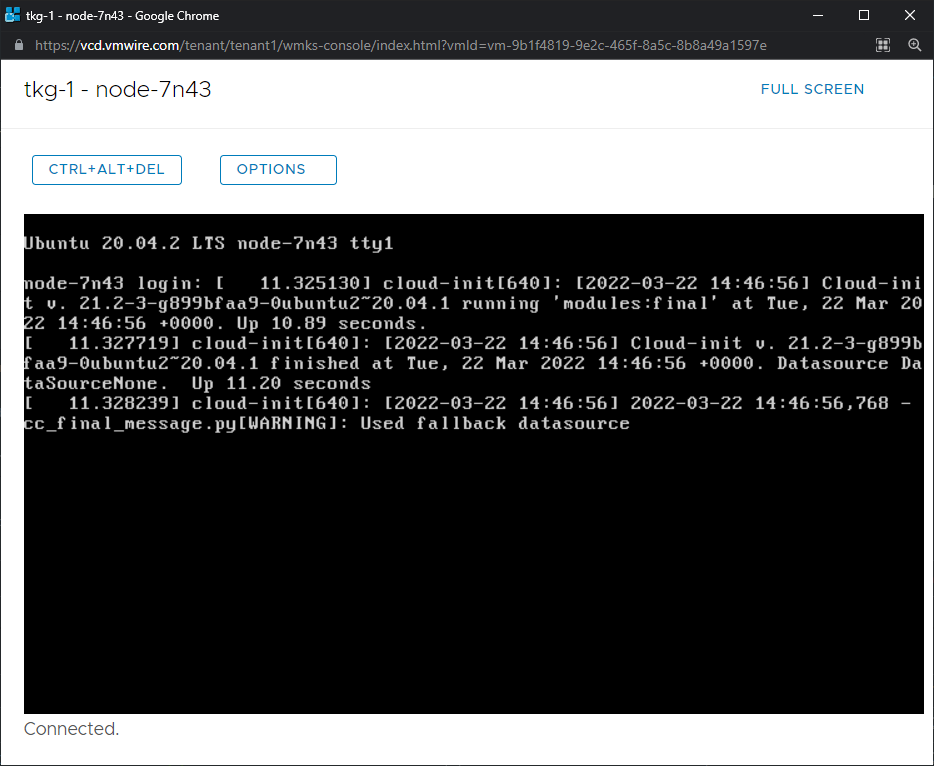
ingress:
  enabled: true
  virtual_host_fqdn: "prometheus-tkg-mgmt.vmwire.com"
  prometheus_prefix: "/"
  alertmanager_prefix: "/alertmanager/"
  prometheusServicePort: 80
  alertmanagerServicePort: 80
  tlsCertificate:
    tls.crt: |
      -----BEGIN CERTIFICATE-----
      --- snipped---
      -----END CERTIFICATE-----
    tls.key: |
      -----BEGIN PRIVATE KEY-----
      --- snipped---
      -----END PRIVATE KEY-----

Remove comments in the prometheus-data-values.yaml file.

yq -i eval '... comments=""' prometheus-data-values.yaml

Deploy prometheus

tanzu package install prometheus \
--package-name prometheus.tanzu.vmware.com \
--version 2.27.0+vmware.2-tkg.1 \
--values-file prometheus-data-values.yaml \
--namespace my-packages

Install Grafana

Download the grafana-data-values.yaml file.

image_url=$(kubectl -n tanzu-package-repo-global get packages grafana.tanzu.vmware.com.7.5.7+vmware.2-tkg.1 -o jsonpath='{.spec.template.spec.fetch[0].imgpkgBundle.image}')

imgpkg pull -b $image_url -o /tmp/grafana-package-7.5.7+vmware.2-tkg.1

cp /tmp/grafana-package-7.5.7+vmware.2-tkg.1/config/values.yaml grafana-data-values.yaml

Generate a Base64 password and edit the grafana-data-values.yaml file to update the default admin password.

echo -n 'Vmware1!' | base64

Also update the TLS configuration to use signed certificates for ingress. It will look something like this.

  secret:
    type: "Opaque"
    admin_user: "YWRtaW4="
    admin_password: "Vm13YXJlMSE="

ingress:
  enabled: true
  virtual_host_fqdn: "grafana-tkg-mgmt.vmwire.com"
  prefix: "/"
  servicePort: 80
  #! [Optional] The certificate for the ingress if you want to use your own TLS certificate.
  #! We will issue the certificate by cert-manager when it's empty.
  tlsCertificate:
    #! [Required] the certificate
    tls.crt: |
      -----BEGIN CERTIFICATE-----
      ---snipped---
      -----END CERTIFICATE-----
    #! [Required] the private key
    tls.key: |
      -----BEGIN PRIVATE KEY-----
      ---snipped---
      -----END PRIVATE KEY-----

Since I’m using ingress to expose the Grafana service, also change line 33, from LoadBalancer to ClusterIP. This prevents Kapp from creating an unnecessary service that will consume an IP address.

#! Grafana service configuration
   service:
     type: ClusterIP
     port: 80
     targetPort: 3000
     labels: {}
     annotations: {}

Remove comments in the grafana-data-values.yaml file.

yq -i eval '... comments=""' grafana-data-values.yaml

Deploy Grafana

tanzu package install grafana \
--package-name grafana.tanzu.vmware.com \
--version 7.5.7+vmware.2-tkg.1 \
--values-file grafana-data-values.yaml \
--namespace my-packages

Accessing Grafana

Since I’m using ingress and I set the ingress FQDN as grafana-tkg-mgmt.vmwire.com and I also used TLS. I can now access the Grafana UI using https://grafana-tkg-mgmt.vmwire.com and enjoy a secure connection.

Listing all installed packages

tanzu package installed list -A

Making changes to Contour, Prometheus or Grafana

If you need to make changes to any of the configuration files, you can then update the deployment with the tanzu package installed update command.

tanzu package installed update contour \
--version 1.18.2+vmware.1-tkg.1 \
--values-file contour-data-values.yaml \
--namespace my-packages
tanzu package installed update prometheus \
--version 2.27.0+vmware.2-tkg.1 \
--values-file prometheus-data-values.yaml \
--namespace my-packages
tanzu package installed update grafana \
--version 7.5.7+vmware.2-tkg.1 \
--values-file grafana-data-values.yaml \
--namespace my-packages

Removing Cert Manager, Contour, Prometheus or Grafana

tanzu package installed delete cert-manager -n my-packages
tanzu package installed delete contour -n my-packages
tanzu package installed delete prometheus -n my-packages
tanzu package installed delete grafana -n my-packages

Copypasta for doing this again on another cluster

Place all your completed data-values files into a directory and just run the entire code block below to set everything up in one go.

# Deploy cert-manager
tanzu package install cert-manager \
--package-name cert-manager.tanzu.vmware.com \
--namespace my-packages \
--version 1.5.3+vmware.2-tkg.1 \
--create-namespace

# Deploy contour
yq -i eval '... comments=""' contour-data-values.yaml
tanzu package install contour \
--package-name contour.tanzu.vmware.com \
--version 1.18.2+vmware.1-tkg.1 \
--values-file contour-data-values.yaml \
--namespace my-packages

# Deploy prometheus
yq -i eval '... comments=""' prometheus-data-values.yaml
tanzu package install prometheus \
--package-name prometheus.tanzu.vmware.com \
--version 2.27.0+vmware.2-tkg.1 \
--values-file prometheus-data-values.yaml \
--namespace my-packages

# Deploy grafana
yq -i eval '... comments=""' grafana-data-values.yaml
tanzu package install grafana \
--package-name grafana.tanzu.vmware.com \
--version 7.5.7+vmware.2-tkg.1 \
--values-file grafana-data-values.yaml \
--namespace my-packages

Using local storage with Tanzu Kubernetes Grid Topology Aware Volume Provisioning

With the vSphere CSI driver, it is now possible to use local storage with TKG clusters. This is enabled by TKG’s Topology Aware Volume Provisioning capability.

With this model, it is possible to present individual SSDs or NVMe drives attached to an ESXi host and configure a local datastore for use with topology aware volume provisioning. Kubernetes can then create persistent volumes and schedule pods that are deployed onto the worker nodes that are on the same ESXi host as the volume. This enables Kubernetes pods to have direct local access to the underlying storage.

With the vSphere CSI driver version 2.4.1, it is now possible to use local storage with TKG clusters. This is enabled by TKG’s Topology Aware Volume Provisioning capability.

Using local storage has distinct advantages over shared storage, especially when it comes to supporting faster and cheaper storage media for applications that do not benefit from or require the added complexity of having their data replicated by the storage layer. Examples of applications that do not require storage protection (RAID or failures to tolerate) are applications that can achieve data protection at the application level.

With this model, it is possible to present individual SSDs or NVMe drives attached to an ESXi host and configure a local datastore for use with topology aware volume provisioning. Kubernetes can then create persistent volumes and schedule pods that are deployed onto the worker nodes that are on the same ESXi host as the volume. This enables Kubernetes pods to have direct local access to the underlying storage.

Figure 1.

To setup such an environment, it is necessary to go over some of the requirements first.

  1. Deploy Tanzu Kubernetes Clusters to Multiple Availability Zones on vSphere – link
  2. Spread Nodes Across Multiple Hosts in a Single Compute Cluster
  3. Configure Tanzu Kubernetes Plans and Clusters with an overlay that is topology-aware – link
  4. Deploy TKG clusters into a multi-AZ topology
  5. Deploy the k8s-local-ssd storage class
  6. Deploy Workloads with WaitForFirstConsumer Mode in Topology-Aware Environment – link

Before you start

Note that only the CSI driver for vSphere version 2.4.1 supports local storage topology in a multi-AZ topology. To check if you have the correct version in your TKG cluster, run the following.

tanzu package installed get vsphere-csi -n tkg-system
- Retrieving installation details for vsphere-csi... I0224 19:20:29.397702  317993 request.go:665] Waited for 1.03368201s due to client-side throttling, not priority and fairness, request: GET:https://172.16.3.94:6443/apis/secretgen.k14s.io/v1alpha1?timeout=32s
\ Retrieving installation details for vsphere-csi...
NAME:                    vsphere-csi
PACKAGE-NAME:            vsphere-csi.tanzu.vmware.com
PACKAGE-VERSION:         2.4.1+vmware.1-tkg.1
STATUS:                  Reconcile succeeded
CONDITIONS:              [{ReconcileSucceeded True  }]

Deploy Tanzu Kubernetes Clusters to Multiple Availibility Zones on vSphere

In my example, I am using the Spread Nodes Across Multiple Hosts in a Single Compute Cluster example, each ESXi host is an availability zone (AZ) and the vSphere cluster is the Region.

Figure 1. shows a TKG cluster with three worker nodes, each node is running on a separate ESXi host. Each ESXi host has a local SSD drive formatted with VMFS 6. The topology aware volume provisioner would always place pods and their replicas on separate worker nodes and also any persistent volume claims (PVC) on separate ESXi hosts.

ParameterSpecificationvSphere objectDatastore
RegiontagCategory: k8s-regioncluster*
Zone
az-1
az-2
az-3
tagCategory: k8s-zone
host-group-1
host-group-2
host-group-3

esx1.vcd.lab
esx2.vcd.lab
esx3.vcd.lab

esx1-ssd-1
esx2-ssd-1
esx3-ssd-1
Storage Policyk8s-local-ssdesx1-ssd-1
esx2-ssd-1
esx3-ssd-1
TagstagCategory: k8s-storage
tag: k8s-local-ssd
esx1-ssd-1
esx2-ssd-1
esx3-ssd-1

*Note that “cluster” is the name of my vSphere cluster.

Ensure that you’ve set up the correct rules that enforce worker nodes to their respective ESXi hosts. Always use “Must run on hosts in group“, this is very important for local storage topology to work. This is because the worker nodes will be labelled for topology awareness, and if a worker node is vMotion’d accidentally then the CSI driver will not be able to bind the PVC to the worker node.

Below is my vsphere-zones.yaml file.

Note that autoConfigure is set to true. Which means that you do not have to tag the cluster or the ESX hosts yourself, you would only need to setup up the affinity rules under Cluster, Configure, VM/Host Groups and VM/Host Rules. The setting autoConfigure: true, would then make CAPV automatically configure the tags and tag categories for you.

---
apiVersion: infrastructure.cluster.x-k8s.io/v1beta1
kind: VSphereFailureDomain
metadata:
 name: az-1
spec:
 region:
   name: cluster
   type: ComputeCluster
   tagCategory: k8s-region
   autoConfigure: true
 zone:
   name: az-1
   type: HostGroup
   tagCategory: k8s-zone
   autoConfigure: true
 topology:
   datacenter: home.local
   computeCluster: cluster
   hosts:
     vmGroupName: workers-group-1
     hostGroupName: host-group-1
   datastore: lun01
   networks:
   - tkg-workload
---
apiVersion: infrastructure.cluster.x-k8s.io/v1beta1
kind: VSphereFailureDomain
metadata:
 name: az-2
spec:
 region:
   name: cluster
   type: ComputeCluster
   tagCategory: k8s-region
   autoConfigure: true
 zone:
   name: az-2
   type: HostGroup
   tagCategory: k8s-zone
   autoConfigure: true
 topology:
   datacenter: home.local
   computeCluster: cluster
   hosts:
     vmGroupName: workers-group-2
     hostGroupName: host-group-2
   datastore: lun01
   networks:
   - tkg-workload
---
apiVersion: infrastructure.cluster.x-k8s.io/v1beta1
kind: VSphereFailureDomain
metadata:
 name: az-3
spec:
 region:
   name: cluster
   type: ComputeCluster
   tagCategory: k8s-region
   autoConfigure: true
 zone:
   name: az-3
   type: HostGroup
   tagCategory: k8s-zone
   autoConfigure: true
 topology:
   datacenter: home.local
   computeCluster: cluster
   hosts:
     vmGroupName: workers-group-3
     hostGroupName: host-group-3
   datastore: lun01
   networks:
   - tkg-workload
---
apiVersion: infrastructure.cluster.x-k8s.io/v1beta1
kind: VSphereDeploymentZone
metadata:
 name: az-1
spec:
 server: vcenter.vmwire.com
 failureDomain: az-1
 placementConstraint:
   resourcePool: tkg-vsphere-workload
   folder: tkg-vsphere-workload
---
apiVersion: infrastructure.cluster.x-k8s.io/v1beta1
kind: VSphereDeploymentZone
metadata:
 name: az-2
spec:
 server: vcenter.vmwire.com
 failureDomain: az-2
 placementConstraint:
   resourcePool: tkg-vsphere-workload
   folder: tkg-vsphere-workload
---
apiVersion: infrastructure.cluster.x-k8s.io/v1beta1
kind: VSphereDeploymentZone
metadata:
 name: az-3
spec:
 server: vcenter.vmwire.com
 failureDomain: az-3
 placementConstraint:
   resourcePool: tkg-vsphere-workload
   folder: tkg-vsphere-workload

Note that Kubernetes does not like using parameter names that are not standard, I suggest for your vmGroupName and hostGroupName parameters, use lowercase and dashes instead of periods. For example host-group-3, instead of Host.Group.3. The latter will be rejected.

Configure Tanzu Kubernetes Plans and Clusters with an overlay that is topology-aware

To ensure that this topology can be built by TKG, we first need to create a TKG cluster plan overlay that tells Tanzu how what to do when creating worker nodes in a multi-availability zone topology.

Lets take a look at my az-overlay.yaml file.

Since I have three AZs, I need to create an overlay file that includes the cluster plan for all three AZs.

ParameterSpecification
Zone
az-1
az-2
az-3
VSphereMachineTemplate
-worker-0
-worker-1
-worker-2
KubeadmConfigTemplate
-md-0
-md-1
-md-2
#! Please add any overlays specific to vSphere provider under this file.

#@ load("@ytt:overlay", "overlay")
#@ load("@ytt:data", "data")

#@ load("lib/helpers.star", "get_bom_data_for_tkr_name", "get_default_tkg_bom_data", "kubeadm_image_repo", "get_image_repo_for_component", "get_vsphere_thumbprint")

#@ load("lib/validate.star", "validate_configuration")
#@ load("@ytt:yaml", "yaml")
#@ validate_configuration("vsphere")

#@ bomDataForK8sVersion = get_bom_data_for_tkr_name()

#@ if data.values.CLUSTER_PLAN == "dev" and not data.values.IS_WINDOWS_WORKLOAD_CLUSTER:
#@overlay/match by=overlay.subset({"kind":"VSphereCluster"})
---
apiVersion: infrastructure.cluster.x-k8s.io/v1beta1
kind: VSphereCluster
metadata:
  name: #@ data.values.CLUSTER_NAME
spec:
  thumbprint: #@ get_vsphere_thumbprint()
  server: #@ data.values.VSPHERE_SERVER
  identityRef:
    kind: Secret
    name: #@ data.values.CLUSTER_NAME

#@overlay/match by=overlay.subset({"kind":"MachineDeployment", "metadata":{"name": "{}-md-0".format(data.values.CLUSTER_NAME)}})
---
spec:
  template:
    spec:
      #@overlay/match missing_ok=True
      #@ if data.values.VSPHERE_AZ_0:
      failureDomain: #@ data.values.VSPHERE_AZ_0
      #@ end
      infrastructureRef:
        name: #@ "{}-worker-0".format(data.values.CLUSTER_NAME)

#@overlay/match by=overlay.subset({"kind":"VSphereMachineTemplate", "metadata":{"name": "{}-worker".format(data.values.CLUSTER_NAME)}})
---
metadata:
  name: #@ "{}-worker-0".format(data.values.CLUSTER_NAME)
spec:
  template:
    spec:
      #@overlay/match missing_ok=True
      #@ if data.values.VSPHERE_AZ_0:
      failureDomain: #@ data.values.VSPHERE_AZ_0
      #@ end
---
apiVersion: infrastructure.cluster.x-k8s.io/v1beta1
kind: VSphereMachineTemplate
metadata:
  name: #@ "{}-md-1".format(data.values.CLUSTER_NAME)
  #@overlay/match missing_ok=True
  annotations:
    vmTemplateMoid: #@ data.values.VSPHERE_TEMPLATE_MOID
spec:
  template:
    spec:
      cloneMode:  #@ data.values.VSPHERE_CLONE_MODE
      datacenter: #@ data.values.VSPHERE_DATACENTER
      datastore: #@ data.values.VSPHERE_DATASTORE
      storagePolicyName: #@ data.values.VSPHERE_STORAGE_POLICY_ID
      diskGiB: #@ data.values.VSPHERE_WORKER_DISK_GIB
      folder: #@ data.values.VSPHERE_FOLDER
      memoryMiB: #@ data.values.VSPHERE_WORKER_MEM_MIB
      network:
        devices:
          #@overlay/match by=overlay.index(0)
          #@overlay/replace
          - networkName: #@ data.values.VSPHERE_NETWORK
            #@ if data.values.WORKER_NODE_NAMESERVERS:
            nameservers: #@ data.values.WORKER_NODE_NAMESERVERS.replace(" ", "").split(",")
            #@ end
            #@ if data.values.TKG_IP_FAMILY == "ipv6":
            dhcp6: true
            #@ elif data.values.TKG_IP_FAMILY in ["ipv4,ipv6", "ipv6,ipv4"]:
            dhcp4: true
            dhcp6: true
            #@ else:
            dhcp4: true
            #@ end
      numCPUs: #@ data.values.VSPHERE_WORKER_NUM_CPUS
      resourcePool: #@ data.values.VSPHERE_RESOURCE_POOL
      server: #@ data.values.VSPHERE_SERVER
      template: #@ data.values.VSPHERE_TEMPLATE
---
apiVersion: infrastructure.cluster.x-k8s.io/v1beta1
kind: VSphereMachineTemplate
metadata:
  name: #@ "{}-md-2".format(data.values.CLUSTER_NAME)
  #@overlay/match missing_ok=True
  annotations:
    vmTemplateMoid: #@ data.values.VSPHERE_TEMPLATE_MOID
spec:
  template:
    spec:
      cloneMode:  #@ data.values.VSPHERE_CLONE_MODE
      datacenter: #@ data.values.VSPHERE_DATACENTER
      datastore: #@ data.values.VSPHERE_DATASTORE
      storagePolicyName: #@ data.values.VSPHERE_STORAGE_POLICY_ID
      diskGiB: #@ data.values.VSPHERE_WORKER_DISK_GIB
      folder: #@ data.values.VSPHERE_FOLDER
      memoryMiB: #@ data.values.VSPHERE_WORKER_MEM_MIB
      network:
        devices:
          #@overlay/match by=overlay.index(0)
          #@overlay/replace
          - networkName: #@ data.values.VSPHERE_NETWORK
            #@ if data.values.WORKER_NODE_NAMESERVERS:
            nameservers: #@ data.values.WORKER_NODE_NAMESERVERS.replace(" ", "").split(",")
            #@ end
            #@ if data.values.TKG_IP_FAMILY == "ipv6":
            dhcp6: true
            #@ elif data.values.TKG_IP_FAMILY in ["ipv4,ipv6", "ipv6,ipv4"]:
            dhcp4: true
            dhcp6: true
            #@ else:
            dhcp4: true
            #@ end
      numCPUs: #@ data.values.VSPHERE_WORKER_NUM_CPUS
      resourcePool: #@ data.values.VSPHERE_RESOURCE_POOL
      server: #@ data.values.VSPHERE_SERVER
      template: #@ data.values.VSPHERE_TEMPLATE
---
apiVersion: cluster.x-k8s.io/v1beta1
kind: MachineDeployment
metadata:
  labels:
    cluster.x-k8s.io/cluster-name: #@ data.values.CLUSTER_NAME
  name: #@ "{}-md-1".format(data.values.CLUSTER_NAME)
spec:
  clusterName: #@ data.values.CLUSTER_NAME
  replicas: #@ data.values.WORKER_MACHINE_COUNT_1
  selector:
    matchLabels:
      cluster.x-k8s.io/cluster-name: #@ data.values.CLUSTER_NAME
  template:
    metadata:
      labels:
        cluster.x-k8s.io/cluster-name: #@ data.values.CLUSTER_NAME
        node-pool: #@ "{}-worker-pool".format(data.values.CLUSTER_NAME)
    spec:
      bootstrap:
        configRef:
          apiVersion: bootstrap.cluster.x-k8s.io/v1beta1
          kind: KubeadmConfigTemplate
          name: #@ "{}-md-1".format(data.values.CLUSTER_NAME)
      clusterName: #@ data.values.CLUSTER_NAME
      infrastructureRef:
        apiVersion: infrastructure.cluster.x-k8s.io/v1beta1
        kind: VSphereMachineTemplate
        name: #@ "{}-md-1".format(data.values.CLUSTER_NAME)
      version: #@ data.values.KUBERNETES_VERSION
      #@ if data.values.VSPHERE_AZ_1:
      failureDomain: #@ data.values.VSPHERE_AZ_1
      #@ end
---
apiVersion: cluster.x-k8s.io/v1beta1
kind: MachineDeployment
metadata:
  labels:
    cluster.x-k8s.io/cluster-name: #@ data.values.CLUSTER_NAME
  name: #@ "{}-md-2".format(data.values.CLUSTER_NAME)
spec:
  clusterName: #@ data.values.CLUSTER_NAME
  replicas: #@ data.values.WORKER_MACHINE_COUNT_2
  selector:
    matchLabels:
      cluster.x-k8s.io/cluster-name: #@ data.values.CLUSTER_NAME
  template:
    metadata:
      labels:
        cluster.x-k8s.io/cluster-name: #@ data.values.CLUSTER_NAME
        node-pool: #@ "{}-worker-pool".format(data.values.CLUSTER_NAME)
    spec:
      bootstrap:
        configRef:
          apiVersion: bootstrap.cluster.x-k8s.io/v1beta1
          kind: KubeadmConfigTemplate
          name: #@ "{}-md-2".format(data.values.CLUSTER_NAME)
      clusterName: #@ data.values.CLUSTER_NAME
      infrastructureRef:
        apiVersion: infrastructure.cluster.x-k8s.io/v1beta1
        kind: VSphereMachineTemplate
        name: #@ "{}-md-2".format(data.values.CLUSTER_NAME)
      version: #@ data.values.KUBERNETES_VERSION
      #@ if data.values.VSPHERE_AZ_2:
      failureDomain: #@ data.values.VSPHERE_AZ_2
      #@ end
---
apiVersion: bootstrap.cluster.x-k8s.io/v1beta1
kind: KubeadmConfigTemplate
metadata:
  name: #@ "{}-md-1".format(data.values.CLUSTER_NAME)
  namespace: '${ NAMESPACE }'
spec:
  template:
    spec:
      useExperimentalRetryJoin: true
      joinConfiguration:
        nodeRegistration:
          criSocket: /var/run/containerd/containerd.sock
          kubeletExtraArgs:
            cloud-provider: external
            tls-cipher-suites: TLS_ECDHE_ECDSA_WITH_AES_128_GCM_SHA256,TLS_ECDHE_RSA_WITH_AES_128_GCM_SHA256,TLS_ECDHE_ECDSA_WITH_CHACHA20_POLY1305,TLS_ECDHE_RSA_WITH_AES_256_GCM_SHA384,TLS_ECDHE_RSA_WITH_CHACHA20_POLY1305,TLS_ECDHE_ECDSA_WITH_AES_256_GCM_SHA384
          name: '{{ ds.meta_data.hostname }}'
      preKubeadmCommands:
        - hostname "{{ ds.meta_data.hostname }}"
        - echo "::1         ipv6-localhost ipv6-loopback" >/etc/hosts
        - echo "127.0.0.1   localhost" >>/etc/hosts
        - echo "127.0.0.1   {{ ds.meta_data.hostname }}" >>/etc/hosts
        - echo "{{ ds.meta_data.hostname }}" >/etc/hostname
      files: []
      users:
        - name: capv
          sshAuthorizedKeys:
            - #@ data.values.VSPHERE_SSH_AUTHORIZED_KEY
          sudo: ALL=(ALL) NOPASSWD:ALL
---
apiVersion: bootstrap.cluster.x-k8s.io/v1beta1
kind: KubeadmConfigTemplate
metadata:
  name: #@ "{}-md-2".format(data.values.CLUSTER_NAME)
  namespace: '${ NAMESPACE }'
spec:
  template:
    spec:
      useExperimentalRetryJoin: true
      joinConfiguration:
        nodeRegistration:
          criSocket: /var/run/containerd/containerd.sock
          kubeletExtraArgs:
            cloud-provider: external
            tls-cipher-suites: TLS_ECDHE_ECDSA_WITH_AES_128_GCM_SHA256,TLS_ECDHE_RSA_WITH_AES_128_GCM_SHA256,TLS_ECDHE_ECDSA_WITH_CHACHA20_POLY1305,TLS_ECDHE_RSA_WITH_AES_256_GCM_SHA384,TLS_ECDHE_RSA_WITH_CHACHA20_POLY1305,TLS_ECDHE_ECDSA_WITH_AES_256_GCM_SHA384
          name: '{{ ds.meta_data.hostname }}'
      preKubeadmCommands:
        - hostname "{{ ds.meta_data.hostname }}"
        - echo "::1         ipv6-localhost ipv6-loopback" >/etc/hosts
        - echo "127.0.0.1   localhost" >>/etc/hosts
        - echo "127.0.0.1   {{ ds.meta_data.hostname }}" >>/etc/hosts
        - echo "{{ ds.meta_data.hostname }}" >/etc/hostname
      files: []
      users:
        - name: capv
          sshAuthorizedKeys:
            - #@ data.values.VSPHERE_SSH_AUTHORIZED_KEY
          sudo: ALL=(ALL) NOPASSWD:ALL
#@ end

Deploy a TKG cluster into a multi-AZ topology

To deploy a TKG cluster that spreads its worker nodes over multiple AZs, we need to add some key value pairs into the cluster config file.

Below is an example for my cluster config file – tkg-hugo.yaml.

The new key value pairs are described in the table below.

ParameterSpecificationDetails
VSPHERE_REGIONk8s-regionMust be the same as the configuration in the vsphere-zones.yaml file
VSPHERE_ZONEk8s-zoneMust be the same as the configuration in the vsphere-zones.yaml file
VSPHERE_AZ_0
VSPHERE_AZ_1
VSPHERE_AZ_2
az-1
az-2
az-3
Must be the same as the configuration in the vsphere-zones.yaml file
WORKER_MACHINE_COUNT3This is the number of worker nodes for the cluster.

The total number of workers are distributed in a round-robin fashion across the number of AZs specified.
A note on WORKER_MACHINE_COUNT when using CLUSTER_PLAN: dev instead of prod.

If you change the az-overlay.yaml @ if data.values.CLUSTER_PLAN == “prod” to @ if data.values.CLUSTER_PLAN == “dev”
Then the WORKER_MACHINE_COUNT reverts to the number of workers for each AZ. So if you set this number to 3, in a three AZ topology, you would end up with a TKG cluster with nine workers!
CLUSTER_CIDR: 100.96.0.0/11
CLUSTER_NAME: tkg-hugo
CLUSTER_PLAN: prod
ENABLE_CEIP_PARTICIPATION: 'false'
ENABLE_MHC: 'true'
IDENTITY_MANAGEMENT_TYPE: none
INFRASTRUCTURE_PROVIDER: vsphere
SERVICE_CIDR: 100.64.0.0/13
TKG_HTTP_PROXY_ENABLED: false
DEPLOY_TKG_ON_VSPHERE7: 'true'
VSPHERE_DATACENTER: /home.local
VSPHERE_DATASTORE: lun02
VSPHERE_FOLDER: /home.local/vm/tkg-vsphere-workload
VSPHERE_NETWORK: /home.local/network/tkg-workload
VSPHERE_PASSWORD: <encoded:snipped>
VSPHERE_RESOURCE_POOL: /home.local/host/cluster/Resources/tkg-vsphere-workload
VSPHERE_SERVER: vcenter.vmwire.com
VSPHERE_SSH_AUTHORIZED_KEY: ssh-rsa <snipped> administrator@vsphere.local
VSPHERE_USERNAME: administrator@vsphere.local
CONTROLPLANE_SIZE: small
WORKER_MACHINE_COUNT: 3
WORKER_SIZE: small
VSPHERE_INSECURE: 'true'
ENABLE_AUDIT_LOGGING: 'true'
ENABLE_DEFAULT_STORAGE_CLASS: 'false'
ENABLE_AUTOSCALER: 'false'
AVI_CONTROL_PLANE_HA_PROVIDER: 'true'
VSPHERE_REGION: k8s-region
VSPHERE_ZONE: k8s-zone
VSPHERE_AZ_0: az-1
VSPHERE_AZ_1: az-2
VSPHERE_AZ_2: az-3

Deploy the k8s-local-ssd Storage Class

Below is my storageclass-k8s-local-ssd.yaml.

Note that parameters.storagePolicyName: k8s-local-ssd, which is the same as the name of the storage policy for the local storage. All three of the local VMFS datastores that are backed by the local SSD drives are members of this storage policy.

Note that the volumeBindingMode is set to WaitForFirstConsumer.

Instead of creating a volume immediately, the WaitForFirstConsumer setting instructs the volume provisioner to wait until a pod using the associated PVC runs through scheduling. In contrast with the Immediate volume binding mode, when the WaitForFirstConsumer setting is used, the Kubernetes scheduler drives the decision of which failure domain to use for volume provisioning using the pod policies.

This guarantees the pod at its volume is always on the same AZ (ESXi host).

kind: StorageClass
apiVersion: storage.k8s.io/v1
metadata:
  name: k8s-local-ssd
  annotations:
    storageclass.kubernetes.io/is-default-class: "true"
provisioner: csi.vsphere.vmware.com
allowVolumeExpansion: true
volumeBindingMode: WaitForFirstConsumer
parameters:
  storagePolicyName: k8s-local-ssd

Deploy a workload that uses Topology Aware Volume Provisioning

Below is a statefulset that deploys three pods running nginx. It configures two persistent volumes, one for www and another for log. Both of these volumes are going to be provisioned onto the same ESXi host where the pod is running. The statefulset also runs an initContainer that will download a simple html file from my repo and copy it to the www mount point (/user/share/nginx/html).

You can see under spec.affinity.nodeAffinity how the statefulset uses the topology.

The statefulset then exposes the nginx app using the nginx-service which uses the Gateway API, that I wrote about in a previous blog post.

apiVersion: v1
kind: Service
metadata:
  name: nginx-service
  namespace: default
  labels:
    ako.vmware.com/gateway-name: gateway-tkg-workload-vip
    ako.vmware.com/gateway-namespace: default
spec:
  selector:
    app: nginx
  ports:
    - port: 80
      targetPort: 80
      protocol: TCP
  type: ClusterIP
---
apiVersion: apps/v1
kind: StatefulSet
metadata:
  name: web
spec:
  replicas: 3
  selector:
    matchLabels:
      app: nginx
  serviceName: nginx-service
  template:
    metadata:
      labels:
        app: nginx
    spec:
      affinity:
        nodeAffinity:
          requiredDuringSchedulingIgnoredDuringExecution:
            nodeSelectorTerms:
            - matchExpressions:
              - key: topology.csi.vmware.com/k8s-zone
                operator: In
                values:
                - az-1
                - az-2
                - az-3
        podAntiAffinity:
          requiredDuringSchedulingIgnoredDuringExecution:
          - labelSelector:
              matchExpressions:
              - key: app
                operator: In
                values:
                - nginx
            topologyKey: topology.csi.vmware.com/k8s-zone
      terminationGracePeriodSeconds: 10
      initContainers:
      - name: install
        image: busybox
        command:
        - wget
        - "-O"
        - "/www/index.html"
        - https://raw.githubusercontent.com/hugopow/cse/main/index.html
        volumeMounts:
        - name: www
          mountPath: "/www"
      containers:
        - name: nginx
          image: k8s.gcr.io/nginx-slim:0.8
          ports:
            - containerPort: 80
              name: web
          volumeMounts:
            - name: www
              mountPath: /usr/share/nginx/html
            - name: logs
              mountPath: /logs
  volumeClaimTemplates:
    - metadata:
        name: www
      spec:
        accessModes: [ "ReadWriteOnce" ]
        storageClassName: k8s-local-ssd
        resources:
          requests:
            storage: 2Gi
    - metadata:
        name: logs
      spec:
        accessModes: [ "ReadWriteOnce" ]
        storageClassName: k8s-local-ssd
        resources:
          requests:
            storage: 1Gi

What if you wanted to use more than three availability zones?

Some notes here on what I experienced during my testing.

The TKG cluster config has the following three lines to specify the names of the AZs that you want to use which will be passed onto the Tanzu CLI to use to deploy your TKG cluster using the ytt overlay file. However, the Tanzu CLI only supports a total of three AZs.

VSPHERE_AZ_0: az-1
VSPHERE_AZ_1: az-2
VSPHERE_AZ_2: az-3

If you wanted to use more than three AZs, then you would have to remove these three lines from the TKG cluster config and change the ytt overlay to not use the VSPHERE_AZ_# variables but to hard code the AZs into the ytt overlay file instead.

To do this replace the following:

      #@ if data.values.VSPHERE_AZ_2:
      failureDomain: #@ data.values.VSPHERE_AZ_0
      #@ end

with the following:

      failureDomain: az-2

and create an additional block of MachineDeployment and KubeadmConfigTemplate for each additional AZ that you need.

Summary

Below are screenshots and the resulting deployed objects after running kubectl apply -f to the above.

kubectl get nodes
NAME                             STATUS   ROLES                  AGE     VERSION
tkg-hugo-md-0-7d455b7488-d6jrl   Ready    <none>                 3h23m   v1.22.5+vmware.1
tkg-hugo-md-1-bc76659f7-cntn4    Ready    <none>                 3h23m   v1.22.5+vmware.1
tkg-hugo-md-2-6bb75968c4-mnrk5   Ready    <none>                 3h23m   v1.22.5+vmware.1

You can see that the worker nodes are distributed across the ESXi hosts as per our vsphere-zones.yaml and also our az-overlay.yaml files.

kubectl get po -o wide
NAME    READY   STATUS    RESTARTS   AGE     IP                NODE                             NOMINATED NODE   READINESS GATES
web-0   1/1     Running   0          3h14m   100.124.232.195   tkg-hugo-md-2-6bb75968c4-mnrk5   <none>           <none>
web-1   1/1     Running   0          3h13m   100.122.148.67    tkg-hugo-md-1-bc76659f7-cntn4    <none>           <none>
web-2   1/1     Running   0          3h12m   100.108.145.68    tkg-hugo-md-0-7d455b7488-d6jrl   <none>           <none>

You can see that each pod is placed on a separate worker node.

kubectl get csinodes -o jsonpath='{range .items[*]}{.metadata.name} {.spec}{"\n"}{end}'
tkg-hugo-md-0-7d455b7488-d6jrl {"drivers":[{"allocatable":{"count":59},"name":"csi.vsphere.vmware.com","nodeID":"tkg-hugo-md-0-7d455b7488-d6jrl","topologyKeys":["topology.csi.vmware.com/k8s-region","topology.csi.vmware.com/k8s-zone"]}]}
tkg-hugo-md-1-bc76659f7-cntn4 {"drivers":[{"allocatable":{"count":59},"name":"csi.vsphere.vmware.com","nodeID":"tkg-hugo-md-1-bc76659f7-cntn4","topologyKeys":["topology.csi.vmware.com/k8s-region","topology.csi.vmware.com/k8s-zone"]}]}
tkg-hugo-md-2-6bb75968c4-mnrk5 {"drivers":[{"allocatable":{"count":59},"name":"csi.vsphere.vmware.com","nodeID":"tkg-hugo-md-2-6bb75968c4-mnrk5","topologyKeys":["topology.csi.vmware.com/k8s-region","topology.csi.vmware.com/k8s-zone"]}]}

We can see that the CSI driver has correctly configured the worker nodes with the topologyKeys that enables the topology aware volume provisioning.

kubectl get pvc -o wide
NAME         STATUS   VOLUME                                     CAPACITY   ACCESS MODES   STORAGECLASS    AGE     VOLUMEMODE
logs-web-0   Bound    pvc-13cf4150-db60-4c13-9ee2-cbc092dba782   1Gi        RWO            k8s-local-ssd   3h18m   Filesystem
logs-web-1   Bound    pvc-e99cfe33-9fa4-46d8-95f8-8a71f4535b15   1Gi        RWO            k8s-local-ssd   3h17m   Filesystem
logs-web-2   Bound    pvc-6bd51eed-e0aa-4489-ac0a-f546dadcee16   1Gi        RWO            k8s-local-ssd   3h17m   Filesystem
www-web-0    Bound    pvc-8f46420a-41c4-4ad3-97d4-5becb9c45c94   2Gi        RWO            k8s-local-ssd   3h18m   Filesystem
www-web-1    Bound    pvc-c3c9f551-1837-41aa-b24f-f9dc6fdb9063   2Gi        RWO            k8s-local-ssd   3h17m   Filesystem
www-web-2    Bound    pvc-632a9f81-3e9d-492b-847a-9316043a2d47   2Gi        RWO            k8s-local-ssd   3h17m   Filesystem
kubectl get pv -o=jsonpath='{range .items[*]}{.metadata.name}{"\t"}{.spec.claimRef.name}{"\t"}{.spec.nodeAffinity}{"\n"}{end}'
pvc-13cf4150-db60-4c13-9ee2-cbc092dba782        logs-web-0      {"required":{"nodeSelectorTerms":[{"matchExpressions":[{"key":"topology.csi.vmware.com/k8s-region","operator":"In","values":["cluster"]},{"key":"topology.csi.vmware.com/k8s-zone","operator":"In","values":["az-3"]}]}]}}
pvc-632a9f81-3e9d-492b-847a-9316043a2d47        www-web-2       {"required":{"nodeSelectorTerms":[{"matchExpressions":[{"key":"topology.csi.vmware.com/k8s-region","operator":"In","values":["cluster"]},{"key":"topology.csi.vmware.com/k8s-zone","operator":"In","values":["az-1"]}]}]}}
pvc-6bd51eed-e0aa-4489-ac0a-f546dadcee16        logs-web-2      {"required":{"nodeSelectorTerms":[{"matchExpressions":[{"key":"topology.csi.vmware.com/k8s-region","operator":"In","values":["cluster"]},{"key":"topology.csi.vmware.com/k8s-zone","operator":"In","values":["az-1"]}]}]}}
pvc-8f46420a-41c4-4ad3-97d4-5becb9c45c94        www-web-0       {"required":{"nodeSelectorTerms":[{"matchExpressions":[{"key":"topology.csi.vmware.com/k8s-region","operator":"In","values":["cluster"]},{"key":"topology.csi.vmware.com/k8s-zone","operator":"In","values":["az-3"]}]}]}}
pvc-c3c9f551-1837-41aa-b24f-f9dc6fdb9063        www-web-1       {"required":{"nodeSelectorTerms":[{"matchExpressions":[{"key":"topology.csi.vmware.com/k8s-region","operator":"In","values":["cluster"]},{"key":"topology.csi.vmware.com/k8s-zone","operator":"In","values":["az-2"]}]}]}}
pvc-e99cfe33-9fa4-46d8-95f8-8a71f4535b15        logs-web-1      {"required":{"nodeSelectorTerms":[{"matchExpressions":[{"key":"topology.csi.vmware.com/k8s-zone","operator":"In","values":["az-2"]},{"key":"topology.csi.vmware.com/k8s-region","operator":"In","values":["cluster"]}]}]}}

Here we see the placement for the persistent volumes within the AZs and they also align to the right worker node.

k get no tkg-hugo-md-0-7d455b7488-d6jrl -o yaml | grep topology.kubernetes.io/zone:
topology.kubernetes.io/zone: az-1
k get no tkg-hugo-md-1-bc76659f7-cntn4 -o yaml | grep topology.kubernetes.io/zone:
topology.kubernetes.io/zone: az-2
k get no tkg-hugo-md-2-6bb75968c4-mnrk5 -o yaml | grep topology.kubernetes.io/zone:
topology.kubernetes.io/zone: az-3
k get volumeattachments.storage.k8s.io
NAME                                                                   ATTACHER                 PV                                         NODE                             ATTACHED   AGE
csi-476b244713205d0d4d4e13da1a6bd2beec49ac90fbd4b64c090ffba8468f6479   csi.vsphere.vmware.com   pvc-c3c9f551-1837-41aa-b24f-f9dc6fdb9063   tkg-hugo-md-1-bc76659f7-cntn4    true       9h
csi-5a759811557125917e3b627993061912386f4d2e8fb709e85fc407117138b178   csi.vsphere.vmware.com   pvc-8f46420a-41c4-4ad3-97d4-5becb9c45c94   tkg-hugo-md-2-6bb75968c4-mnrk5   true       9h
csi-6016904b0ac4ac936184e95c8ff0b3b8bebabb861a99b822e6473c5ee1caf388   csi.vsphere.vmware.com   pvc-6bd51eed-e0aa-4489-ac0a-f546dadcee16   tkg-hugo-md-0-7d455b7488-d6jrl   true       9h
csi-c5b9abcc05d7db5348493952107405b557d7eaa0341aa4e952457cf36f90a26d   csi.vsphere.vmware.com   pvc-13cf4150-db60-4c13-9ee2-cbc092dba782   tkg-hugo-md-2-6bb75968c4-mnrk5   true       9h
csi-df68754411ab34a5af1c4014db9e9ba41ee216d0f4ec191a0d191f07f99e3039   csi.vsphere.vmware.com   pvc-e99cfe33-9fa4-46d8-95f8-8a71f4535b15   tkg-hugo-md-1-bc76659f7-cntn4    true       9h
csi-f48a7db32aafb2c76cc22b1b533d15d331cd14c2896b20cfb4d659621fd60fbc   csi.vsphere.vmware.com   pvc-632a9f81-3e9d-492b-847a-9316043a2d47   tkg-hugo-md-0-7d455b7488-d6jrl   true       9h

And finally, some other screenshots to show the PVCs in vSphere.

ESX1

ESX2

ESX3

Deploying Harbor onto Photon OS for Air-gapped Environments

This post describes how to setup Harbor to run on a standalone VM. There are times when you want to do this, such as occasions where your environment does not have internet access or you want to have a local repository running close to your environment.

This post describes how to setup Harbor to run on a standalone VM. There are times when you want to do this, such as occasions where your environment does not have internet access or you want to have a local repository running close to your environment.

I found that I was running a lot of TKG deployments against TKG staging builds in my lab and wanted to speed up cluster creation times, so building a local Harbor repository would make things a bit quicker and more reliable.

This post describes how you can setup a Harbor repository on a Photon VM.

Step 1: Setup a static IP

See the documentation https://vmware.github.io/photon/assets/files/html/3.0/photon_admin/setting-a-static-ip-address.html, and https://vmware.github.io/photon/assets/files/html/3.0/photon_admin/adding-a-dns-server.html

vi /etc/systemd/network/10-static-en.network

chmod 644 /etc/systemd/network/10-static-en.network
systemctl restart systemd-networkd

vi /etc/hostname

reboot

Step 2: Enable pings to the VM

iptables -A INPUT -p ICMP -j ACCEPT
iptables -A OUTPUT -p ICMP -j ACCEPT

Step 3: Update Photon repositories and perform updates

cd /etc/yum.repos.d/
sed  -i 's/dl.bintray.com\/vmware/packages.vmware.com\/photon\/$releasever/g' photon.repo photon-updates.repo photon-extras.repo photon-debuginfo.repo
tdnf --assumeyes update
tdnf updateinfo
tdnf -y distro-sync
tdnf install -y bindutils tar parted
reboot

Step 4: Install docker-compose

curl -L "https://github.com/docker/compose/releases/download/1.29.2/docker-compose-$(uname -s)-$(uname -m)" -o /usr/local/bin/docker-compose
chmod +x /usr/local/bin/docker-compose
docker-compose --version
systemctl start docker
systemctl enable docker
docker version

Step 5: Add a data disk for Harbor

Add another vmdk file to the VM then run the below

fdisk -l
parted /dev/sdb mklabel gpt mkpart ext4 0% 100%
mkfs -t ext4 /dev/sdb1
mkdir /data
vim /etc/fstab

Append the following line to the end of the file

/dev/sdb1 /data ext4 defaults 0 0
mount /data
df -h

Step 6: Setup Harbor

mkdir -p /harbor /etc/docker/certs.d/harbor.vmwire.com
cd /harbor
curl -sLO https://github.com/goharbor/harbor/releases/download/v2.4.1/harbor-offline-installer-v2.4.1.tgz
tar xvf harbor-offline-installer-v2.4.1.tgz --strip-components=1

Step 7: Prepare SSL certificates

I use Let’s Encrypt and have the following three files renamed from the original Let’s Encrypt filenames:

harbor.cert

harbor_key.key and

ca.crt

harbor.cert is the wildcard certificate issued for my domain by Let’s Encrypt, it is originally named cert.pem.

harbor_key.key is orginally named privkey.pem.

ca.crt is chain.pem.

Copy all three certificate files to /etc/docker/certs.d/harbor.vmwire.com

cp harbor.cert harbor_key.key ca.crt /etc/docker/certs.d/harbor.vmwire.com/

Step 8: Edit the harbor.yml file

# Configuration file of Harbor

# The IP address or hostname to access admin UI and registry service.
# DO NOT use localhost or 127.0.0.1, because Harbor needs to be accessed by external clients.
hostname: harbor.vmwire.com

# http related config
http:
  # port for http, default is 80. If https enabled, this port will redirect to https port
  port: 80

# https related config
https:
  # https port for harbor, default is 443
  port: 443
  # The path of cert and key files for nginx
  certificate: /etc/docker/certs.d/harbor.vmwire.com/harbor.cert
  private_key: /etc/docker/certs.d/harbor.vmwire.com/harbor_key.key

[snipped]

Update line 5 with your harbor instance’s FQDN.

Update lines 17 and 18 with the certificate and private key.

You can leave all the other lines on default.

Install Harbor with the following command:

./install.sh

Check to see if services are running

docker-compose ps

Step 9: Add harbor FQDN to your DNS servers and connect to Harbor.

To upgrade, download the new offline installer and run

install.sh

Install Container Service Extension 3.1.1 with VCD 10.3.1

Prepare the Photon OS 3 VM

Deploy the OVA using this link.

Photon OS 3 does not support Linux guest customization unfortunately, so we will use the links below to manually setup the OS with a hostname and static IP address.

Boot the VM, the default credentials are root with password changeme. Change the default password.

Set host name by changing the /etc/hostname file.

Configure a static IP using this guide.

Add DNS server using this guide.

Reboot.

Photon 3 has the older repositories, so we will need to update to newer repositories as detailed in this KB article. I’ve included this in the instructions below.

Copypasta or use create a bash script.

# Update Photon repositories
cd /etc/yum.repos.d/
sed  -i 's/dl.bintray.com\/vmware/packages.vmware.com\/photon\/$releasever/g' photon.repo photon-updates.repo photon-extras.repo photon-debuginfo.repo

# If you get errors with the above command, then copy the command from the KB article.

# Update Photon
tdnf --assumeyes update

# Install dependencies
tdnf --assumeyes install build-essential python3-devel python3-pip git

# Update python3, cse supports python3 version 3.7.3 or greater, it does not support python 3.8 or above.
tdnf --assumeyes update python3

# Prepare cse user and application directories
mkdir -p /opt/vmware/cse
chmod 775 -R /opt
chmod 777 /
groupadd cse
useradd cse -g cse -m -p Vmware1! -d /opt/vmware/cse
chown cse:cse -R /opt

# Run as cse user, add your public ssh key to CSE server
su - cse
mkdir -p ~/.ssh
cat >> ~/.ssh/authorized_keys << EOF
ssh-rsa AAAAB3NzaC1yc2EAAAABJQAAAQEAhcw67bz3xRjyhPLysMhUHJPhmatJkmPUdMUEZre+MeiDhC602jkRUNVu43Nk8iD/I07kLxdAdVPZNoZuWE7WBjmn13xf0Ki2hSH/47z3ObXrd8Vleq0CXa+qRnCeYM3FiKb4D5IfL4XkHW83qwp8PuX8FHJrXY8RacVaOWXrESCnl3cSC0tA3eVxWoJ1kwHxhSTfJ9xBtKyCqkoulqyqFYU2A1oMazaK9TYWKmtcYRn27CC1Jrwawt2zfbNsQbHx1jlDoIO6FLz8Dfkm0DToanw0GoHs2Q+uXJ8ve/oBs0VJZFYPquBmcyfny4WIh4L0lwzsiAVWJ6PvzF5HMuNcwQ== rsa-key-20210508
EOF

cat >> ~/.bash_profile << EOF
# For Container Service Extension
export CSE_CONFIG=/opt/vmware/cse/config/config.yaml
export CSE_CONFIG_PASSWORD=Vmware1!
source /opt/vmware/cse/python/bin/activate
EOF

# Install CSE in virtual environment
python3 -m venv /opt/vmware/cse/python
source /opt/vmware/cse/python/bin/activate
pip3 install container-service-extension==3.1.1

cse version

source ~/.bash_profile

# Prepare vcd-cli
mkdir -p ~/.vcd-cli
cat >  ~/.vcd-cli/profiles.yaml << EOF
extensions:
- container_service_extension.client.cse
EOF

vcd cse version

# Add my Let's Encrypt intermediate and root certs. Use your certificates issued by your CA to enable verify=true with CSE.
cat >> /opt/vmware/cse/python/lib/python3.7/site-packages/certifi/cacert.pem << EOF
-----BEGIN CERTIFICATE-----
MIIFFjCCAv6gAwIBAgIRAJErCErPDBinU/bWLiWnX1owDQYJKoZIhvcNAQELBQAw
TzELMAkGA1UEBhMCVVMxKTAnBgNVBAoTIEludGVybmV0IFNlY3VyaXR5IFJlc2Vh
cmNoIEdyb3VwMRUwEwYDVQQDEwxJU1JHIFJvb3QgWDEwHhcNMjAwOTA0MDAwMDAw
WhcNMjUwOTE1MTYwMDAwWjAyMQswCQYDVQQGEwJVUzEWMBQGA1UEChMNTGV0J3Mg
RW5jcnlwdDELMAkGA1UEAxMCUjMwggEiMA0GCSqGSIb3DQEBAQUAA4IBDwAwggEK
AoIBAQC7AhUozPaglNMPEuyNVZLD+ILxmaZ6QoinXSaqtSu5xUyxr45r+XXIo9cP
R5QUVTVXjJ6oojkZ9YI8QqlObvU7wy7bjcCwXPNZOOftz2nwWgsbvsCUJCWH+jdx
sxPnHKzhm+/b5DtFUkWWqcFTzjTIUu61ru2P3mBw4qVUq7ZtDpelQDRrK9O8Zutm
NHz6a4uPVymZ+DAXXbpyb/uBxa3Shlg9F8fnCbvxK/eG3MHacV3URuPMrSXBiLxg
Z3Vms/EY96Jc5lP/Ooi2R6X/ExjqmAl3P51T+c8B5fWmcBcUr2Ok/5mzk53cU6cG
/kiFHaFpriV1uxPMUgP17VGhi9sVAgMBAAGjggEIMIIBBDAOBgNVHQ8BAf8EBAMC
AYYwHQYDVR0lBBYwFAYIKwYBBQUHAwIGCCsGAQUFBwMBMBIGA1UdEwEB/wQIMAYB
Af8CAQAwHQYDVR0OBBYEFBQusxe3WFbLrlAJQOYfr52LFMLGMB8GA1UdIwQYMBaA
FHm0WeZ7tuXkAXOACIjIGlj26ZtuMDIGCCsGAQUFBwEBBCYwJDAiBggrBgEFBQcw
AoYWaHR0cDovL3gxLmkubGVuY3Iub3JnLzAnBgNVHR8EIDAeMBygGqAYhhZodHRw
Oi8veDEuYy5sZW5jci5vcmcvMCIGA1UdIAQbMBkwCAYGZ4EMAQIBMA0GCysGAQQB
gt8TAQEBMA0GCSqGSIb3DQEBCwUAA4ICAQCFyk5HPqP3hUSFvNVneLKYY611TR6W
PTNlclQtgaDqw+34IL9fzLdwALduO/ZelN7kIJ+m74uyA+eitRY8kc607TkC53wl
ikfmZW4/RvTZ8M6UK+5UzhK8jCdLuMGYL6KvzXGRSgi3yLgjewQtCPkIVz6D2QQz
CkcheAmCJ8MqyJu5zlzyZMjAvnnAT45tRAxekrsu94sQ4egdRCnbWSDtY7kh+BIm
lJNXoB1lBMEKIq4QDUOXoRgffuDghje1WrG9ML+Hbisq/yFOGwXD9RiX8F6sw6W4
avAuvDszue5L3sz85K+EC4Y/wFVDNvZo4TYXao6Z0f+lQKc0t8DQYzk1OXVu8rp2
yJMC6alLbBfODALZvYH7n7do1AZls4I9d1P4jnkDrQoxB3UqQ9hVl3LEKQ73xF1O
yK5GhDDX8oVfGKF5u+decIsH4YaTw7mP3GFxJSqv3+0lUFJoi5Lc5da149p90Ids
hCExroL1+7mryIkXPeFM5TgO9r0rvZaBFOvV2z0gp35Z0+L4WPlbuEjN/lxPFin+
HlUjr8gRsI3qfJOQFy/9rKIJR0Y/8Omwt/8oTWgy1mdeHmmjk7j1nYsvC9JSQ6Zv
MldlTTKB3zhThV1+XWYp6rjd5JW1zbVWEkLNxE7GJThEUG3szgBVGP7pSWTUTsqX
nLRbwHOoq7hHwg==
-----END CERTIFICATE-----
-----BEGIN CERTIFICATE-----
MIIFazCCA1OgAwIBAgIRAIIQz7DSQONZRGPgu2OCiwAwDQYJKoZIhvcNAQELBQAw
TzELMAkGA1UEBhMCVVMxKTAnBgNVBAoTIEludGVybmV0IFNlY3VyaXR5IFJlc2Vh
cmNoIEdyb3VwMRUwEwYDVQQDEwxJU1JHIFJvb3QgWDEwHhcNMTUwNjA0MTEwNDM4
WhcNMzUwNjA0MTEwNDM4WjBPMQswCQYDVQQGEwJVUzEpMCcGA1UEChMgSW50ZXJu
ZXQgU2VjdXJpdHkgUmVzZWFyY2ggR3JvdXAxFTATBgNVBAMTDElTUkcgUm9vdCBY
MTCCAiIwDQYJKoZIhvcNAQEBBQADggIPADCCAgoCggIBAK3oJHP0FDfzm54rVygc
h77ct984kIxuPOZXoHj3dcKi/vVqbvYATyjb3miGbESTtrFj/RQSa78f0uoxmyF+
0TM8ukj13Xnfs7j/EvEhmkvBioZxaUpmZmyPfjxwv60pIgbz5MDmgK7iS4+3mX6U
A5/TR5d8mUgjU+g4rk8Kb4Mu0UlXjIB0ttov0DiNewNwIRt18jA8+o+u3dpjq+sW
T8KOEUt+zwvo/7V3LvSye0rgTBIlDHCNAymg4VMk7BPZ7hm/ELNKjD+Jo2FR3qyH
B5T0Y3HsLuJvW5iB4YlcNHlsdu87kGJ55tukmi8mxdAQ4Q7e2RCOFvu396j3x+UC
B5iPNgiV5+I3lg02dZ77DnKxHZu8A/lJBdiB3QW0KtZB6awBdpUKD9jf1b0SHzUv
KBds0pjBqAlkd25HN7rOrFleaJ1/ctaJxQZBKT5ZPt0m9STJEadao0xAH0ahmbWn
OlFuhjuefXKnEgV4We0+UXgVCwOPjdAvBbI+e0ocS3MFEvzG6uBQE3xDk3SzynTn
jh8BCNAw1FtxNrQHusEwMFxIt4I7mKZ9YIqioymCzLq9gwQbooMDQaHWBfEbwrbw
qHyGO0aoSCqI3Haadr8faqU9GY/rOPNk3sgrDQoo//fb4hVC1CLQJ13hef4Y53CI
rU7m2Ys6xt0nUW7/vGT1M0NPAgMBAAGjQjBAMA4GA1UdDwEB/wQEAwIBBjAPBgNV
HRMBAf8EBTADAQH/MB0GA1UdDgQWBBR5tFnme7bl5AFzgAiIyBpY9umbbjANBgkq
hkiG9w0BAQsFAAOCAgEAVR9YqbyyqFDQDLHYGmkgJykIrGF1XIpu+ILlaS/V9lZL
ubhzEFnTIZd+50xx+7LSYK05qAvqFyFWhfFQDlnrzuBZ6brJFe+GnY+EgPbk6ZGQ
3BebYhtF8GaV0nxvwuo77x/Py9auJ/GpsMiu/X1+mvoiBOv/2X/qkSsisRcOj/KK
NFtY2PwByVS5uCbMiogziUwthDyC3+6WVwW6LLv3xLfHTjuCvjHIInNzktHCgKQ5
ORAzI4JMPJ+GslWYHb4phowim57iaztXOoJwTdwJx4nLCgdNbOhdjsnvzqvHu7Ur
TkXWStAmzOVyyghqpZXjFaH3pO3JLF+l+/+sKAIuvtd7u+Nxe5AW0wdeRlN8NwdC
jNPElpzVmbUq4JUagEiuTDkHzsxHpFKVK7q4+63SM1N95R1NbdWhscdCb+ZAJzVc
oyi3B43njTOQ5yOf+1CceWxG1bQVs5ZufpsMljq4Ui0/1lvh+wjChP4kqKOJ2qxq
4RgqsahDYVvTH9w7jXbyLeiNdd8XM2w9U/t7y0Ff/9yi0GE44Za4rF2LN9d11TPA
mRGunUHBcnWEvgJBQl9nJEiU0Zsnvgc/ubhPgXRR4Xq37Z0j4r7g1SgEEzwxA57d
emyPxgcYxn/eR44/KJ4EBs+lVDR3veyJm+kXQ99b21/+jh5Xos1AnX5iItreGCc=
-----END CERTIFICATE-----
EOF

# Create service account
vcd login vcd.vmwire.com system administrator -p Vmware1!
cse create-service-role vcd.vmwire.com
# Enter system administrator username and password

# Create VCD service account for CSE
vcd user create --enabled svc-cse Vmware1! "CSE Service Role"

# Create config file
mkdir -p /opt/vmware/cse/config

cat > /opt/vmware/cse/config/config-not-encrypted.conf << EOF
mqtt:
  verify_ssl: false

vcd:
  host: vcd.vmwire.com
  log: true
  password: Vmware1!
  port: 443
  username: administrator
  verify: true

vcs:
- name: vcenter.vmwire.com
  password: Vmware1!
  username: administrator@vsphere.local
  verify: true

service:
  enforce_authorization: false
  legacy_mode: false
  log_wire: false
  no_vc_communication_mode: false
  processors: 15
  telemetry:
    enable: true

broker:
  catalog: cse-catalog
  ip_allocation_mode: pool
  network: default-organization-network
  org: cse
  remote_template_cookbook_url: https://raw.githubusercontent.com/vmware/container-service-extension-templates/master/template_v2.yaml
  storage_profile: 'iscsi'
  vdc: cse-vdc
EOF

cse encrypt /opt/vmware/cse/config/config-not-encrypted.conf --output /opt/vmware/cse/config/config.yaml
chmod 600 /opt/vmware/cse/config/config.yaml
cse check /opt/vmware/cse/config/config.yaml

cse template list

# Import TKGm ova with this command
# Copy the ova to /tmp/ first, the ova can be obtained from my.vmware.com, ensure that it has chmod 644 permissions.
cse template import -F /tmp/ubuntu-2004-kube-v1.20.5-vmware.2-tkg.1-6700972457122900687.ova

# You may need to enable 644 permissions on the file if cse complains that the file is not readable.

# Install CSE
cse install -k ~/.ssh/authorized_keys

# Or use this if you've already installed and want to skip template creation again
cse upgrade --skip-template-creation -k ~/.ssh/authorized_keys

# Register the cse extension with vcd if it did not already register
vcd system extension create cse cse cse vcdext '/api/cse, /api/cse/.*, /api/cse/.*/.*'

# Setup cse.sh
cat > /opt/vmware/cse/cse.sh << EOF
#!/usr/bin/env bash
source /opt/vmware/cse/python/bin/activate
export CSE_CONFIG=/opt/vmware/cse/config/config.yaml
export CSE_CONFIG_PASSWORD=Vmware1!
cse run
EOF

# Make cse.sh executable
chmod +x /opt/vmware/cse/cse.sh

# Deactivate the python virtual environment and go back to root
deactivate
exit

# Setup cse.service, use MQTT and not RabbitMQ
cat > /etc/systemd/system/cse.service << EOF
[Unit]
Description=Container Service Extension for VMware Cloud Director

[Service]
ExecStart=/opt/vmware/cse/cse.sh
User=cse
WorkingDirectory=/opt/vmware/cse
Type=simple
Restart=always

[Install]
WantedBy=default.target
EOF

systemctl enable cse.service
systemctl start cse.service

systemctl status cse.service

Enable the CSE UI Plugin for VCD

The new CSE UI extension is bundled with VCD 10.3.1.

Enable it for the tenants that you want or for all tenants.

Enable the rights bundles

Follow the instructions in this other post.

For 3.1.1 you will also need to edit the cse:nativeCluster Entitlement Rights Bundle and add the two following rights:

ACCESS CONTROL, User, Manage user’s own API token

COMPUTE, Organization VDC, Create a Shared Disk

Then publish the Rights Bundle to all tenants.

Enable Global Roles to use CSE or Configure Rights Bundles

The quickest way to get CSE working is to add the relevant rights to the Organization Administrator role. You can create a custom rights bundle and create a custom role for the k8s admin tenant persona if you like. I won’t cover that in this post.

Log in as the /Provider and go to the Administration menu and click on Global Roles on the left.

Edit the Organization Administrator role and scroll all the way down to the bottom and click both the View 8/8 and Manage 12/12, then Save.

Setting up VCD CSI and CPI Operators

You may notice that when the cluster is up you might not be able to deploy any pods, this is because the cluster is not ready and is in a tainted state due to the CSI and CPI Operators not having the credentials.

kubectl get pods -A
NAMESPACE     NAME                                         READY   STATUS    RESTARTS   AGE
kube-system   antrea-agent-lhsxv                           2/2     Running   0          10h
kube-system   antrea-agent-pjwtp                           2/2     Running   0          10h
kube-system   antrea-controller-5cd95c574d-4qb7p           0/1     Pending   0          10h
kube-system   coredns-6598d898cd-9vbzv                     0/1     Pending   0          10h
kube-system   coredns-6598d898cd-wwpk9                     0/1     Pending   0          10h
kube-system   csi-vcd-controllerplugin-0                   0/3     Pending   0          37s
kube-system   etcd-mstr-h8mg                               1/1     Running   0          10h
kube-system   kube-apiserver-mstr-h8mg                     1/1     Running   0          10h
kube-system   kube-controller-manager-mstr-h8mg            1/1     Running   0          10h
kube-system   kube-proxy-2dzwh                             1/1     Running   0          10h
kube-system   kube-proxy-wd7tf                             1/1     Running   0          10h
kube-system   kube-scheduler-mstr-h8mg                     1/1     Running   0          10h
kube-system   vmware-cloud-director-ccm-5489b6788c-kgtsn   1/1     Running   0          13s

To bring up the pods to a ready state, you will need to follow this previous post.

Useful links

https://github.com/vmware/container-service-extension/commit/5d2a60b5eeb164547aef39602f9871c06726863e

https://vmware.github.io/container-service-extension/cse3_1/RELEASE_NOTES.html

Kubernetes Load Balancer Service for CSE on Cloud Director

This article describes how to setup vCenter, VCD, NSX-T and NSX Advanced Load Balancer to support exposing Kubernetes applications in Kubernetes clusters provisioned into VCD.

At the end of this post, you would be able to run this command:

kubectl expose deployment webserver –port=80 –type=LoadBalancer

… and have NSX ALB together with VCD and NSX-T automate the provisioning and setup of everything that allows you to expose that application to the outside world using a Kubernetes service of type LoadBalancer.

This article describes how to setup vCenter, VCD, NSX-T and NSX Advanced Load Balancer to support exposing Kubernetes applications in Kubernetes clusters provisioned into VCD.

At the end of this post, you would be able to run this command:

kubectl expose deployment webserver --port=80 --type=LoadBalancer

… and have NSX ALB together with VCD and NSX-T automate the provisioning and setup of everything that allows you to expose that application to the outside world using a Kubernetes service of type LoadBalancer.

Create a Content Library for NSX ALB

In vCenter (Resource vCenter managing VCD PVDCs), create a Content Library for NSX Advanced Load Balancer to use to upload the service engine ova.

Create T1 for Avi Service Engine management network

Create T1 for Avi Service Engine management network. You can either attach this T1 to the default T0 or create a new T0.

  • enable DHCP server for the T1
  • enable All Static Routes and All Connected Segments & Service Ports under Route Advertisement

Create a network segment for Service Engine management network

Create a network segment for Avi Service Engine management network. Attach the segment to the T1 the was created in the previous step.

Ensure you enable DHCP, this will assign IP addresses to the service engines automatically and you won’t need to setup IPAM profiles in Avi Vantage.

NSX Advanced Load Balancer Settings

A couple of things to setup here.

  • You do not need to create any tenants in NSX ALB, just use the default admin context.
  • No IPAM/DNS Profiles are required as we will use DHCP from NSX-T for all networks.
  • Use FQDNs instead of IP addresses
  • Use the same FQDN in all systems for consistency and to ensure that registration between the systems work
    • NSX ALB
    • VCD
    • NSX-T
  • Navigate to Administration, User Credentials and setup user credentials for NSX-T controller and vCenter server
  • Navigate to Administration, Settings, Tenant Settings and ensure that the settings are as follows

Setup an NSX-T Cloud

Navigate to Infrastructure, Clouds. Setup your cloud similar to mine, I have valled my NSX-T cloud nsx.vmwire.com (which is the FQDN of my NSX-T Controller).

Lets go through these settings from the top.

  • use the FQDN of your NSX-T manager for the name
  • click the DHCP option, we will be using NSX-T’s DHCP server so we can ignore IPAM/DNS later
  • enter something for the Object Name Prefix, this will give the SE VM name a prefix so they can be identified in vCenter. I used avi here, so it will look like this in vCenter
  • type the FQDN of the NSX-T manager into the NSX-T Manager Address
  • choose the NSX-T Manager Credentials that you configured earlier
  • select the Transport Zone that you are using in VCD for your tenants
    • under Management Network Segment, select the T1 that you created earlier for SE management networking
    • under Segment ID, select the network segment that you created earlier for the SE management network
  • click ADD under the Data Network Segment(s)
    • select the T1 that is used by the tenant in VCD
    • select the tenant organization routed network that is attached to the t1 in the previous task
  • the two previous settings tell NSX ALB where to place the data/vip network for front-end load balancing use. NSX-ALB will create a new segment for this in NSX-T automatically, and VCD will automatically create DNAT rules when a virtual service is requested in NSX ALB
  • the last step is to add the vCenter server, this would be the vCenter server that is managing the PVDCs used in VCD.

Now wait for a while until the status icon turns green and shows Complete.

Setup a Service Engine Group

Decide whether you want to use a shared service engine group for all VCD tenants or dedicated a service engine group for each Tenant.

I use the dedicated model.

  • navigate to Infrastructure, Service Engine Group
  • change the cloud to the NSX-T cloud that you setup earlier
  • create a new service engine group with your preferred settings, you can read about the options here.

Setup Avi in VCD

Log into VCD as a Provider and navigate to Resources, Infrastructure Resources, NSX-ALB, Controllers and click on the ADD link.

Wait for a while for Avi to sync with VCD. Then continue to add the NSX-T Cloud.

Navigate to Resources, Infrastructure Resources, NSX-ALB, NSX-T Clouds and click on the ADD link.

Proceed when you can see the status is healthy.

Navigate to Resources, Infrastructure Resources, NSX-ALB, Service Engine Groups and click on the ADD link.

Staying logged in as a Provider, navigate to the tenant that you wish to enable NSX ALB load balancing services and navigate to Networking, Edge Gateways, Load Balancer, Service Engine Groups. Then add the service engine group to this tenant.

This will enable this tenant to use NSX ALB load balancing services.

Deploy a new Kubernetes cluster in VCD with Container Service Extension

Deploy a new Kubernetes cluster using Container Service Extension in VCD as normal.

Once the cluster is ready, download the kube config file and log into the cluster.

Check that all the nodes and pods are up as normal.

kubectl get nodes -A
kubectl get pods -A
NAMESPACE     NAME                                        READY   STATUS    RESTARTS   AGE
kube-system   antrea-agent-7nlqs                          2/2     Running   0          21m
kube-system   antrea-agent-q5qc8                          2/2     Running   0          24m
kube-system   antrea-controller-5cd95c574d-r4q2z          0/1     Pending   0          8m38s
kube-system   coredns-6598d898cd-qswn8                    0/1     Pending   0          24m
kube-system   coredns-6598d898cd-s4p5m                    0/1     Pending   0          24m
kube-system   csi-vcd-controllerplugin-0                  0/3     Pending   0          4m29s
kube-system   etcd-mstr-zj9p                              1/1     Running   0          24m
kube-system   kube-apiserver-mstr-zj9p                    1/1     Running   0          24m
kube-system   kube-controller-manager-mstr-zj9p           1/1     Running   0          24m
kube-system   kube-proxy-76m4h                            1/1     Running   0          24m
kube-system   kube-proxy-9229x                            1/1     Running   0          21m
kube-system   kube-scheduler-mstr-zj9p                    1/1     Running   0          24m
kube-system   vmware-cloud-director-ccm-99fd59464-qjj7n   1/1     Running   0          24m

You might see that the following pods in the kube-system namespace are in a pending state. If everything is already working then move onto the next section.

kube-system   coredns-6598d898cd-qswn8     0/1     Pending
kube-system   coredns-6598d898cd-s4p5m     0/1     Pending
kube-system   csi-vcd-controllerplugin-0   0/3     Pending

This is due to the cluster waiting for the csi-vcd-controllerplugin-0 to start.

To get this working, we just need to configure the csi-vcd-controllerplugin-0 with the instructions in this previous post.

Once done, you’ll see that the pods are all now healthy.

kubectl get pods -A
NAMESPACE     NAME                                        READY   STATUS    RESTARTS   AGE
kube-system   antrea-agent-7nlqs                          2/2     Running   0          23m
kube-system   antrea-agent-q5qc8                          2/2     Running   0          26m
kube-system   antrea-controller-5cd95c574d-r4q2z          1/1     Running   0          10m
kube-system   coredns-6598d898cd-qswn8                    1/1     Running   0          26m
kube-system   coredns-6598d898cd-s4p5m                    1/1     Running   0          26m
kube-system   csi-vcd-controllerplugin-0                  3/3     Running   0          60s
kube-system   csi-vcd-nodeplugin-twr4w                    2/2     Running   0          49s
kube-system   etcd-mstr-zj9p                              1/1     Running   0          26m
kube-system   kube-apiserver-mstr-zj9p                    1/1     Running   0          26m
kube-system   kube-controller-manager-mstr-zj9p           1/1     Running   0          26m
kube-system   kube-proxy-76m4h                            1/1     Running   0          26m
kube-system   kube-proxy-9229x                            1/1     Running   0          23m
kube-system   kube-scheduler-mstr-zj9p                    1/1     Running   0          26m
kube-system   vmware-cloud-director-ccm-99fd59464-qjj7n   1/1     Running   0          26m

Testing the Load Balancer service

Lets deploy a nginx webserver and expose it using all of the infrastructure that we setup above.

kubectl create deployment webserver --image nginx

Wait for the deployment to start and the pod to go into a running state. You can use this command to check

kubectl get deploy webserver
NAME        READY   UP-TO-DATE   AVAILABLE   AGE
webserver   1/1     1            1           7h47m

Now we can’t access the nginx default web page yet until we expose it using the load balancer service.

kubectl expose deployment webserver --port=80 --type=LoadBalancer

Wait for the load balancer service to start and the pod to go into a running state. During this time, you’ll see the service engines being provisioned automatically by NSX ALB. It’ll take 10 minutes or so to get everything up and running.

You can use this command to check when the load balancer service has completed and check the EXTERNAL-IP.

kubectl get service webserver
NAME        TYPE           CLUSTER-IP      EXTERNAL-IP    PORT(S)        AGE
webserver   LoadBalancer   100.71.45.194   10.149.1.114   80:32495/TCP   7h48m

You can see that NSX ALB, VCD and NSX-T all worked together to expose the nginx applicationto the outside world.

The external IP of 10.149.1.114 in my environment is an uplink segment on a T0 that I have configured for VCD tenants to use as egress and ingress into their organization VDC. It is the external network for their VDCs.

Paste the external IP into a web browser and you should see the nginx web page.

In the next post, I’ll go over the end to end network flow to show how this all connects NSX ALB, VCD, NSX-T and Kubernetes together.

VMware Cloud Director CSI Driver for Kubernetes

Container Service Extension (CSE) 3.1.1 now supports persistent volumes that are backed by VCD’s Named Disk feature.

Setting up the VCD CSI driver on your Kubernetes cluster

Container Service Extension (CSE) 3.1.1 now supports persistent volumes that are backed by VCD’s Named Disk feature. These now appear under Storage – Named disks in VCD. To use this functionality today (28 September 2021), you’ll need to deploy CSE 3.1.1 beta with VCD 10.3. See this previous post for details.

Ideally, you want to deploy the CSI driver using the same user that also deployed the Kubernetes cluster into VCD. In my environment, I used a user named tenant1-admin, this user has the Organization Administrator role with the added right:

Compute – Organization VDC – Create a Shared Disk.

Create the vcloud-basic-auth.yaml

Before you can create persistent volumes you have to setup the Kubernetes cluster with the VCD CSI driver.

Ensure you can log into the cluster by downloading the kube config and logging into it using the correct context.

kubectl config get-contexts
CURRENT   NAME                          CLUSTER      AUTHINFO           NAMESPACE
*         kubernetes-admin@kubernetes   kubernetes   kubernetes-admin

Create the vcloud-basic-auth.yaml file which is used to setup the VCD CSI driver for this Kubernetes cluster.

VCDUSER=$(echo -n 'tenant1-admin' | base64)
PASSWORD=$(echo -n 'Vmware1!' | base64)

cat > vcloud-basic-auth.yaml << END
---
apiVersion: v1
kind: Secret
metadata:
 name: vcloud-basic-auth
 namespace: kube-system
data:
 username: "$VCDUSER"
 password: "$PASSWORD"
END

Install the CSI driver into the Kubernetes cluster.

kubectl apply  -f vcloud-basic-auth.yaml

You should see three new pods starting in the kube-system namespace.

kube-system   csi-vcd-controllerplugin-0                  3/3     Running   0          43m     100.96.1.10     node-xgsw   <none>           <none>
kube-system   csi-vcd-nodeplugin-bckqx                    2/2     Running   0          43m     192.168.0.101   node-xgsw   <none>           <none>
kube-system   vmware-cloud-director-ccm-99fd59464-swh29   1/1     Running   0          43m     192.168.0.100   mstr-31jt   <none>           <none>

Setup a Storage Class

Here’s my storage-class.yaml file, which is used to setup the storage class for my Kubernetes cluster.

apiVersion: v1
kind: StorageClass
apiVersion: storage.k8s.io/v1
metadata:
  annotations:
    storageclass.kubernetes.io/is-default-class: "false"
  name: vcd-disk-dev
provisioner: named-disk.csi.cloud-director.vmware.com
reclaimPolicy: Delete
parameters:
  storageProfile: "truenas-iscsi-luns"
  filesystem: "ext4"

Notice that the storageProfile needs to be set to either “*” for any storage policy or the name of a storage policy that you has access to in your Organization VDC.

Create the storage class by applying that file.

kubectl apply -f storage-class.yaml

You can see if that was successful by getting all storage classes.

kubectl get storageclass
NAME           PROVISIONER                                RECLAIMPOLICY   VOLUMEBINDINGMODE   ALLOWVOLUMEEXPANSION   AGE
vcd-disk-dev   named-disk.csi.cloud-director.vmware.com   Delete          Immediate           false                  43h

Make the storage class the default

kubectl patch storageclass vcd-disk-dev -p '{"metadata": {"annotations":{"storageclass.kubernetes.io/is-default-class":"true"}}}'

Using the VCD CSI driver

Now that we’ve got a storage class and the driver installed, we can now deploy a persistent volume claim and attach it to a pod. Lets create a persistent volume claim first.

Creating a persistent volume claim

We will need to prepare another file, I’ve called my my-pvc.yaml, and it looks like this.

apiVersion: v1
kind: PersistentVolumeClaim
metadata:
  name: my-pvc
spec:
  accessModes:
    - ReadWriteOnce
  resources:
    requests:
      storage: 1Gi
  storageClassName: "vcd-disk-dev"

Lets deploy it

kubectl apply -f my-pvc.yaml

We can check that it deployed with this command

kubectl get pvc
NAME     STATUS   VOLUME                                     CAPACITY   ACCESS MODES   STORAGECLASS   AGE
my-pvc   Bound    pvc-2ddeccd0-e092-4aca-a090-dff9694e2f04   1Gi        RWO            vcd-disk-dev   36m

Attaching the persistent volume to a pod

Lets deploy an nginx pod that will attach the PV and use it for nginx.

My pod.yaml looks like this.

apiVersion: v1
kind: Pod
metadata:
  name: pod
  labels:
    app : nginx
spec:
  volumes:
    - name: my-pod-storage
      persistentVolumeClaim:
        claimName: my-pvc
  containers:
    - name: my-pod-container
      image: nginx
      ports:
        - containerPort: 80
          name: "http-server"
      volumeMounts:
        - mountPath: "/usr/share/nginx/html"
          name: my-pod-storage

You can see that the persistentVolumeClaim, claimName: my-pvc, this aligns to the name of the PVC. I’ve also mounted it to /usr/share/nginx/html within the nginx pod.

Lets attach the PV.

kubectl apply -f pod.yaml

You’ll see a few things happen in the Recent Tasks pane when you run this. You can see that Kubernetes has attached the PV to the nginx pod using the CSI driver, the driver informs VCD to attach the disk to the worker node.

If you open up vSphere Web Client, you can see that the disk is now attached to the worker node.

You can also see the CSI driver doing its thing if you take a look at the logs with this command.

kubectl logs csi-vcd-controllerplugin-0 -n kube-system -c csi-attacher

Checking the mount in the pod

You can log into the nginx pod using this command.

kubectl exec -it pod -- bash

Then type mount and df to see the mount is present and the size of the mount point.

df
Filesystem     1K-blocks    Used Available Use% Mounted on
/dev/sdb          999320    1288    929220   1% /usr/share/nginx/html

mount
/dev/sdb on /usr/share/nginx/html type ext4 (rw,relatime)

The size is correct, being 1GB and the disk is mounted.

Describing the pod gives us more information.

kubectl describe po pod
Name:         pod
Namespace:    default
Priority:     0
Node:         node-xgsw/192.168.0.101
Start Time:   Sun, 26 Sep 2021 12:43:15 +0300
Labels:       app=nginx
Annotations:  <none>
Status:       Running
IP:           100.96.1.12
IPs:
  IP:  100.96.1.12
Containers:
  my-pod-container:
    Container ID:   containerd://6a194ac30dab7dc5a5127180af139e531e650bedbb140e4dc378c21869bd570f
    Image:          nginx
    Image ID:       docker.io/library/nginx@sha256:853b221d3341add7aaadf5f81dd088ea943ab9c918766e295321294b035f3f3e
    Port:           80/TCP
    Host Port:      0/TCP
    State:          Running
      Started:      Sun, 26 Sep 2021 12:43:34 +0300
    Ready:          True
    Restart Count:  0
    Environment:    <none>
    Mounts:
      /usr/share/nginx/html from my-pod-storage (rw)
      /var/run/secrets/kubernetes.io/serviceaccount from default-token-xm4gd (ro)
Conditions:
  Type              Status
  Initialized       True
  Ready             True
  ContainersReady   True
  PodScheduled      True
Volumes:
  my-pod-storage:
    Type:       PersistentVolumeClaim (a reference to a PersistentVolumeClaim in the same namespace)
    ClaimName:  my-pvc
    ReadOnly:   false
  default-token-xm4gd:
    Type:        Secret (a volume populated by a Secret)
    SecretName:  default-token-xm4gd
    Optional:    false
QoS Class:       BestEffort
Node-Selectors:  <none>
Tolerations:     node.kubernetes.io/not-ready:NoExecute op=Exists for 300s
                 node.kubernetes.io/unreachable:NoExecute op=Exists for 300s
Events:          <none>

Useful commands

Show storage classes

kubectl get storageclass

Show persistent volumes and persistent volume claims

kubectl get pv,pvc

Show all pods running in the cluster

kubectl get po -A -o wide

Describe the nginx pod

kubectl describe po pod

Show logs for the CSI driver

kubectl logs csi-vcd-controllerplugin-0 -n kube-system -c csi-attacher
kubectl logs csi-vcd-controllerplugin-0 -n kube-system -c csi-provisioner
kubectl logs csi-vcd-controllerplugin-0 -n kube-system -c vcd-csi-plugin
kubectl logs vmware-cloud-director-ccm-99fd59464-swh29 -n kube-system

Useful links

https://github.com/vmware/cloud-director-named-disk-csi-driver/blob/0.1.0-beta/README.md

Install Container Service Extension 3.1.1 beta with VCD 10.3

Prepare the Photon OS 3 VM

Deploy the OVA using this link.

Photon OS 3 does not support Linux guest customization unfortunately, so we will use the links below to manually setup the OS with a hostname and static IP address.

Boot the VM, the default credentials are root with password changeme. Change the default password.

Set host name by changing the /etc/hostname file.

Configure a static IP using this guide.

Add DNS server using this guide.

Reboot.

Photon 3 has the older repositories, so we will need to update to newer repositories as detailed in this KB article. I’ve included this in the instructions below.

Copypasta or use create a bash script.

# Update Photon repositories
cd /etc/yum.repos.d/
sed  -i 's/dl.bintray.com\/vmware/packages.vmware.com\/photon\/$releasever/g' photon.repo photon-updates.repo photon-extras.repo photon-debuginfo.repo

# Update Photon
tdnf --assumeyes update

# Install dependencies
tdnf --assumeyes install build-essential python3-devel python3-pip git

# Prepare cse user and application directories
mkdir -p /opt/vmware/cse
chmod 775 -R /opt
chmod 777 /
groupadd cse
useradd cse -g cse -m -p Vmware1! -d /opt/vmware/cse
chown cse:cse -R /opt

# Run as cse user
su - cse
mkdir -p ~/.ssh
cat >> ~/.ssh/authorized_keys << EOF
ssh-rsa AAAAB3NzaC1yc2EAAAABJQAAAQEAhcw67bz3xRjyhPLysMhUHJPhmatJkmPUdMUEZre+MeiDhC602jkRUNVu43Nk8iD/I07kLxdAdVPZNoZuWE7WBjmn13xf0Ki2hSH/47z3ObXrd8Vleq0CXa+qRnCeYM3FiKb4D5IfL4XkHW83qwp8PuX8FHJrXY8RacVaOWXrESCnl3cSC0tA3eVxWoJ1kwHxhSTfJ9xBtKyCqkoulqyqFYU2A1oMazaK9TYWKmtcYRn27CC1Jrwawt2zfbNsQbHx1jlDoIO6FLz8Dfkm0DToanw0GoHs2Q+uXJ8ve/oBs0VJZFYPquBmcyfny4WIh4L0lwzsiAVWJ6PvzF5HMuNcwQ== rsa-key-20210508
EOF

cat >> ~/.bash_profile << EOF
# For Container Service Extension
export CSE_CONFIG=/opt/vmware/cse/config/config.yaml
export CSE_CONFIG_PASSWORD=Vmware1!
source /opt/vmware/cse/python/bin/activate
EOF

# Install CSE in virtual environment
python3 -m venv /opt/vmware/cse/python
source /opt/vmware/cse/python/bin/activate
pip3 install git+https://github.com/vmware/container-service-extension.git@3.1.1.0b2

cse version

source ~/.bash_profile

# Prepare vcd-cli
mkdir -p ~/.vcd-cli
cat >  ~/.vcd-cli/profiles.yaml << EOF
extensions:
- container_service_extension.client.cse
EOF

vcd cse version

# Add my Let's Encrypt intermediate and root certs. Use your certificates issued by your CA to enable verify=true with CSE.
cat >> /opt/vmware/cse/python/lib/python3.7/site-packages/certifi/cacert.pem << EOF #ok
-----BEGIN CERTIFICATE-----
MIIFFjCCAv6gAwIBAgIRAJErCErPDBinU/bWLiWnX1owDQYJKoZIhvcNAQELBQAw
TzELMAkGA1UEBhMCVVMxKTAnBgNVBAoTIEludGVybmV0IFNlY3VyaXR5IFJlc2Vh
cmNoIEdyb3VwMRUwEwYDVQQDEwxJU1JHIFJvb3QgWDEwHhcNMjAwOTA0MDAwMDAw
WhcNMjUwOTE1MTYwMDAwWjAyMQswCQYDVQQGEwJVUzEWMBQGA1UEChMNTGV0J3Mg
RW5jcnlwdDELMAkGA1UEAxMCUjMwggEiMA0GCSqGSIb3DQEBAQUAA4IBDwAwggEK
AoIBAQC7AhUozPaglNMPEuyNVZLD+ILxmaZ6QoinXSaqtSu5xUyxr45r+XXIo9cP
R5QUVTVXjJ6oojkZ9YI8QqlObvU7wy7bjcCwXPNZOOftz2nwWgsbvsCUJCWH+jdx
sxPnHKzhm+/b5DtFUkWWqcFTzjTIUu61ru2P3mBw4qVUq7ZtDpelQDRrK9O8Zutm
NHz6a4uPVymZ+DAXXbpyb/uBxa3Shlg9F8fnCbvxK/eG3MHacV3URuPMrSXBiLxg
Z3Vms/EY96Jc5lP/Ooi2R6X/ExjqmAl3P51T+c8B5fWmcBcUr2Ok/5mzk53cU6cG
/kiFHaFpriV1uxPMUgP17VGhi9sVAgMBAAGjggEIMIIBBDAOBgNVHQ8BAf8EBAMC
AYYwHQYDVR0lBBYwFAYIKwYBBQUHAwIGCCsGAQUFBwMBMBIGA1UdEwEB/wQIMAYB
Af8CAQAwHQYDVR0OBBYEFBQusxe3WFbLrlAJQOYfr52LFMLGMB8GA1UdIwQYMBaA
FHm0WeZ7tuXkAXOACIjIGlj26ZtuMDIGCCsGAQUFBwEBBCYwJDAiBggrBgEFBQcw
AoYWaHR0cDovL3gxLmkubGVuY3Iub3JnLzAnBgNVHR8EIDAeMBygGqAYhhZodHRw
Oi8veDEuYy5sZW5jci5vcmcvMCIGA1UdIAQbMBkwCAYGZ4EMAQIBMA0GCysGAQQB
gt8TAQEBMA0GCSqGSIb3DQEBCwUAA4ICAQCFyk5HPqP3hUSFvNVneLKYY611TR6W
PTNlclQtgaDqw+34IL9fzLdwALduO/ZelN7kIJ+m74uyA+eitRY8kc607TkC53wl
ikfmZW4/RvTZ8M6UK+5UzhK8jCdLuMGYL6KvzXGRSgi3yLgjewQtCPkIVz6D2QQz
CkcheAmCJ8MqyJu5zlzyZMjAvnnAT45tRAxekrsu94sQ4egdRCnbWSDtY7kh+BIm
lJNXoB1lBMEKIq4QDUOXoRgffuDghje1WrG9ML+Hbisq/yFOGwXD9RiX8F6sw6W4
avAuvDszue5L3sz85K+EC4Y/wFVDNvZo4TYXao6Z0f+lQKc0t8DQYzk1OXVu8rp2
yJMC6alLbBfODALZvYH7n7do1AZls4I9d1P4jnkDrQoxB3UqQ9hVl3LEKQ73xF1O
yK5GhDDX8oVfGKF5u+decIsH4YaTw7mP3GFxJSqv3+0lUFJoi5Lc5da149p90Ids
hCExroL1+7mryIkXPeFM5TgO9r0rvZaBFOvV2z0gp35Z0+L4WPlbuEjN/lxPFin+
HlUjr8gRsI3qfJOQFy/9rKIJR0Y/8Omwt/8oTWgy1mdeHmmjk7j1nYsvC9JSQ6Zv
MldlTTKB3zhThV1+XWYp6rjd5JW1zbVWEkLNxE7GJThEUG3szgBVGP7pSWTUTsqX
nLRbwHOoq7hHwg==
-----END CERTIFICATE-----
-----BEGIN CERTIFICATE-----
MIIFYDCCBEigAwIBAgIQQAF3ITfU6UK47naqPGQKtzANBgkqhkiG9w0BAQsFADA/
MSQwIgYDVQQKExtEaWdpdGFsIFNpZ25hdHVyZSBUcnVzdCBDby4xFzAVBgNVBAMT
DkRTVCBSb290IENBIFgzMB4XDTIxMDEyMDE5MTQwM1oXDTI0MDkzMDE4MTQwM1ow
TzELMAkGA1UEBhMCVVMxKTAnBgNVBAoTIEludGVybmV0IFNlY3VyaXR5IFJlc2Vh
cmNoIEdyb3VwMRUwEwYDVQQDEwxJU1JHIFJvb3QgWDEwggIiMA0GCSqGSIb3DQEB
AQUAA4ICDwAwggIKAoICAQCt6CRz9BQ385ueK1coHIe+3LffOJCMbjzmV6B493XC
ov71am72AE8o295ohmxEk7axY/0UEmu/H9LqMZshftEzPLpI9d1537O4/xLxIZpL
wYqGcWlKZmZsj348cL+tKSIG8+TA5oCu4kuPt5l+lAOf00eXfJlII1PoOK5PCm+D
LtFJV4yAdLbaL9A4jXsDcCEbdfIwPPqPrt3aY6vrFk/CjhFLfs8L6P+1dy70sntK
4EwSJQxwjQMpoOFTJOwT2e4ZvxCzSow/iaNhUd6shweU9GNx7C7ib1uYgeGJXDR5
bHbvO5BieebbpJovJsXQEOEO3tkQjhb7t/eo98flAgeYjzYIlefiN5YNNnWe+w5y
sR2bvAP5SQXYgd0FtCrWQemsAXaVCg/Y39W9Eh81LygXbNKYwagJZHduRze6zqxZ
Xmidf3LWicUGQSk+WT7dJvUkyRGnWqNMQB9GoZm1pzpRboY7nn1ypxIFeFntPlF4
FQsDj43QLwWyPntKHEtzBRL8xurgUBN8Q5N0s8p0544fAQjQMNRbcTa0B7rBMDBc
SLeCO5imfWCKoqMpgsy6vYMEG6KDA0Gh1gXxG8K28Kh8hjtGqEgqiNx2mna/H2ql
PRmP6zjzZN7IKw0KKP/32+IVQtQi0Cdd4Xn+GOdwiK1O5tmLOsbdJ1Fu/7xk9TND
TwIDAQABo4IBRjCCAUIwDwYDVR0TAQH/BAUwAwEB/zAOBgNVHQ8BAf8EBAMCAQYw
SwYIKwYBBQUHAQEEPzA9MDsGCCsGAQUFBzAChi9odHRwOi8vYXBwcy5pZGVudHJ1
c3QuY29tL3Jvb3RzL2RzdHJvb3RjYXgzLnA3YzAfBgNVHSMEGDAWgBTEp7Gkeyxx
+tvhS5B1/8QVYIWJEDBUBgNVHSAETTBLMAgGBmeBDAECATA/BgsrBgEEAYLfEwEB
ATAwMC4GCCsGAQUFBwIBFiJodHRwOi8vY3BzLnJvb3QteDEubGV0c2VuY3J5cHQu
b3JnMDwGA1UdHwQ1MDMwMaAvoC2GK2h0dHA6Ly9jcmwuaWRlbnRydXN0LmNvbS9E
U1RST09UQ0FYM0NSTC5jcmwwHQYDVR0OBBYEFHm0WeZ7tuXkAXOACIjIGlj26Ztu
MA0GCSqGSIb3DQEBCwUAA4IBAQAKcwBslm7/DlLQrt2M51oGrS+o44+/yQoDFVDC
5WxCu2+b9LRPwkSICHXM6webFGJueN7sJ7o5XPWioW5WlHAQU7G75K/QosMrAdSW
9MUgNTP52GE24HGNtLi1qoJFlcDyqSMo59ahy2cI2qBDLKobkx/J3vWraV0T9VuG
WCLKTVXkcGdtwlfFRjlBz4pYg1htmf5X6DYO8A4jqv2Il9DjXA6USbW1FzXSLr9O
he8Y4IWS6wY7bCkjCWDcRQJMEhg76fsO3txE+FiYruq9RUWhiF1myv4Q6W+CyBFC
Dfvp7OOGAN6dEOM4+qR9sdjoSYKEBpsr6GtPAQw4dy753ec5
-----END CERTIFICATE-----
-----BEGIN CERTIFICATE-----
MIIDSjCCAjKgAwIBAgIQRK+wgNajJ7qJMDmGLvhAazANBgkqhkiG9w0BAQUFADA/
MSQwIgYDVQQKExtEaWdpdGFsIFNpZ25hdHVyZSBUcnVzdCBDby4xFzAVBgNVBAMT
DkRTVCBSb290IENBIFgzMB4XDTAwMDkzMDIxMTIxOVoXDTIxMDkzMDE0MDExNVow
PzEkMCIGA1UEChMbRGlnaXRhbCBTaWduYXR1cmUgVHJ1c3QgQ28uMRcwFQYDVQQD
Ew5EU1QgUm9vdCBDQSBYMzCCASIwDQYJKoZIhvcNAQEBBQADggEPADCCAQoCggEB
AN+v6ZdQCINXtMxiZfaQguzH0yxrMMpb7NnDfcdAwRgUi+DoM3ZJKuM/IUmTrE4O
rz5Iy2Xu/NMhD2XSKtkyj4zl93ewEnu1lcCJo6m67XMuegwGMoOifooUMM0RoOEq
OLl5CjH9UL2AZd+3UWODyOKIYepLYYHsUmu5ouJLGiifSKOeDNoJjj4XLh7dIN9b
xiqKqy69cK3FCxolkHRyxXtqqzTWMIn/5WgTe1QLyNau7Fqckh49ZLOMxt+/yUFw
7BZy1SbsOFU5Q9D8/RhcQPGX69Wam40dutolucbY38EVAjqr2m7xPi71XAicPNaD
aeQQmxkqtilX4+U9m5/wAl0CAwEAAaNCMEAwDwYDVR0TAQH/BAUwAwEB/zAOBgNV
HQ8BAf8EBAMCAQYwHQYDVR0OBBYEFMSnsaR7LHH62+FLkHX/xBVghYkQMA0GCSqG
SIb3DQEBBQUAA4IBAQCjGiybFwBcqR7uKGY3Or+Dxz9LwwmglSBd49lZRNI+DT69
ikugdB/OEIKcdBodfpga3csTS7MgROSR6cz8faXbauX+5v3gTt23ADq1cEmv8uXr
AvHRAosZy5Q6XkjEGB5YGV8eAlrwDPGxrancWYaLbumR9YbK+rlmM6pZW87ipxZz
R8srzJmwN0jP41ZL9c8PDHIyh8bwRLtTcm1D9SZImlJnt1ir/md2cXjbDaJWFBM5
JDGFoqgCWjBH4d1QB7wCCZAA62RjYJsWvIjJEubSfZGL+T0yjWW06XyxV3bqxbYo
Ob8VZRzI9neWagqNdwvYkQsEjgfbKbYK7p2CNTUQ
-----END CERTIFICATE-----
EOF

# Create service account
vcd login vcd.vmwire.com system administrator -p Vmware1!
cse create-service-role vcd.vmwire.com
# Enter system administrator username and password

# Create VCD service account for CSE
vcd user create --enabled svc-cse Vmware1! "CSE Service Role"

# Create config file
mkdir -p /opt/vmware/cse/config

cat > /opt/vmware/cse/config/config-not-encrypted.conf << EOF
mqtt:
  verify_ssl: false

vcd:
  host: vcd.vmwire.com
  log: true
  password: Vmware1!
  port: 443
  username: administrator
  verify: true

vcs:
- name: vcenter.vmwire.com
  password: Vmware1!
  username: administrator@vsphere.local
  verify: true

service:
  enforce_authorization: false
  legacy_mode: false
  log_wire: false
  processors: 15
  telemetry:
    enable: true

broker:
  catalog: cse-catalog
  ip_allocation_mode: pool
  network: default-organization-network
  org: cse
  remote_template_cookbook_url: https://raw.githubusercontent.com/vmware/container-service-extension-templates/master/template_v2.yaml
  storage_profile: 'truenas-iscsi-luns'
  vdc: cse-vdc
EOF

cse encrypt /opt/vmware/cse/config/config-not-encrypted.conf --output /opt/vmware/cse/config/config.yaml
chmod 600 /opt/vmware/cse/config/config.yaml
cse check /opt/vmware/cse/config/config.yaml

cse template list

mkdir -p ~/.ssh

# Add your public key(s) here
cat >> ~/.ssh/authorized_keys << EOF
ssh-rsa AAAAB3NzaC1yc2EAAAABJQAAAQEAhcw67bz3xRjyhPLysMhUHJPhmatJkmPUdMUEZre+MeiDhC602jkRUNVu43Nk8iD/I07kLxdAdVPZNoZuWE7WBjmn13xf0Ki2hSH/47z3ObXrd8Vleq0CXa+qRnCeYM3FiKb4D5IfL4XkHW83qwp8PuX8FHJrXY8RacVaOWXrESCnl3cSC0tA3eVxWoJ1kwHxhSTfJ9xBtKyCqkoulqyqFYU2A1oMazaK9TYWKmtcYRn27CC1Jrwawt2zfbNsQbHx1jlDoIO6FLz8Dfkm0DToanw0GoHs2Q+uXJ8ve/oBs0VJZFYPquBmcyfny4WIh4L0lwzsiAVWJ6PvzF5HMuNcwQ== rsa-key-20210508
EOF

# Import TKGm ova with this command
# Copy the ova to /home/ first, the ova can be obtained from my.vmware.com, ensure that it has chmod 644 permissions.
cse template import -F /home/ubuntu-2004-kube-v1.20.5-vmware.2-tkg.1-6700972457122900687.ova

# Install CSE
cse install -k ~/.ssh/authorized_keys

# Or use this if you've already installed and want to skip template creation again
cse upgrade --skip-template-creation -k ~/.ssh/authorized_keys

# Setup cse.sh
cat > /opt/vmware/cse/cse.sh << EOF
#!/usr/bin/env bash
source /opt/vmware/cse/python/bin/activate
export CSE_CONFIG=/opt/vmware/cse/config/config.yaml
export CSE_CONFIG_PASSWORD=Vmware1!
cse run
EOF

# Make cse.sh executable
chmod +x /opt/vmware/cse/cse.sh

# Deactivate the python virtual environment and go back to root
deactivate
exit

# Setup cse.service, use MQTT and not RabbitMQ
cat > /etc/systemd/system/cse.service << EOF
[Unit]
Description=Container Service Extension for VMware Cloud Director

[Service]
ExecStart=/opt/vmware/cse/cse.sh
User=cse
WorkingDirectory=/opt/vmware/cse
Type=simple
Restart=always

[Install]
WantedBy=default.target
EOF

systemctl enable cse.service
systemctl start cse.service

systemctl status cse.service

Install and enable the CSE UI Plugin for VCD

Download the latest version from https://github.com/vmware/container-service-extension/raw/master/cse_ui/3.0.4/container-ui-plugin.zip.

Enable it for the tenants that you want or for all tenants.

Enable the rights bundles

Follow the instructions in this other post.

Enable Global Roles to use CSE or Configure Rights Bundles

The quickest way to get CSE working is to add the relevant rights to the Organization Administrator role. You can create a custom rights bundle and create a custom role for the k8s admin tenant persona if you like. I won’t cover that in this post.

Log in as the /Provider and go to the Administration menu and click on Global Roles on the left.

Edit the Organization Administrator role and scroll all the way down to the bottom and click both the View 8/8 and Manage 12/12, then Save.

Useful links

https://github.com/vmware/container-service-extension/commit/5d2a60b5eeb164547aef39602f9871c06726863e

https://vmware.github.io/container-service-extension/cse3_1/RELEASE_NOTES.html