Using Contour to expose Grafana and Prometheus with TLS

The Tanzu Packages in Tanzu Kubernetes Grid (TKG) include Contour, Grafana and Prometheus. Tanzu Packages automatically install and create TLS if ingress is enabled. This post, shows how to update the prometheus-data-values.yaml and grafana-data-values.yaml files to use TLS certificates with ingress using Contour.

This post can be used for TKG on vSphere and CSE with VCD. The examples below use TKG with CSE 4.0.3.

Install Contour

List available contour packages

tanzu package available list contour.tanzu.vmware.com -A

We shall install the latest version available for TKG 1.6.1 used by CSE 4.0.3, 1.20.2+vmware.2-tkg.1. First we need a contour-data-values.yaml file to use to install contour.

If you want to use a static IP address for the envoy load balancer service, for example to re-use the external public IP address currently used by the Kube API you can add a line under line 12:

LoadBalancerIP: <external-ip>

---
infrastructure_provider: vsphere
namespace: tanzu-system-ingress
contour:
 configFileContents: {}
 useProxyProtocol: false
 replicas: 2
 pspNames: "vmware-system-restricted"
 logLevel: info
envoy:
 service:
   type: LoadBalancer
   annotations: {}
   labels: {}
   nodePorts:
     http: null
     https: null
   externalTrafficPolicy: Cluster
   disableWait: false
 hostPorts:
   enable: true
   http: 80
   https: 443
 hostNetwork: false
 terminationGracePeriodSeconds: 300
 logLevel: info
 pspNames: null
certificates:
 duration: 8760h
 renewBefore: 360h

Then install with this command

kubectl create ns my-packages
tanzu package install contour \
--package contour.tanzu.vmware.com \
--version 1.20.2+vmware.2-tkg.1 \
--values-file /home/contour/contour-data-values.yaml \
--namespace my-packages

Install Prometheus

tanzu package available list prometheus.tanzu.vmware.com -A

The latest available version for TKG 1.6.1 used by CSE 4.0.3 is 2.36.2+vmware.1-tkg.1.

Update your prometheus-data-values.yaml file with the TLS certificate, private key, enable ingress and update the virtual_host_fqdn. Use pipe “|” to include all lines of your certificate.

ingress:
  annotations:
    service.beta.kubernetes.io/vcloud-avi-ssl-no-termination: "true"
  alertmanager_prefix: /alertmanager/
  alertmanagerServicePort: 80
  enabled: true
  prometheus_prefix: /
  prometheusServicePort: 80
  tlsCertificate:
    tls.crt: |
      -----BEGIN CERTIFICATE-----
      MIIEZDCCA0ygAwIBAgISA1UHbwcEhpImsiCGFwSMTVQsMA0GCSqGSIb3DQEBCwUA
      MDIxCzAJBgNVBAYTAlVTMRYwFAYDVQQKEw1MZXQncyBFbmNyeXB0MQswCQYDVQQD
      -- snipped --
      -----END CERTIFICATE-----
    tls.key: |

    ca.crt:
  virtual_host_fqdn: prometheus.tenant1.vmwire.com

Install Prometheus with this command

tanzu package install prometheus \
--package prometheus.tanzu.vmware.com \
--version 2.36.2+vmware.1-tkg.1 \
--values-file prometheus-data-values.yaml \
--namespace my-packages

Install Grafana

List available Grafana packages

tanzu package available list grafana.tanzu.vmware.com -A

The latest available version for TKG 1.6.1 used by CSE 4.0.3 is 7.5.7+vmware.2-tkg.1.

Update your grafana-data-values.yaml file with the TLS certificate, private key, enable ingress and update the virtual_host_fqdn. Use pipe “|” to include all lines of your certificate.

ingress:
  annotations:
    service.beta.kubernetes.io/vcloud-avi-ssl-no-termination: "true"
  enabled: true
  prefix: /
  servicePort: 80
  virtual_host_fqdn: grafana.tenant1.vmwire.com
  tlsCertificate:
    tls.crt: |
      -----BEGIN CERTIFICATE-----
      MIIEZDCCA0ygAwIBAgISA1UHbwcEhpImsiCGFwSMTVQsMA0GCSqGSIb3DQEBCwUA
      MDIxCzAJBgNVBAYTAlVTMRYwFAYDVQQKEw1MZXQncyBFbmNyeXB0MQswCQYDVQQD
      --snipped--
      -----END CERTIFICATE-----
    tls.key: |
      -----BEGIN PRIVATE KEY-----
      
      -----END PRIVATE KEY-----

Install Grafana with this command

tanzu package install grafana \
--package grafana.tanzu.vmware.com \
--version 7.5.7+vmware.2-tkg.1 \
--values-file grafana-data-values.yaml \
--namespace my-packages

Update DNS records

Update DNS records for the FQDNs to point to the IP address of the envoy service. You can find the External IP address used by Envoy by typing

k get svc -n tanzu-system-ingress envoy.

Using Contour for KubeApps with TLS

Kubeapps provides a cloud native solution to browse, deploy and manage the lifecycle of applications on a Kubernetes cluster. The very basic installation of KubeApps does not expose the application outside of the Kubernetes cluster as the default service type is ClusterIP.

You can easily expose using a LoadBalancer service but the application will use a self-signed certificate.

This post shows you how you can expose using Contour ingress instead and use a TLS certificate to secure access.

Deploy KubeApps

You’ll need to have Contour installed before installing KubeApps.

Deploy KubeApps as normal using Helm.

helm repo add bitnami https://charts.bitnami.com/bitnami
kubectl create namespace kubeapps
helm install kubeapps --namespace kubeapps bitnami/kubeapps

Create a demo credential to access KubeApps

kubectl create --namespace default serviceaccount kubeapps-operator
kubectl create clusterrolebinding kubeapps-operator --clusterrole=cluster-admin --serviceaccount=default:kubeapps-operator
cat <<EOF | kubectl apply -f -
apiVersion: v1
kind: Secret
metadata:
  name: kubeapps-operator-token
  namespace: default
  annotations:
    kubernetes.io/service-account.name: kubeapps-operator
type: kubernetes.io/service-account-token
EOF


Create Contour HTTPProxy and Kubernetes-tls secret

Use this manifest to create a kubernetes-tls secret and httpproxy to use with Contour.

Paste in the tls.crt and tls.key in base64 format and update the fqdn.

kubeapps-contour.yaml

apiVersion: projectcontour.io/v1
kind: HTTPProxy
metadata:
  name: kubeapps-grpc
  namespace: kubeapps
spec:
  virtualhost:
    fqdn: kubeapps.tenant1.vmwire.com
    tls:
      secretName: kubeapps-host-tls
  routes:
    - conditions:
      - prefix: /apis/
      pathRewritePolicy:
        replacePrefix:
        - replacement: /
      services:
        - name: kubeapps-internal-kubeappsapis
          port: 8080
          protocol: h2c
    - services:
      - name: kubeapps
        port: 80
---
apiVersion: v1
data:
  tls.crt: |
    ---snipped---
  tls.key: |

kind: Secret
metadata:
  name: kubeapps-host-tls
  namespace: kubeapps
type: kubernetes.io/tls

Then apply the manifest to create the secret and httpproxy with kubectl apply -f kubeapps-contour.yaml.

Update DNS

Update DNS records for the FQDNs to point to the IP address of the envoy service. You can find the External IP address used by Envoy by typing kubectl get svc -n tanzu-system-ingress envoy.

Obtain token and login

Obtain the token to login kubectl get --namespace default secret kubeapps-operator-token -o go-template='{{.data.token | base64decode}}'

Open up a browser session and enter the FQDN of the virtual host. You should now be able to log into KubeApps and enjoy a secure TLS connection too.

AviInfraSetting with IngressClass

Avi Infra Setting provides a way to segregate Layer-4/Layer-7 virtual services to have properties based on different underlying infrastructure components, like Service Engine Group, intended VIP Network etc.

Here I have a different network that I want a new Ingress to use, in this case the tkg-wkld-trf-vip network, 172.16.4.97/27, lets assume its used for 5G traffic connectivity and the NSX-T T1 is connected to a different T0 VRF. This isolates the traffic between VRFs, so that we can expose certain applications on different VRFs.

In this example, I’ll change Grafana from using the default VIP network to the tkg-wkld-trf-vip network instead. You can read up on how this was originally done using the default VIP network in the previous post.

aviinfrasetting-tkg-wkld-trf-vip.yaml

---
apiVersion: ako.vmware.com/v1alpha1
kind: AviInfraSetting
metadata:
  name: aviinfrasetting-tkg-wkld-trf-vip
spec:
  seGroup:
    name: tkg-workload1
  network:
    vipNetworks:
      - networkName: tkg-wkld-trf-vip
        cidr: 172.16.4.96/27
    enableRhi: false

Attaching Avi Infra Setting to Ingress

Avi Infra Settings can be applied to Ingress resources, using the IngressClass construct. IngressClass provides a way to configure Controller-specific load balancing parameters and applies these configurations to a set of Ingress objects. AKO supports listening to IngressClass resources in Kubernetes version 1.19+. The Avi Infra Setting reference can be provided in the Ingress Class as shown below:

aviingressclass-tkg-wkld-trf-vip.yaml

---
apiVersion: networking.k8s.io/v1
kind: IngressClass
metadata:
  name: aviingressclass-tkg-wkld-trf-vip
spec:
  controller: ako.vmware.com/avi-lb
  parameters:
    apiGroup: ako.vmware.com
    kind: AviInfraSetting
    name: aviinfrasetting-tkg-wkld-trf-vip

dashboard-ingress.yaml

---
apiVersion: networking.k8s.io/v1
kind: Ingress
metadata:
  name: dashboard-ingress
  namespace: tanzu-system-dashboards
  annotations:
    ako.vmware.com/enable-tls: "true"
  labels:
    app: dashboard-ingress
spec:
  ingressClassName: aviingressclass-tkg-wkld-trf-vip
  rules:
    - host: "grafana.tkg-workload1.vmwire.com"
      http:
        paths:
          - pathType: Prefix
            path: /
            backend:
              service:
                name: grafana
                port:
                  number: 80

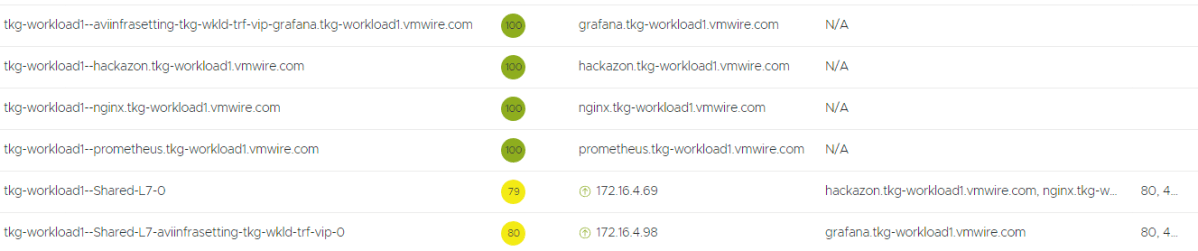
Below you can see that Grafana is now using the new AviInfraSetting and has been assigned an IP address of 172.16.4.98.

Introduction to Avi Ingress and Replacing Contour for Prometheus and Grafana

Avi Ingress is an alternative to Contour and NGINX ingress controllers.

Tanzu Kubernetes Grid ships with Contour as the default Ingress controller that Tanzu Packages uses to expose Prometheus and Contour. Prometheus and Grafana are configured to use Contour if you set ingress: true in the values.yaml files.

This post details how to set Avi Ingress up and use it to expose these applications using signed TLS certificates.

Let’s start

Install AKO with helm as normal, use ClusterIP in the Avi values.yaml config file.

Reference link to documentation:

https://avinetworks.com/docs/ako/1.9/networking-v1-ingress/

Create secret for ingress certificate, using a wildcard certificate will enable Avi to automatically secure all applications with the TLS certificate.

tls.key and tls.crt in base64 encoded format.

router-certs-default.yaml

apiVersion: v1
kind: Secret
metadata:
  name: router-certs-default
  namespace: avi-system
type: kubernetes.io/tls
data:
  tls.key: --snipped--
  tls.crt: LS0tLS1CRUdJTiBDRVJUSUZJQ0FURS0tLS0tCk1JSUVjVENDQTFtZ0F3SUJBZ0lTQTI0MDJNMStJN01kaTIwRWZlK2hlQitQTUEwR0NTcUdTSWIzRFFFQkN3VUEKTURJeEN6QUpCZ05WQkFZVEFsVlRNUll3RkFZRFZRUUtFdzFNWlhRbmN5QkZibU55ZVhCME1Rc3dDUVlEVlFRRApFd0pTTXpBZUZ3MHlNekF6TWpReE1qSTBNakphRncweU16QTJNakl4TWpJME1qRmFNQ1V4SXpBaEJnTlZCQU1NCkdpb3VkR3RuTFhkdmNtdHNiMkZrTVM1MmJYZHBjbVV1WTI5dE1Ga3dFd1lIS29aSXpqMENBUVlJS29aSXpqMEQKQVFjRFFnQUVmcEs2MUQ5bFkyQUZzdkdwZkhwRlNEYVl1alF0Nk05Z21yYUhrMG5ySHJhTUkrSEs2QXhtMWJyRwpWMHNrd2xDWEtrWlNCbzRUZmFlTDF6bjI1N0M1QktPQ0FsY3dnZ0pUTUE0R0ExVWREd0VCL3dRRUF3SUhnREFkCkJnTlZIU1VFRmpBVUJnZ3JCZ0VGQlFjREFRWUlLd1lCQlFVSEF3SXdEQVlEVlIwVEFRSC9CQUl3QURBZEJnTlYKSFE0RUZnUVVxVjMydlU4Yzl5RFRpY3NVQmJCMFE0MFNsZFl3SHdZRFZSMGpCQmd3Rm9BVUZDNnpGN2RZVnN1dQpVQWxBNWgrdm5Zc1V3c1l3VlFZSUt3WUJCUVVIQVFFRVNUQkhNQ0VHQ0NzR0FRVUZCekFCaGhWb2RIUndPaTh2CmNqTXVieTVzWlc1amNpNXZjbWN3SWdZSUt3WUJCUVVITUFLR0ZtaDBkSEE2THk5eU15NXBMbXhsYm1OeUxtOXkKWnk4d0pRWURWUjBSQkI0d0hJSWFLaTUwYTJjdGQyOXlhMnh2WVdReExuWnRkMmx5WlM1amIyMHdUQVlEVlIwZwpCRVV3UXpBSUJnWm5nUXdCQWdFd053WUxLd1lCQkFHQzN4TUJBUUV3S0RBbUJnZ3JCZ0VGQlFjQ0FSWWFhSFIwCmNEb3ZMMk53Y3k1c1pYUnpaVzVqY25sd2RDNXZjbWN3Z2dFR0Jnb3JCZ0VFQWRaNUFnUUNCSUgzQklIMEFQSUEKZHdCNk1veFUyTGN0dGlEcU9PQlNIdW1FRm5BeUU0Vk5POUlyd1RwWG8xTHJVZ0FBQVljVHlxNTJBQUFFQXdCSQpNRVlDSVFEekZNSklaT3NKMG9GQTV2UVVmNUpZQUlaa3dBMnkxNE92K3ljcTU0ZDZmZ0loQUxOcmNnM0lrNllsCkxlMW1ROHFVZmttNWsxRTZBSDU4OFJhYWZkZlhONTJCQUhjQTZEN1EyajcxQmpVeTUxY292SWxyeVFQVHk5RVIKYSt6cmFlRjNmVzBHdlc0QUFBR0hFOHF1VlFBQUJBTUFTREJHQWlFQW9Wc3ZxbzhaR2o0cmszd1hmL0xlSkNCbApNQkg2UFpBb2UyMVVkbko5aThvQ0lRRGoyS1Q1eWlUOGtRdjFyemxXUWgveHV6VlRpUGtkdlBHL3Zxd3J0SWhjCjJEQU5CZ2txaGtpRzl3MEJBUXNGQUFPQ0FRRUFFczlKSTFwZ3R6T2JyRmd0Vnpsc1FuZC8xMi9QYWQ5WXI2WVMKVE5XM3F1bElhaEZ4UDdVcVRIT0xVSGw0cGdpTThxZ2ZlcmhyTHZXbk1wOUlxQ3JVVElTSnFRblh5bnkyOHA2Zwoyc2NqS2xFSWt2RURvcExoek0ydGpCenc4a1dUYUdYUE8yM0dhcHBHWW14OS9Ma2NkUDVSS0xKMmlRTEJXZlhTCmNQRlNmZWsySEc3dEw1N0s0Uit4eDB4MTdsZ2RLeFdOL1JYQ2RvcHFPY3RyTCtPL0lwWVVWZXNiVzNJbkpFZDkKdjZmS1RmVE84K3JVVnlkajVmUGdFUWJva2Q2L3BDTGdIYS81UVpQMjZ1ZytRa1llUEJvUWRrTkpGOTk4a2NHWQpBZGc0THpJZjdYdU9SNDB4eU90aHIyN1p4Y1FXZnhMM2M4bGJuUlJrMXZNL3pMMDhIdz09Ci0tLS0tRU5EIENFUlRJRklDQVRFLS0tLS0=

k apply -f router-certs-default.yaml

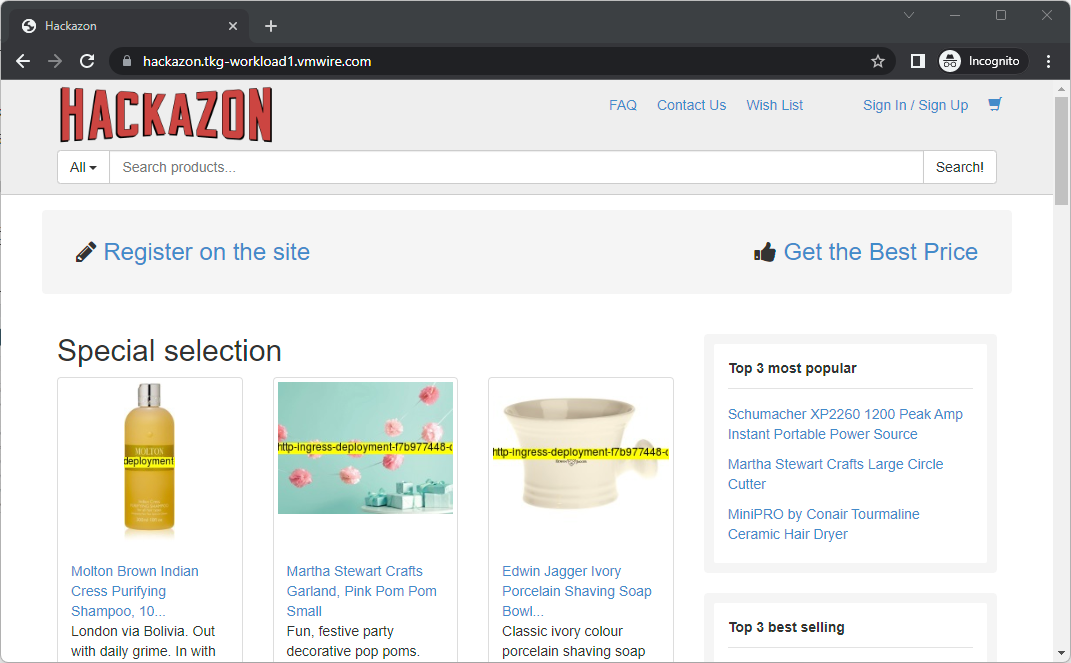
Here is the example online store website deployment using ingress with the certificate. Lets play with this before we get around to exposing Prometheus and Grafana.

sample-ingress.yaml

---
kind: Deployment
apiVersion: apps/v1
metadata:
  name: http-ingress-deployment
  labels:
    app: http-ingress
spec:
  replicas: 1
  selector:
    matchLabels:
      app: http-ingress
  template:
    metadata:
      labels:
        app: http-ingress
    spec:
      containers:
        - name: http-ingress
          image: ianwijaya/hackazon
          ports:
            - name: http
              containerPort: 80
              protocol: TCP
      imagePullSecrets:
      - name: regcred
---
kind: Service
apiVersion: v1
metadata:
  name: ingress-svc
  labels:
    svc: ingress-svc
spec:
  ports:
    - name: http
      port: 80
      targetPort: 80
  selector:
    app: http-ingress
  type: ClusterIP

avisvcingress.yaml

---
apiVersion: networking.k8s.io/v1
kind: Ingress
metadata:
  name: avisvcingress
  annotations:
    ako.vmware.com/enable-tls: "true"
  labels:
    app: avisvcingress
spec:
  ingressClassName: avi-lb
  rules:
    - host: "hackazon.tkg-workload1.vmwire.com"
      http:
        paths:
          - pathType: Prefix
            path: /
            backend:
              service:
                name: ingress-svc
                port:
                  number: 80

Note that the Service uses ClusterIP and the Ingress is annotated with ako.vmware.com/enable-tls: "true" to use the default tls specified in router-certs-default.yaml. Also add the ingressClassName into the Ingress manifest.

k apply -f sample-ingress.yaml

k apply -f avisvcingress.yaml

k get ingress avisvcingress

NAME CLASS HOSTS ADDRESS PORTS AGE
avisvcingress avi-lb hackazone.tkg-workload1.vmwire.com 172.16.4.69 80 13m

Let’s add another host

Append another host to the avisvcingress.yaml file.

---
apiVersion: networking.k8s.io/v1
kind: Ingress
metadata:
  name: avisvcingress
  annotations:
    ako.vmware.com/enable-tls: "true"
  labels:
    app: avisvcingress
spec:
  ingressClassName: avi-lb
  rules:
    - host: "hackazon.tkg-workload1.vmwire.com"
      http:
        paths:
          - pathType: Prefix
            path: /
            backend:
              service:
                name: ingress-svc
                port:
                  number: 80
    - host: "nginx.tkg-workload1.vmwire.com"
      http:
        paths:
          - pathType: Prefix
            path: /
            backend:
              service:
                name: nginx-service
                port:
                  number: 80

k replace -f avisvcingress.yaml

And use the trusty statefulset file to create an nginx webpage. statefulset-topology-aware.yaml

---
apiVersion: v1
kind: Service
metadata:
  name: nginx-service
  namespace: default
  labels:
spec:
  selector:
    app: nginx
  ports:
    - port: 80
      targetPort: 80
      protocol: TCP
  type: ClusterIP
---
apiVersion: apps/v1
kind: StatefulSet
metadata:
  name: web
spec:
  replicas: 3
  selector:
    matchLabels:
      app: nginx
  serviceName: nginx-service
  template:
    metadata:
      labels:
        app: nginx
    spec:
      affinity:
        nodeAffinity:
          requiredDuringSchedulingIgnoredDuringExecution:
            nodeSelectorTerms:
            - matchExpressions:
              - key: failure-domain.beta.kubernetes.io/zone
                operator: In
                values:
                - az-1
                - az-2
                - az-3
        podAntiAffinity:
          requiredDuringSchedulingIgnoredDuringExecution:
          - labelSelector:
              matchExpressions:
              - key: app
                operator: In
                values:
                - nginx
            topologyKey: failure-domain.beta.kubernetes.io/zone
      terminationGracePeriodSeconds: 10
      initContainers:
      - name: install
        image: busybox
        command:
        - wget
        - "-O"
        - "/www/index.html"
        - https://raw.githubusercontent.com/hugopow/cse/main/index.html
        volumeMounts:
        - name: www
          mountPath: "/www"
      containers:
        - name: nginx
          image: k8s.gcr.io/nginx-slim:0.8
          ports:
            - containerPort: 80
              name: web
          volumeMounts:
            - name: www
              mountPath: /usr/share/nginx/html
            - name: logs
              mountPath: /logs
  volumeClaimTemplates:
    - metadata:
        name: www
      spec:
        accessModes: [ "ReadWriteOnce" ]
        storageClassName: tanzu-local-ssd
        resources:
          requests:
            storage: 2Gi
    - metadata:
        name: logs
      spec:
        accessModes: [ "ReadWriteOnce" ]
        storageClassName: tanzu-local-ssd
        resources:
          requests:
            storage: 1Gi

k apply -f statefulset-topology-aware.yaml

k get ingress avisvcingress

NAME            CLASS    HOSTS                                                             ADDRESS       PORTS   AGE
avisvcingress   avi-lb   hackazon.tkg-workload1.vmwire.com,nginx.tkg-workload1.vmwire.com   172.16.4.69   80      7m33s

Notice that another host is added to the same ingress, and both hosts share the same VIP.

Lets add Prometheus to this!

Create a new manifest for Prometheus to use called monitoring-ingress.yaml

---
apiVersion: networking.k8s.io/v1
kind: Ingress
metadata:
  name: monitoring-ingress
  namespace: tanzu-system-monitoring
  annotations:
    ako.vmware.com/enable-tls: "true"
  labels:
    app: monitoring-ingress
spec:
  ingressClassName: avi-lb
  rules:
    - host: "prometheus.tkg-workload1.vmwire.com"
      http:
        paths:
          - pathType: Prefix
            path: /
            backend:
              service:
                name: prometheus-server
                port:
                  number: 80

Note that since Prometheus when deployed by Tanzu Packages is deployed into the namespace tanzu-system-monitoring, we also need to create the new ingress in the same namespace.

Deploy Prometheus following the documentation here, but do not enable ingress in the prometheus-data-values.yaml file, that uses Contour. We don’t want that as we are using Avi Ingress instead.

Add Grafana too!

Create a new manifest for Grafana to use called dashboard-ingress.yaml.

---
apiVersion: networking.k8s.io/v1
kind: Ingress
metadata:
  name: dashboard-ingress
  namespace: tanzu-system-dashboards
  annotations:
    ako.vmware.com/enable-tls: "true"
  labels:
    app: dashboard-ingress
spec:
  ingressClassName: avi-lb
  rules:
    - host: "grafana.tkg-workload1.vmwire.com"
      http:
        paths:
          - pathType: Prefix
            path: /
            backend:
              service:
                name: grafana
                port:
                  number: 80

Note that since Grafana when deployed by Tanzu Packages is deployed into the namespace tanzu-system-dashboards, we also need to create the new ingress in the same namespace.

Deploy Grafana following the documentation here, but do not enable ingress in the grafana-data-values.yaml file, that uses Contour. We don’t want that as we are using Avi Ingress instead.

Summary

Ingress with Avi is really nice, I like it! A single secret to store the TLS certificates and all hosts are automatically configured to use TLS. You also just need to expose TCP 80 as ClusterIP Services and Avi will do the rest for you and expose the application over TCP 443 using the TLS cert.

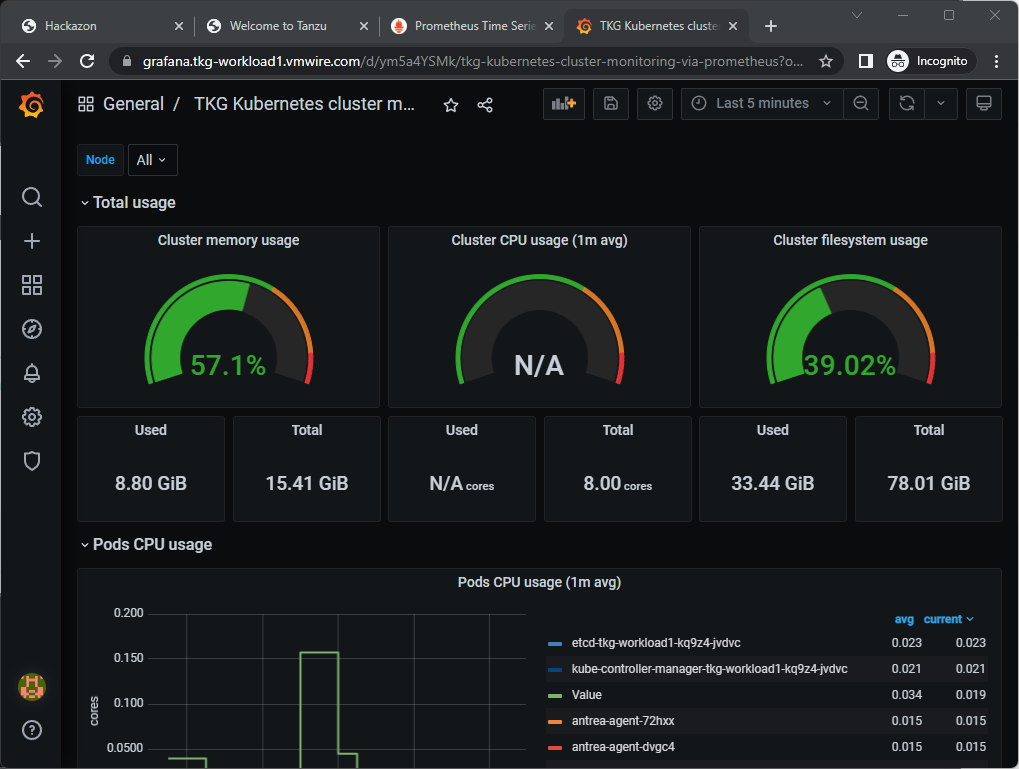
Here you can see that all four of our applications – hackazon, nginx running across three AZs, Grafana and Prometheus all using Ingress and sharing a single IP address.

Very cool indeed!

k get ingress -A

NAMESPACE                 NAME                 CLASS    HOSTS                                                              ADDRESS       PORTS   AGE
default                   avisvcingress        avi-lb   hackazon.tkg-workload1.vmwire.com,nginx.tkg-workload1.vmwire.com   172.16.4.69   80      58m
tanzu-system-dashboards   dashboard-ingress    avi-lb   grafana.tkg-workload1.vmwire.com                                   172.16.4.69   80      3m47s
tanzu-system-monitoring   monitoring-ingress   avi-lb   prometheus.tkg-workload1.vmwire.com                                172.16.4.69   80      14m

Kubernetes Gateway API with NSX Advanced Load Balancer (Avi)

Gateway API replaces services of type LoadBalancer in applications that require shared IP with multiple services and network segmentation. The Gateway API can be used to meet the following requirements:
– Shared IP – supporting multiple services, protocols and ports on the same load balancer external IP address
– Network segmentation – supporting multiple networks, e.g., oam, signaling and traffic on the same load balancer

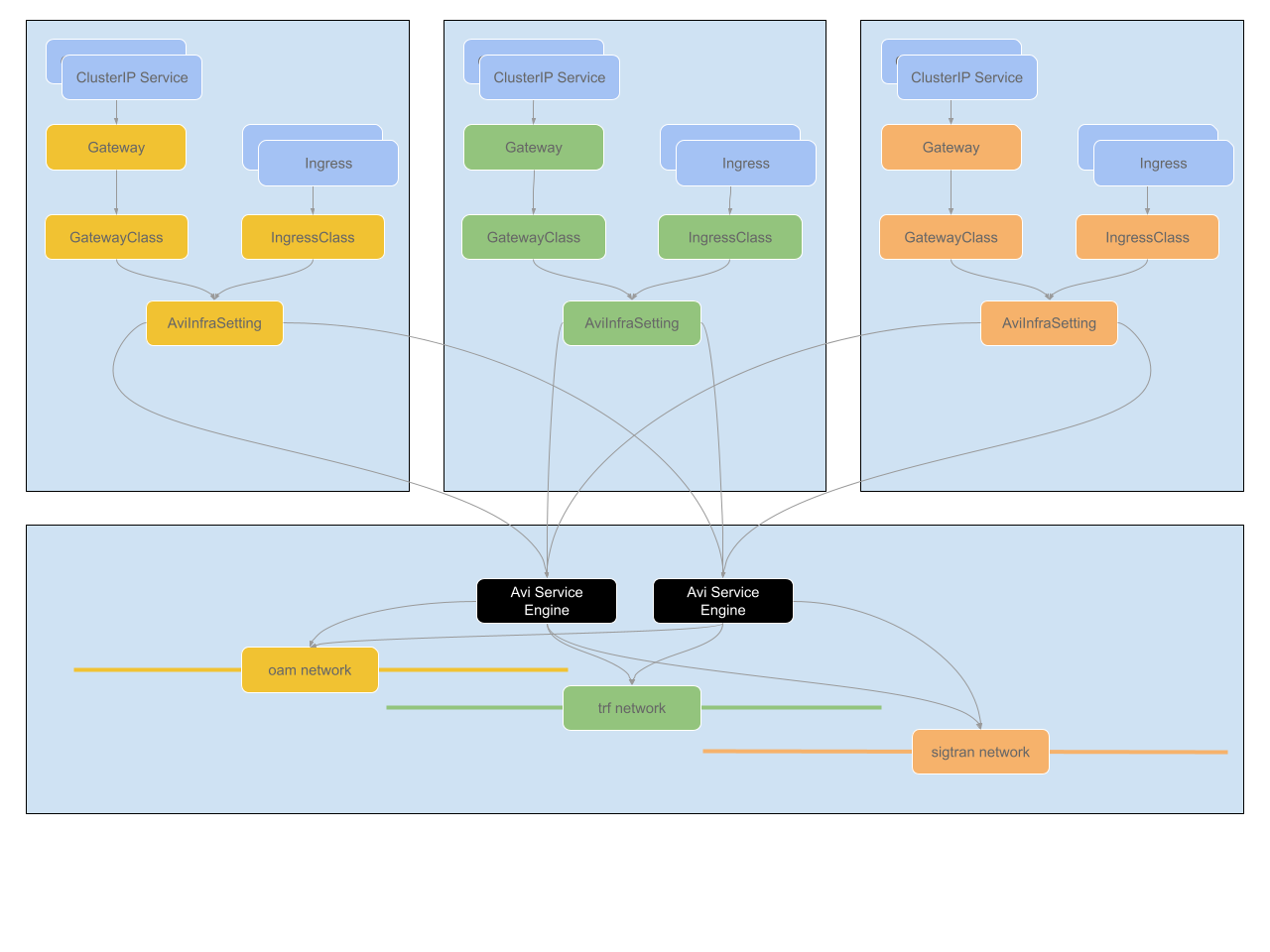
Using LoadBalancers, Gateways, GatewayClasses, AviInfraSettings, IngressClasses and Ingresses

Gateway API replaces services of type LoadBalancer in applications that require shared IP with multiple services and network segmentation. The Gateway API can be used to meet the following requirements:

  1. Shared IP – supporting multiple services, protocols and ports on the same load balancer external IP address
  2. Network segmentation – supporting multiple networks, e.g., oam, signaling and traffic on the same load balancer

NSX Advanced Load Balancer (Avi) supports both of these requirements through the use of the Gateway API. The following section describes how this is implemented.

The Gateway API introduces a few new resource types:

  • GatewayClasses are cluster-scoped resources that act as templates to explicitly define behavior for Gateways derived from them. This is similar in concept to StorageClasses, but for networking data-planes.
  • Gateways are the deployed instances of GatewayClasses. They are the logical representation of the data-plane which performs routing, which may be in-cluster proxies, hardware LBs, or cloud LBs.

Aviinfrasetting

Avi Infra Setting provides a way to segregate Layer-4/Layer-7 virtual services to have properties based on different underlying infrastructure components, like Service Engine Group, intended VIP Network etc.

A sample Avi Infra Setting is as shown below:

apiVersion: ako.vmware.com/v1alpha1
kind: AviInfraSetting
metadata:
  name: aviinfrasetting-tkg-wkld-oam
spec:
  seGroup:
    name: tkgvsphere-tkgworkload-group10
  network:
    vipNetworks:
      - networkName: tkg-wkld-oam-vip
        cidr: 10.223.63.0/26
    enableRhi: false

Avi Infra Setting is a cluster scoped CRD and can be attached to the intended Services. Avi Infra setting resources can be attached to Services using Gateway APIs. 

GatewayClass

Gateway APIs provide interfaces to structure Kubernetes service networking.

AKO supports Gateway APIs via the servicesAPI flag in the values.yaml.

The Avi Infra Setting resource can be attached to a Gateway Class object, via the .spec.parametersRef as shown below:

apiVersion: networking.x-k8s.io/v1alpha1
kind: GatewayClass
metadata:
  name: avigatewayclass-tkg-wkld-oam
spec:
  controller: ako.vmware.com/avi-lb
  parametersRef:
    group: ako.vmware.com
    kind: AviInfraSetting
    name: aviinfrasetting-tkg-wkld-oam

Gateway

The Gateway object provides a way to configure multiple Services as backends to the Gateway using label matching. The labels are specified as constant key-value pairs, the keys being ako.vmware.com/gateway-namespace and ako.vmware.com/gateway-name. The values corresponding to these keys must match the Gateway namespace and name respectively, for AKO to consider the Gateway valid. In case any one of the label keys are not provided as part of matchLabels OR the namespace/name provided in the label values do no match the actual Gateway namespace/name, AKO will consider the Gateway invalid. Please see https://avinetworks.com/docs/ako/1.5/gateway/.

kind: Gateway
apiVersion: networking.x-k8s.io/v1alpha1
metadata:
  name: app-gateway-admin-0
  namespace: default
spec:
  gatewayClassName: avigatewayclass-tkg-wkld-oam
  listeners:
  - protocol: UDP
    port: 161
    routes:
      selector:
        matchLabels:
          ako.vmware.com/gateway-name: app-gateway-admin-0
          ako.vmware.com/gateway-namespace: default
      group: v1
      kind: Service
  - protocol: TCP
    port: 80
    routes:
      selector:
        matchLabels:
          ako.vmware.com/gateway-name: app-gateway-admin-0
          ako.vmware.com/gateway-namespace: default
      group: v1
      kind: Service
  - protocol: TCP
    port: 443
    routes:
      selector:
        matchLabels:
          ako.vmware.com/gateway-name: app-gateway-admin-0
          ako.vmware.com/gateway-namespace: default
      group: v1
      kind: Service

How to use the GatewayAPI

In your helm charts, for any service that needs a LoadBalancer service. You would now want to use ClusterIP instead but use Labels such as the following:

apiVersion: v1
kind: Service
metadata:
  name: web-statefulset-service-oam
  namespace: default
  labels:
    ako.vmware.com/gateway-name: app-gateway-admin-0
    ako.vmware.com/gateway-namespace: default
spec:
  selector:
  app: nginx
  ports:
  - port: 8443
    targetPort: 443
    protocol: TCP
    type: ClusterIP

The Gateway Labels

ako.vmware.com/gateway-name: app-gateway-admin-0
ako.vmware.com/gateway-namespace: default

and the ClusterIP type tells the Avi Kubernetes Operator (AKO) to use the gateways, each gateway is on a separate network segment for traffic separation.

The gateways also have the relevant ports that the application uses, configure your gateway and change your helm chart to use the gateway objects.

Ingress Class

Avi Infra Settings can be applied to Ingress resources, using the IngressClass construct. IngressClass provides a way to configure Controller-specific load balancing parameters and applies these configurations to a set of Ingress objects. AKO supports listening to IngressClass resources in Kubernetes version 1.19+. The Avi Infra Setting reference can be provided in the Ingress Class as shown below:

apiVersion: networking.k8s.io/v1
kind: IngressClass
metadata:
  name: avi-ingress-class-oam
spec:
  controller: ako.vmware.com/avi-lb
  parameters:
    apiGroup: ako.vmware.com
    kind: AviInfraSetting
    name: aviinfrasetting-tkg-wkld-oam
---
apiVersion: networking.k8s.io/v1
kind: IngressClass
metadata:
  name: avi-ingress-class-trf
spec:
  controller: ako.vmware.com/avi-lb
  parameters:
    apiGroup: ako.vmware.com
    kind: AviInfraSetting
    name: aviinfrasetting-tkg-wkld-trf
    ---
apiVersion: networking.k8s.io/v1
kind: IngressClass
metadata:
  name: avi-ingress-class-trf
spec:
  controller: ako.vmware.com/avi-lb
  parameters:
    apiGroup: ako.vmware.com
    kind: AviInfraSetting
    name: aviinfrasetting-tkg-wkld-sigtran

Using IngresClass

The Avi Infra Setting resource can be attached to a Gateway Class object and Ingress Class object, via the .spec.parametersRef. However, using annotations with LoadBalancer object instead of using labels with Gateway API object, you will not be able to use shared protocol and ports on the same IP address. For example, TCP AND UDP 53 on the same LoadBalancer IP address. This is not supported yet, until MixedProtocolLB is supported by Kubernetes.

To provide a Controller to implement a given ingress, in addition to creating the IngressClass object, the ingressClassName should be specified, that matches the IngressClass name. The ingress looks as shown below:

apiVersion: networking.k8s.io/v1beta1
kind: Ingress
metadata:
  name: my-ingress
spec:
  ingressClassName: avi-ingress-class-oam
  rules:
    - host: my-website.my-domain.com
      http:
        paths:
        - path: /foo
          backend:
            serviceName: web-service-1
            servicePort: 443

Using Annotation with Services of type LoadBalancer

Services of Type LoadBalancer can specify the Avi Infra Setting using an annotation as shown below without using Gateway API objects:

annotations:
    aviinfrasetting.ako.vmware.com/name: "aviinfrasetting-tkg-wkld-sigtran"

annotations:
    aviinfrasetting.ako.vmware.com/name: "aviinfrasetting-tkg-wkld-trf”

annotations:
    aviinfrasetting.ako.vmware.com/name: "aviinfrasetting-tkg-wkld-oam"

Installing Contour and Envoy with Container Service Extension and VMware Cloud Director

This post summarizes how to get Contour and Envoy up and running with Kubernetes clusters running in VMware Cloud Director.

This post summarizes how to get Contour and Envoy up and running with Kubernetes clusters running in VMware Cloud Director.

Pre-requisites

  1. A Kubernetes cluster deployed by Container Service Extension in VCD
  2. NSX Advanced Load Balancer setup for the Kubernetes cluster
  3. A VMware Cloud Director deployment

Step 1. Upload an SSL certificate for Contour to VCD

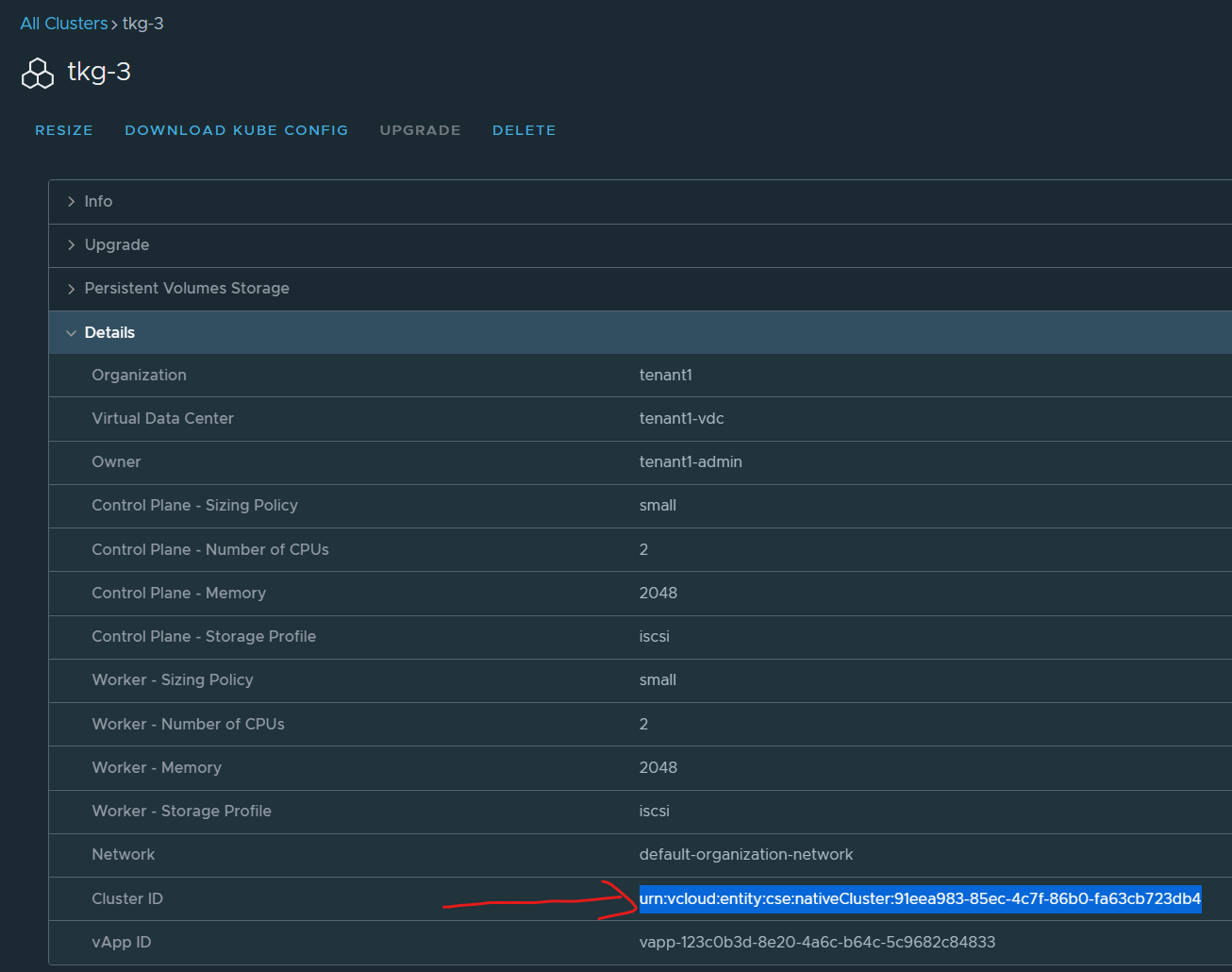
Obtain the cluster ID from Kubernetes Container Clusters, copy the entire Cluster ID.

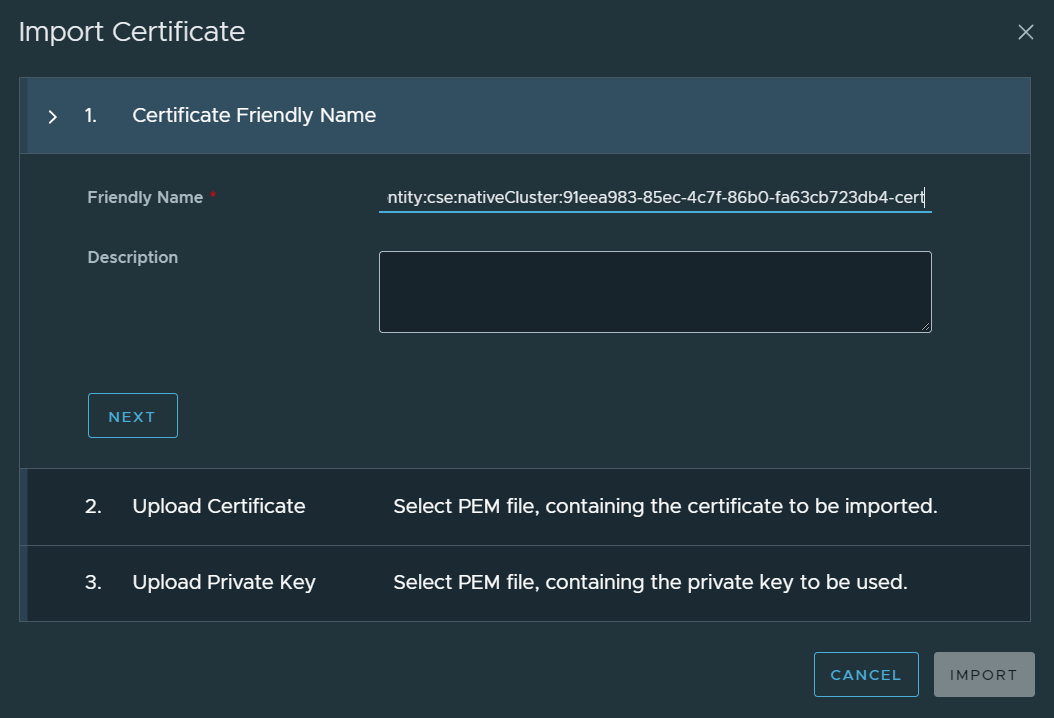
Navigate to Certificate Management, Certificates Library, and click on Import

I used a Let’s Encrypt signed certificate. I wrote about using Let’s Encrypt in a previous post.

For the friendly name, paste in the Cluster ID and append to the end “-cert”

Continue the wizard by uploading the certificate and the private key for the certificate.

Step 2. Install Helm

helm repo add bitnami https://charts.bitnami.com/bitnami
helm repo update
helm fetch bitnami/contour

tar xvf contour-<version>.tgz

Step 3. Running Envoy as a non-root user

Envoy is configured to run as a non-root user by default. This is much more secure but we won’t be able to use any ports that are lower than 1024. Therefore we must change the values.yaml file for contour.

Edit the values.yaml file located in the directory that you untar the tkz file into and search for

envoy.containerPorts.http

Change the http port to 8080 and the https port to 8443.

It should end up looking like this:

  containerPorts:
    http: 8080
    https: 8443

Step 4. Installing Contour (and Envoy)

Install Contour by running the following command

helm install ingress <path-to-contour-directory>

You should get one daemonset named ingress-contour-envoy and deployment named ingress-contour-contour. These spin up two pods.

You will also see two services starting, one called ingress-contour with a service type of ClusterIP and another called ingress-contour-envoy with a service type LoadBalancer. Wait for NSX ALB to assign an external IP for the envoy service from your Organization network IP pool.

This IP is now your Kubernetes cluster IP for ingress services. Make a note of this IP address. My example uses 10.149.1.116 as the external IP.

Step 5. Setup DNS

The next step to do is to setup DNS, I’m using Windows DNS in my lab so what I’ve done is setup a sub domain called apps.vmwire.com and also setup an A record pointing to *.apps.vmwire.com.

*.apps.vmwire.com 10.149.1.116

DNS is now setup to point *.apps.vmwire.com to the external IP assigned to Envoy. From this point forward, any DNS request that hits *.apps.vmwire.com will be redirected to Contour.

Testing ingress with some apps

Download the following files from my Github.

https://raw.githubusercontent.com/hugopow/cse/main/shapes.yaml

https://raw.githubusercontent.com/hugopow/cse/main/shapes-ingress.yaml

They are two yaml files that deploys a sample web application and then exposes the applications using Contour and Envoy.

You don’t have to edit the shapes.yaml file, but you will need to edit the shapes-ingress.yaml file and change lines 9 and 16 to your desired DNS settings.

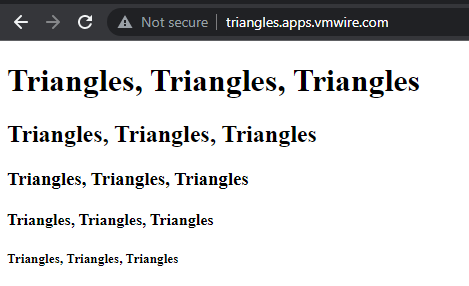
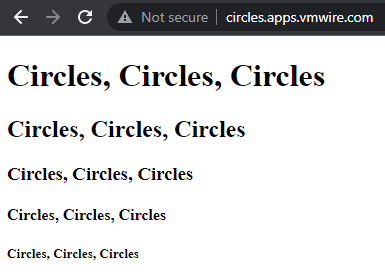
In this example, Contour will use circles.apps.vmwire.com to expose the circles application and triangles.apps.vmwire.com to expose the triangles application. Note that we are not adding circles. or triangles. A records into the DNS server.

Lets deploy the circles and triangles apps.

kubectl apply -f shapes.yaml

And then expose the applications with Contour

kubectl apply -f shapes-ingress.yaml

Now open up a web browser and navigate to http://circles.<your-domain&gt; or http://triangles.<your-domain&gt; and see the apps being exposed by Contour. If you don’t get a connection, its probably because you haven’t enabled port 80 through your Edge Gateway.