1. INTRODUCTION
1.1 Overview
The VI Toolkit (for Windows) provides a powerful yet simple command line interface for task based management of the VMware Infrastructure platform. Windows Administrators can easily manage and deploy the VMware Infrastructure with a familiar, simple to use command line interface.
The VI Toolkit (for Windows) is a tool that system administrators and developers can use to automate the management of VMware Virtual Infrastructure. With the VI Toolkit (for Windows), many tedious and time-consuming tasks can be completely automated in as little as one line of code.
The VI Toolkit (for Windows) takes advantage of Windows PowerShell and .NET to bring unprecedented ease of management and automation to the Virtual Infrastructure platform. The VI Toolkit (for Windows) provides 125 PowerShell cmdlets that cover all aspects of Virtual Infrastructure management.
Some common tasks that the VI Toolkit (for Windows) can be used to perform include:
- Snapshoting all virtual machines.
- Disconnecting or removing all Floppy or CD-ROM drives from all Virtual Machines.
- Large-scale cloning of templates.
- Moving large numbers of Virtual Machines from one virtual switch to another.
- Migrating large numbers of Virtual Machines between ESX hosts.
- Reports and monitoring across the entire Virtual Infrastructure.
1.2 System Requirements
The following platforms are supported by the VI Toolkit (for Windows):
- Microsoft Windows Server 2003 R2 (32 or 64 bit)
- Microsoft Windows Server 2003 with Service Pack 2 (SP2) (32 or 64 bit)
- Microsoft Windows Server 2003 with Service Pack 1 (SP1) (32 or 64 bit)
- Microsoft Windows XP with Service Pack 2 (SP2) (32 or 64 bit)
- Microsoft Windows Vista (32 or 64 bit)
1.3 Virtual Infrastructure Platforms Supported
The following platform combinations are supported by the VI Toolkit (for Windows):
- Management of ESX 3.0.2 using Virtual Center 2.5
- Management of ESX 3.5 using Virtual Center 2.5
- Management of ESXi 3.5 using Virtual Center 2.5
- Direct management of ESX 3.0.2
- Direct management of ESX 3.5
- Direct management of ESXi 3.5
1.4 Pre-requisites
The following tables lists the software pre-requisites and the location to each installer. This guide focuses on the most recent releases as dated 05/02/2009, which are Windows PowerShell V2 CTP3, VI Toolkit (for Windows) version 1.5 and the VI Toolkit Community Extensions build 46896.

Windows PowerShell
VI Toolkit (for Windows)
VI Toolkit Community Extensions
Another pre-requisite that is also recommended for general administration is Notepad++. This is used to create and edit scripts that can be run with the VI Toolkit.
Notepad++ can be downloaded from here.
2. INSTALLATION
There are three installation tasks that need to be performed before you can start using the VI-Toolkit to manage a VMware Infrastructure.
Windows PowerShell. The VI Toolkit 1.5 (for Windows) requires Microsoft PowerShell V2 CTP 3.
Please download it from here.
VI Toolkit (for Windows). Can be downloaded from here.
VI Toolkit Community Extensions. Can be downloaded from here.
3. SETTING UP THE VI TOOLKIT
The procedures below go through in detail how to get the VI-Toolkit up and running after installation. Once installed the icon below will be available on the Windows Desktop.

DO NOT LAUNCH IT YET!
Before launching the VMware VI Toolkit application, you must first set up your PowerShell profile. The new desktop shortcut does two things for you: it starts powershell with the VI Toolkit snapin loaded and it runs a script which modifies the look of the Powershell window and adds some cool extra functions. If you want to have the same functionality in your normal Powershell window and your scripts, you have to copy some stuff to your Powershell profile.
3.1 First, set up your profile:
1. Start a normal PowerShell Window by navigating to Start | All Programs | Windows PowerShell V2 (CTP3) | Windows PowerShell V2 (CTP3), the following will be launched:

2. Run the following command:
Test-Path $profile
3. If it returned True then you already have a profile file. If it returned False, then proceed to the next step.
4. Create a profile file by running:
New-Item $profile –ItemType File
5. If an error is returned then create a WindowsPowerShell directory under your My Documents folder and then repeat step 4.
3.2 Adding the snap-in:
1. Open your profile by running:
Invoke-Item $profile
2. Add the following line to the profile file to load the snap-in:
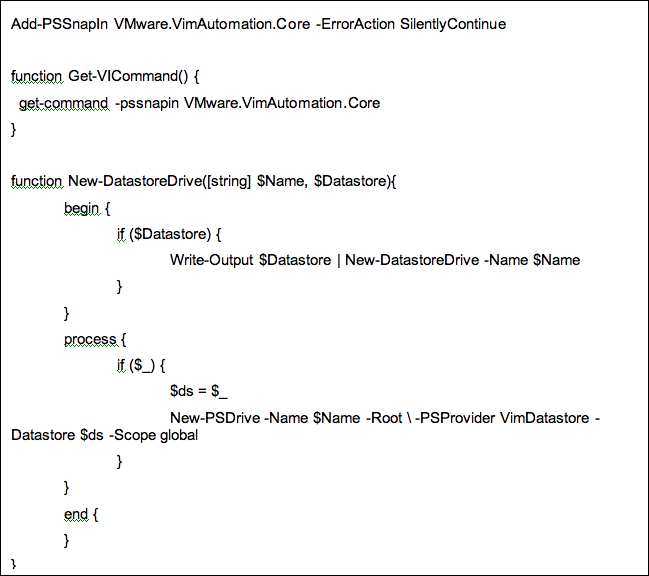
Add-PSSnapIn VMware.VimAutomation.Core -ErrorAction SilentlyContinue
3.3 Adding undocumented functions
1. Open the file C:\Program Files\VMware\Infrastructure\VIToolkitForWindows\Scripts\Initialize-VIToolkitEnvironment.ps1
2. Copy the following Function Blocks to your profile file:
Get-VICommand, New-DatastoreDrive, New-VIInventoryDrive, Get-VIToolkitDocumentation, Get-VIToolkitCommunity
If the steps were performed successfully, then your profile will be present in the folder structure C:\Documents and Settings\Hugo Phan\My Documents\WindowsPowerShell/ Microsoft.PowerShell_profile.ps1
And its contents will look something like this:
3.4 Enabling the execution of scripts
The Set-ExecutionPolicy changes the user preference for the execution policy of the shell. The execution policy is part of the security strategy of Windows PowerShell. It determines whether you can load configuration files (including your Windows PowerShell profile) and run scripts, and it determines which scripts, if any, must be digitally signed before they will run.
You need to set the execution policy to unrestricted using the below cmdlet
set-executionpolicy unrestricted
get-executionpolicy will return the current execution policy.
The default ExecutionPolicy is Restricted. Unrestricted is unnecessarily risky.
Set-ExecutionPolicy RemoteSignedis more secure and works for VI Toolkit 1.5.
3.5 Loading the Community Extensions
The VI Toolkit for Windows Community Extensions is a PowerShell module designed to work with the VI Toolkit for Windows.
1. Download and extract the package and then copy the coreModule folder to the root of C:
2. Open up a Windows PowerShell session and then type in the following command
Import-Module “c:\coreModule\viToolkitExtensions.psm1”
Now you are ready to start using the VI Toolit by either logging into a vCenter environment or by launching scripts.

 VMwire