vmware-vim-cmd
For those of you familiar with vimsh and used it to configure a scripted install of ESX 3.5, have you noticed that the following error would occur when launching commands using /usr/bin/vimsh ?
/usr/bin/vimsh -n -e “hostsvc/maintenance_mode_enter
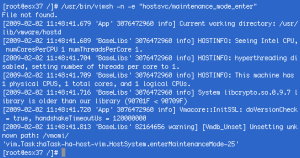
Alternatively, by using the wrapper developed for ESX 3.5, vmware-vim-cmd, you would get the following:
/usr/bin/vmware-vim-cmd hostsvc/maintenance_mode_enter

The two commands are detailed in the Xtravirt whitepapers, vimsh and vimsh for ESX 3.5. I would recommend at least having a quick browse to see what can be achieved with these commands. Using vmware-vim-cmd in conjunction with esxcfg- can achieve some very interesting results, especially if you love to create the perfect KickStart build script.
If only it is possible to launch vmware-vim-cmd commands using the RCLI just as esxcfg- can be launched using vicfg-. Anyone have an idea?
A few more examples
Refreshing the network settings
/usr/bin/vmware-vim-cmd hostsvc/net/refresh
Refreshing the storage
/usr/bin/vmware-vim-cmd hostsvc/storage/refresh
The all important enabling VMotion
/usr/bin/vmware-vim-cmd hostsvc/vmotion/vnic_set vmk0
And how about setting vSwitch1 to use Route Based on IP Hash?
/usr/bin/vmware-vim-cmd hostsvc/net/vswitch_setpolicy –nicteaming-policy=loadbalance_ip vSwitch1
And setting vSwitch0 to use Route Based on the Originating Virtual PortID. (vSwitch0 has two portgroups using VLAN tagging, 1 for Service Console and 1 for VMotion, we wish to use active-passive nic teaming policy)
Set active vmnic0 and standby vmnic2 for Service Console
/usr/bin/vmware-vim-cmd hostsvc/net/portgroup_set –nicorderpolicy-active=vmnic0 vSwitch0 ‘Service Console’
/usr/bin/vmware-vim-cmd hostsvc/net/portgroup_set –nicorderpolicy-standby=vmnic2 vSwitch0 ‘Service Console’
Set active vmnic2 and standby vmnic0 for VMkernel network
/usr/bin/vmware-vim-cmd hostsvc/net/portgroup_set –nicorderpolicy-active=vmnic2 vSwitch0 VMkernel
/usr/bin/vmware-vim-cmd hostsvc/net/portgroup_set –nicorderpolicy-standby=vmnic0 vSwitch0 VMkernel
Set vSwitch overide load balancing policy
/usr/bin/vmware-vim-cmd hostsvc/net/portgroup_set –nicteaming-policy=loadbalance_srcid vSwitch0 ‘Service Console’
/usr/bin/vmware-vim-cmd hostsvc/net/portgroup_set –nicteaming-policy=loadbalance_srcid vSwitch0 VMkernel
Let’s not forget to refresh our network settings
/usr/bin/vmware-vim-cmd hostsvc/net/refresh
/usr/bin/vmware-vim-cmd internalsvc/refresh_network


 VMwire